Photo Sentinel: Free Up Your iPhone Without Losing a Single Photo
You can free up iPhone storage safely by backing photos up to a second location, verifying each copy against the original, and only then deleting from the phone. Photo Sentinel, a free open source Mac app, does this with Google Drive and SHA 256 fingerprints, and removes nothing it cannot prove is safely backed up.
Photo Sentinel: Free Up Your iPhone Without Losing a Single PhotoAndrew Baker's Technology Blog Posts, 03/Nov/2026
https://andrewbaker.ninja/2026/11/03/photo-sentinel-free-up-your-iphone-without-losing-a-single-photo/
1. Install It in One Paste
Open Terminal on your Mac, paste this whole block, and press Return. It installs what Photo Sentinel needs (Apple’s command line tools, Homebrew, Python, rclone, exiftool and ffmpeg), downloads the code from GitHub, builds the app, and opens it. It takes about 10 minutes. Paste it again any time to update.
cat > /tmp/install-photo-sentinel.sh <<'EOF'
#!/bin/bash
# Installs Photo Sentinel from https://github.com/andrewbakercloudscale/photo-sentinel
set -euo pipefail
DIR="$HOME/Desktop/github/iphone-image-manager"   # the app runs its engine from here
if ! xcode-select -p >/dev/null 2>&1; then
  xcode-select --install
  echo "Finish installing the command line tools in the window that opened, then paste this again."
  exit 1
fi
if ! command -v brew >/dev/null 2>&1; then
  /bin/bash -c "$(curl -fsSL https://raw.githubusercontent.com/Homebrew/install/HEAD/install.sh)"
  eval "$(/opt/homebrew/bin/brew shellenv 2>/dev/null || /usr/local/bin/brew shellenv)"
fi
brew install [email protected] exiftool ffmpeg rclone
if [ -d "$DIR/.git" ]; then
  git -C "$DIR" pull --ff-only
else
  mkdir -p "$(dirname "$DIR")"
  git clone https://github.com/andrewbakercloudscale/photo-sentinel.git "$DIR"
fi
cd "$DIR"
"$(brew --prefix [email protected])/bin/python3.14" -m venv .venv
.venv/bin/pip install --quiet -e .
(cd spikes/iimphotos && swift build -c release)
bash app/scripts/build-app.sh
echo "Photo Sentinel is installed in your Applications folder and open."
EOF
chmod +x /tmp/install-photo-sentinel.sh && exec /tmp/install-photo-sentinel.sh
If a window pops up asking to install the command line tools, let it finish, then paste the block again.
Prefer one short line? The same script is a public download, so this does exactly the same thing:
/bin/bash -c "$(curl -fsSL https://andrewninjawordpress.s3.af-south-1.amazonaws.com/photo-sentinel-install.sh)"You can read the script in your browser before you run it.
A free, open source Mac app that backs up your iPhone photos and videos to Google Drive, checks every copy, and only then helps you take them off the phone. It has freed 231 GB on my own iPhone so far, and it will not remove anything it cannot prove is safe.
My iPhone held 94,180 photos and videos, about 424 GB. My MacBook had 95 GB free. Every “free up space” guide says the same thing: back it up, then delete it. None of them tells you how to know the backup actually worked before you press delete, and with iCloud Photos turned on, deleting on the phone deletes everywhere.
Last year I wrote a script to copy photos from an iPhone to a MacBook. That solved copying. It did not solve the hard part, which is deciding what can safely come off the phone. Photo Sentinel is the answer to that, and it is now a proper Mac app.
It also sorts your media and helps you clear out the waste. It knows the difference between the photos and videos you took yourself and the media apps saved for you, like WhatsApp downloads and TikTok videos. So you can clear out the clutter and keep the memories.
2. What It Does
Photo Sentinel works in four steps, always in this order:
- Look. It reads your Photos library and builds a list of everything on the phone: what it is, which app it came from, where and when it was taken, and how big it is. Nothing is changed.
- Back up. It copies items to Google Drive in small batches, records a fingerprint (a SHA256 hash) of each file, and checks Google Drive holds exactly that file.
- Check. Whenever you ask, it reads every file in Google Drive again and compares it with the fingerprint taken when it left the phone.
- Remove, only when you say so. It shows you what can safely go, you type Confirm, and macOS asks you one last time. Click Delete when the dialog appears.
The default is always to keep everything. Backing up never deletes anything.
3. The Checkup Tab: What to Do Next
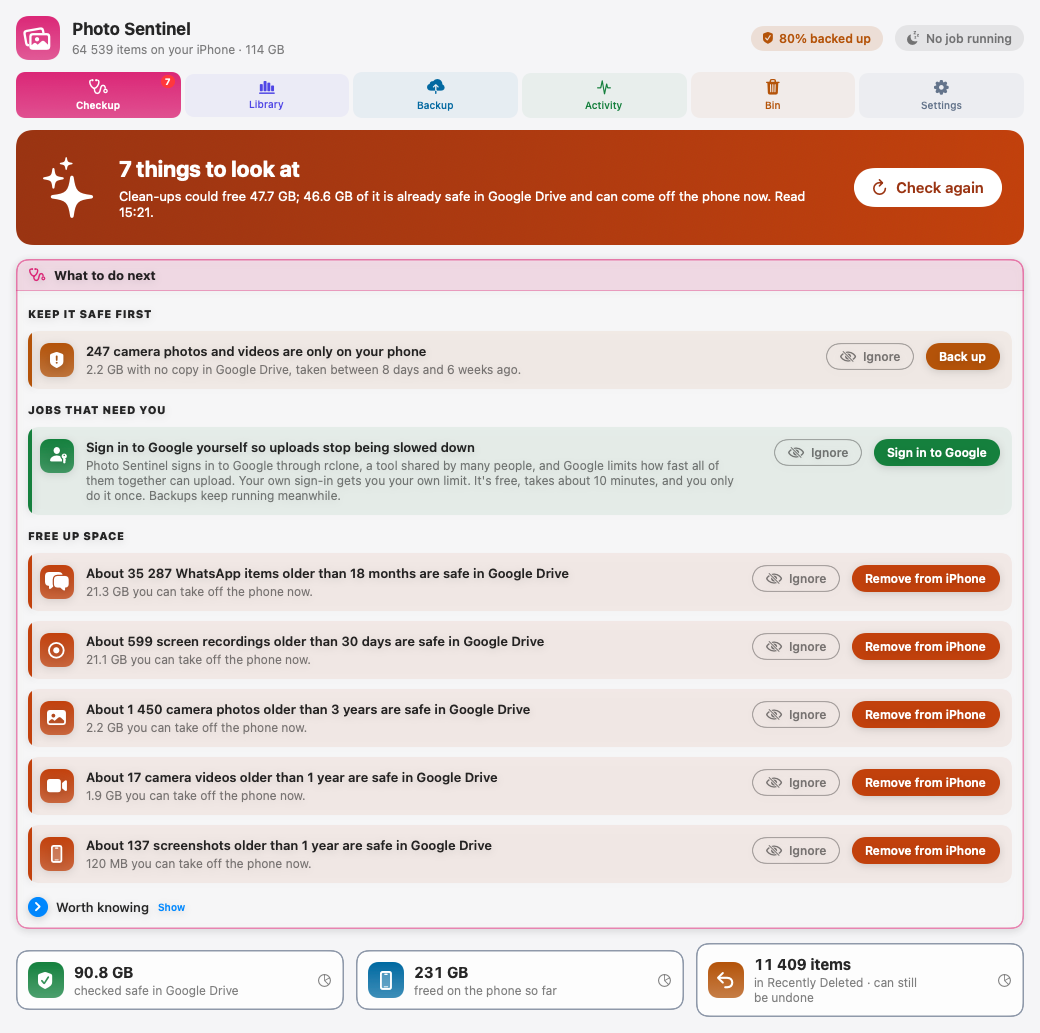
The app opens on Checkup, a short list of what is worth doing, in order:
- Keep it safe first. Anything that exists only on your phone, with no copy in Google Drive. My list says 247 recent camera photos and videos are in that state, with a Back up button.
- Jobs that need you. Things only you can do, like signing in to Google yourself so uploads are not slowed down by a shared limit.
- Free up space. Each cleanup with its size, already checked against Google Drive: 21.3 GB of WhatsApp media older than 18 months, 21.1 GB of old screen recordings, and so on.
Every line has a button. You never need the command line.
4. The Library Tab: Where Your Space Went
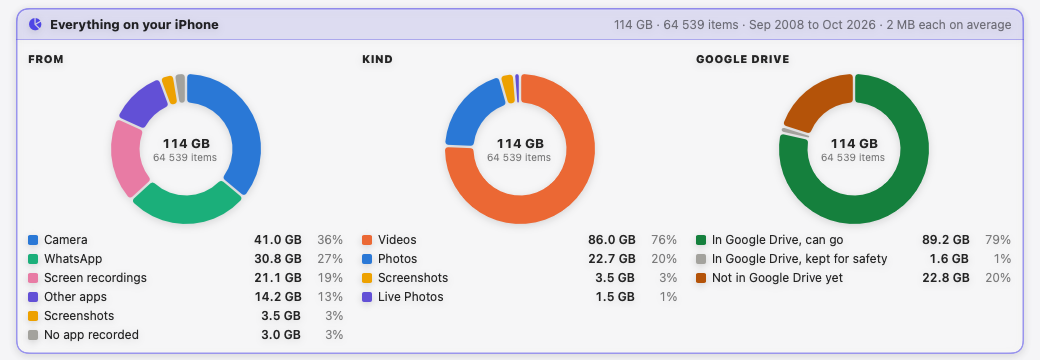
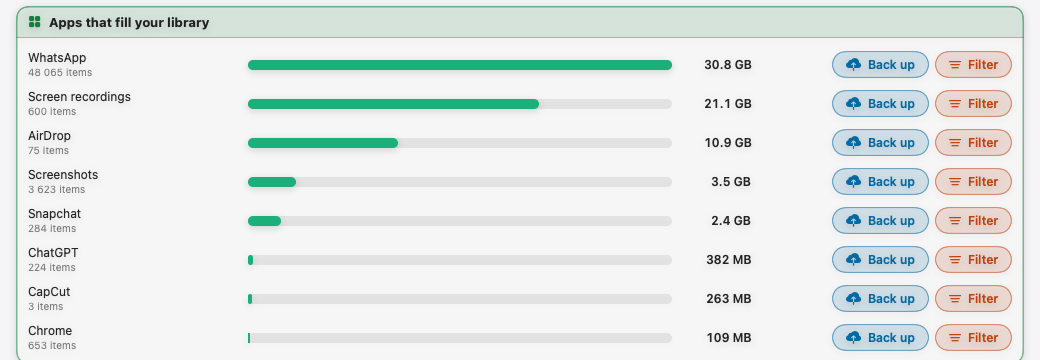
The Library tab shows what is filling your phone. On mine, 114 GB today, the surprises were:
- WhatsApp was 27% of everything. Forwarded videos, memes and voice notes nobody will ever look at again.
- Screen recordings were 19%. 600 of them, 21 GB.
- Videos were 76% of the space, while photos were only 20%.
It also breaks down the apps that save to your library, so you can see AirDrop, Snapchat and ChatGPT separately rather than one “other” bucket:
Over Time
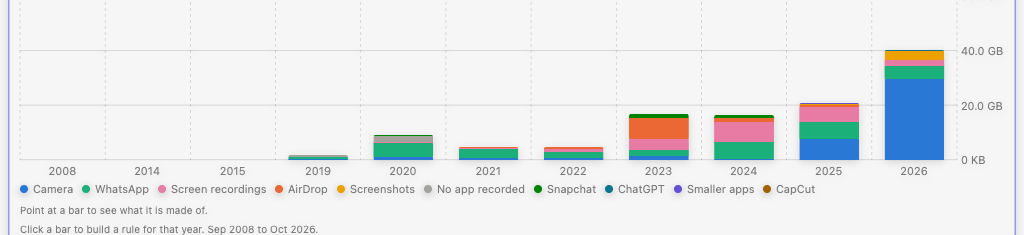
The “Over time” chart shows how much each year added, split by where it came from. On my phone, 2023 was the year AirDrop quietly saved a pile of videos, and 2026 alone added 40 GB, most of it camera video. Point at a bar to see what it is made of; click it to build a rule for that year.
By Location
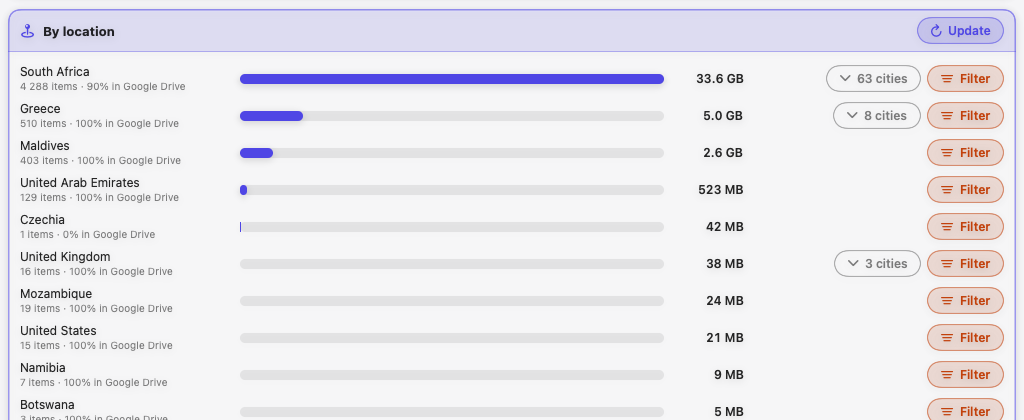
Every photo with a location is placed on a map by country and city, so “everything from that trip to Greece” is one click. It also shows how much of each place is already in Google Drive.
What Is Already Safe
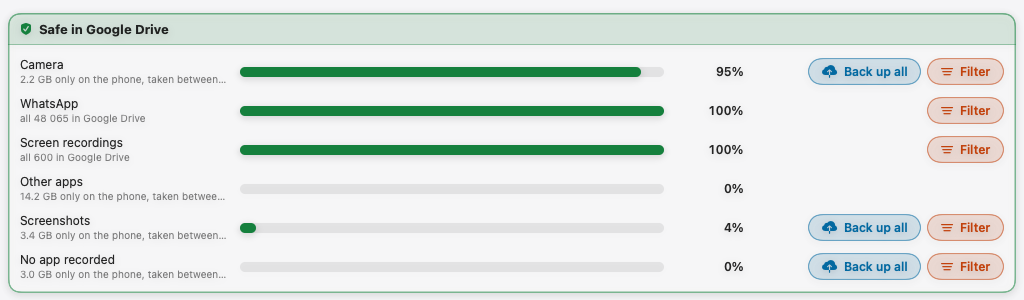
For each kind of media, how much is already checked in Google Drive. WhatsApp and screen recordings are fully backed up on mine; screenshots are not yet, so they have a Back up all button.
Suggestions
Photo Sentinel suggests cleanups that fit your library, each with how much it frees today and how much more once the rest is backed up. Review opens the removal screen; nothing happens until you confirm.
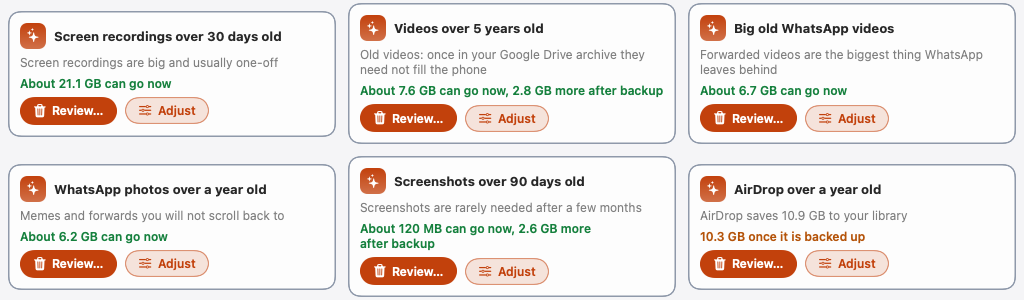
From here you set your rules: for example, keep camera photos for 3 years on the phone, WhatsApp for 18 months, and screenshots for 1 year. Everything older goes to Google Drive and can then come off the phone. The app shows the result before you commit: with my rules, the phone goes from 114 GB to 65.9 GB, and 46.6 GB of that can go right now because it is already safe.

What It Has Freed So Far
Click the “freed” number and you get the full story: 231 GB and 30,921 items removed, what they were, and when. Anything removed in the last 30 days is still in Recently Deleted and can be undone.
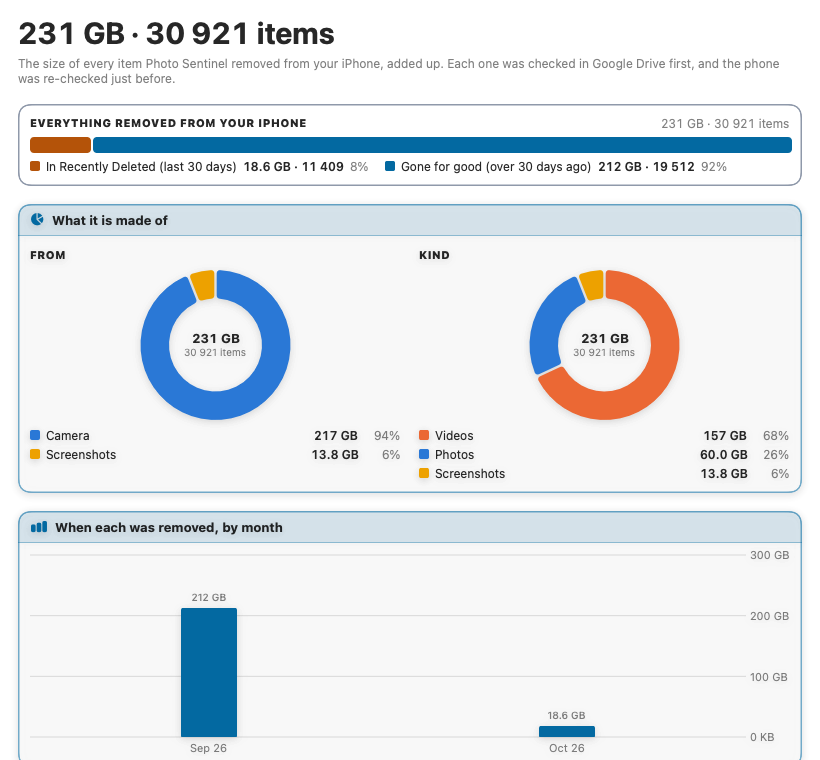
5. Why Removal Is the Hard Part
Copying photos is easy. Being sure you can delete them is not. Building this taught me four ways a “backed up” photo can still be lost:
- The phone may not have the real photo. With “Optimize iPhone Storage” on, iOS swaps originals for smaller copies. Back up a smaller copy, delete the original, and the full quality photo is gone everywhere. In one test, 27% of a sample looked like smaller copies. Photo Sentinel asks Photos for the original file, downloading it from iCloud if needed, and before removal checks the Google Drive copy is exactly the size of the original.
- Apple hands out converted copies by default. Ask for a file over USB and you get a JPEG made from your HEIC, not the HEIC. Every check passes, because the converted copy is all the tool ever saw. Photo Sentinel asks for the original and stops if it gets anything else.
- A backup can go bad later. Removal reads each file’s fingerprint from Google Drive again at the moment of removal, not from a note made weeks earlier. No match, no removal.
- Some photos come in parts. A Live Photo is a still photo plus a short video. Photo Sentinel will not remove one unless both halves are safely backed up.
Favourites, WhatsApp items you put in your own albums, and anything that does not pass a check stay on the phone. The removal screen lists what was held back and why, and every removed item keeps a record of the evidence that allowed it.
6. Your Mac Is Only a Stop on the Way
You do not need room on your Mac for your whole library. Photo Sentinel copies a batch down, uploads it, checks Google Drive has it, then moves the Mac copy to the Trash and fetches the next batch. My Mac never held more than a few GB of photos at once.
The two copies that matter are Google Drive and, for 30 days after removal, the phone’s Recently Deleted album. Anything removed by mistake can be put back from there, and the Bin tab can download anything back from Google Drive, checking each file as it arrives.
Google Drive is the backup. If you like, Photo Sentinel can also send a copy to Google Photos for easy viewing, but nothing is ever removed because Google Photos has a copy.
7. The Numbers So Far
| Freed on my iPhone | 231 GB, 30,921 items |
|---|---|
| Still on the phone | 114 GB, 64,539 items |
| Of that, checked safe in Google Drive | 90.8 GB |
| Photos lost | none |
8. Getting It
Photo Sentinel is free and open source (MIT licence) on GitHub.
It is early software, so for now you build it on your own Mac with the one paste installer at the top of this post. It puts the code in a github folder on your Desktop; keep it there, because the app runs from that folder.
Before you start, set Photos on your Mac to Settings → iCloud → iCloud Photos, with Optimise Mac Storage. That keeps the originals in iCloud and lets Photo Sentinel fetch them one at a time, so your disk never fills up.
Then open Photo Sentinel, connect Google Drive in Settings, and start from Checkup.
9. What Is Next
- Your own Google sign in by default, so uploads are never slowed by a shared limit.
- More places to back up to, starting with Amazon S3.
- A signed download, so you will not have to build it yourself.
If you try it, I would like to hear what it found on your phone. Issues and ideas are welcome on GitHub.