When macOS Refuses to Open Your Own Markdown File

Removing the quarantine attribute fixes this immediately. Open Terminal and run `xattr d com.apple.quarantine /path/to/your file.md`, replacing the path with your actual file. macOS Gatekeeper blocks any quarantined file regardless of type, so a plain text markdown file receives identical treatment to an unsigned app until that extended attribute is cleared.
macOS · Security · Productivity · April 2026
You created a markdown file on your Mac. Maybe you moved it around, received it via Slack, or downloaded it from somewhere. You try to open it in Notepad++ and instead of your content, macOS hands you this:
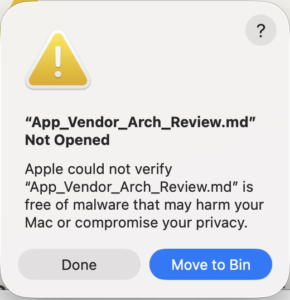
Apple could not verify “App_Vendor_Arch_Review.md” is free of malware that may harm your Mac or compromise your privacy. Done >> Move to Bin
This is macOS Gatekeeper doing its job, arguably too enthusiastically. The file has a quarantine extended attribute stamped onto it, usually because it passed through a browser download, a messaging app, or AirDrop. Gatekeeper sees the quarantine flag and blocks the open regardless of file type, so a plain text file gets the same treatment as an unsigned binary. There is no per-file-type whitelist. You cannot tell macOS to trust all markdown files. Your options are to strip the quarantine flag, add a convenience alias, or attempt to disable Gatekeeper entirely.
1. Strip the quarantine flag on a single file
The most surgical approach is to remove the quarantine attribute from one specific file and nothing else. It keeps Gatekeeper fully active everywhere and requires no configuration, though it becomes tedious quickly if you work with many files since you need the exact path each time.
xattr -d com.apple.quarantine ~/Downloads/App_Vendor_Arch_Review.md2. Strip the flag recursively on a folder (recommended)
If you keep working files in a consistent location, running this once on that directory clears the quarantine flag on everything inside it recursively. Gatekeeper stays active for everything outside that path, so there is no ongoing security regression. The only discipline required is remembering to rerun it when a fresh batch of files arrives.
xattr -rd com.apple.quarantine ~/Documents/WorkingDocs/3. Add a shell alias for quick unquarantine
Adding an alias to your .zshrc gives you a short command that is easier to remember and faster to type, while keeping Gatekeeper intact. It is still a per-file operation rather than an automatic one, but the one-time setup cost is low.
alias unquarantine='xattr -d com.apple.quarantine'After reloading your shell, you can then use it as:
unquarantine ~/path/to/file.md4. Disable Gatekeeper entirely (use with caution)
On macOS Ventura and earlier, the following command would turn Gatekeeper off system-wide with no further steps required:
sudo spctl --master-disableOn macOS Sonoma (14) and later, this no longer works from Terminal alone. Running it now produces:
Globally disabling the assessment system needs to be confirmed in System Settings.Apple now requires you to open System Settings > Privacy & Security and manually confirm the change there before it takes effect. This two-step process is deliberate. The upside of going nuclear is that you eliminate all Gatekeeper interruptions without any per-file work. The downsides are significant: you remove a meaningful security layer from your entire system, Apple may silently re-enable Gatekeeper on major OS updates, and the whole approach is disproportionate to what is really a friction problem with text files. To re-enable it when needed:
sudo spctl --master-enableThe takeaway
The quarantine flag is not about the file type. It is about where the file came from. Stripping the flag on your working documents folder is the right balance: Gatekeeper continues protecting you from things that arrive in unusual places, and your day-to-day files stop triggering it. If you hit the Sonoma wall on the nuclear option, that is Apple deliberately raising the friction for disabling a security control, which is probably the right call even if it is annoying in the moment.
Andrew Baker is Group CIO at Capitec Bank and writes about technology strategy, security, and infrastructure at andrewbaker.ninja