CloudScale Backup & Restore: The Free WordPress Backup Plugin That Does the Hard Part
CloudScale Backup & Restore is a free WordPress backup plugin built for the hard part of backups, which is restoring large sites. It streams the database in 500 row batches, sends every backup to S3, Google Drive, Dropbox, OneDrive and Managed Cloud, retries failed upload chunks, and restores on the server behind maintenance mode.
How my free WordPress backup and restore plugin handles a 3 GB site every night, sends each backup to five places at once, keeps a standby rebuilding itself, and rolls back a bad plugin update before anyone notices.
Most WordPress backup plugins are good at the easy half of the job. Making a zip is easy. Restoring it on a bad night is hard: the site is down, the backup is several gigabytes, the upload stalls at 80%, and you find out which features are behind a paywall.
I built CloudScale Backup & Restore around that hard half. It runs this site, andrewbaker.ninja, which makes a backup of a little over 3 GB every night and sends it to Amazon S3, Google Drive and CloudScale Managed Cloud. It is free on WordPress.org, with no premium tier and no licence key. If you want off-site storage without an AWS account, there is an optional paid Managed Cloud for storage.
This post covers how it works, what makes it different, a fair comparison with the plugins most people already know, and the tips I’d give anyone setting up backups.
1. The Short Version
- Any size site. The database is read 500 rows at a time and streamed to disk, so memory use stays flat whether the database is 50 MB or 50 GB.
- Five destinations at once, free. Amazon S3, Google Drive, Dropbox, Microsoft OneDrive and CloudScale Managed Cloud. Every destination you enable gets every backup.
- Regional affinity. Managed Cloud stores your backups in whichever of ten regions is nearest your server, measured by round-trip time. You can also pin a region yourself.
- Uploads that survive a bad connection. A cloud chunk that fails is retried up to 5 times and resumes where the provider says it stopped, instead of starting again.
- A full restore that runs on the server. Files first, then the database, behind maintenance mode. You can close the browser while it runs.
- Restore to a new site automatically. A standby site pulls the newest backup from the cloud and restores itself on a schedule, ready for a DNS failover.
- Automatic Crash Recovery. Every plugin is copied before WordPress updates it. If the update breaks the site, it is rolled back within minutes.
- AES-256 encryption, WP-CLI, staging clones, AMI snapshots and alerts. All included.
2. How a Backup Works
2.1 Streaming the database
The classic way a backup plugin fails on a big site is memory. Load a large table into PHP and the host’s memory limit kills the request halfway through. CloudScale never does that. It reads each table 500 rows at a time and writes it straight to a file. It also caps the size of each INSERT statement, so no single statement grows larger than a restore can handle. The same backup code runs on a small blog and on a multi-gigabyte WooCommerce store.
Files are packed into a single .zip alongside the SQL dump. You choose the parts:
- Database, media uploads, plugins and themes
- Must-use plugins, languages, drop-ins and
.htaccess - WordPress core files (needed if you want to clone the site)
wp-config.php, flagged with a warning because it carries credentials
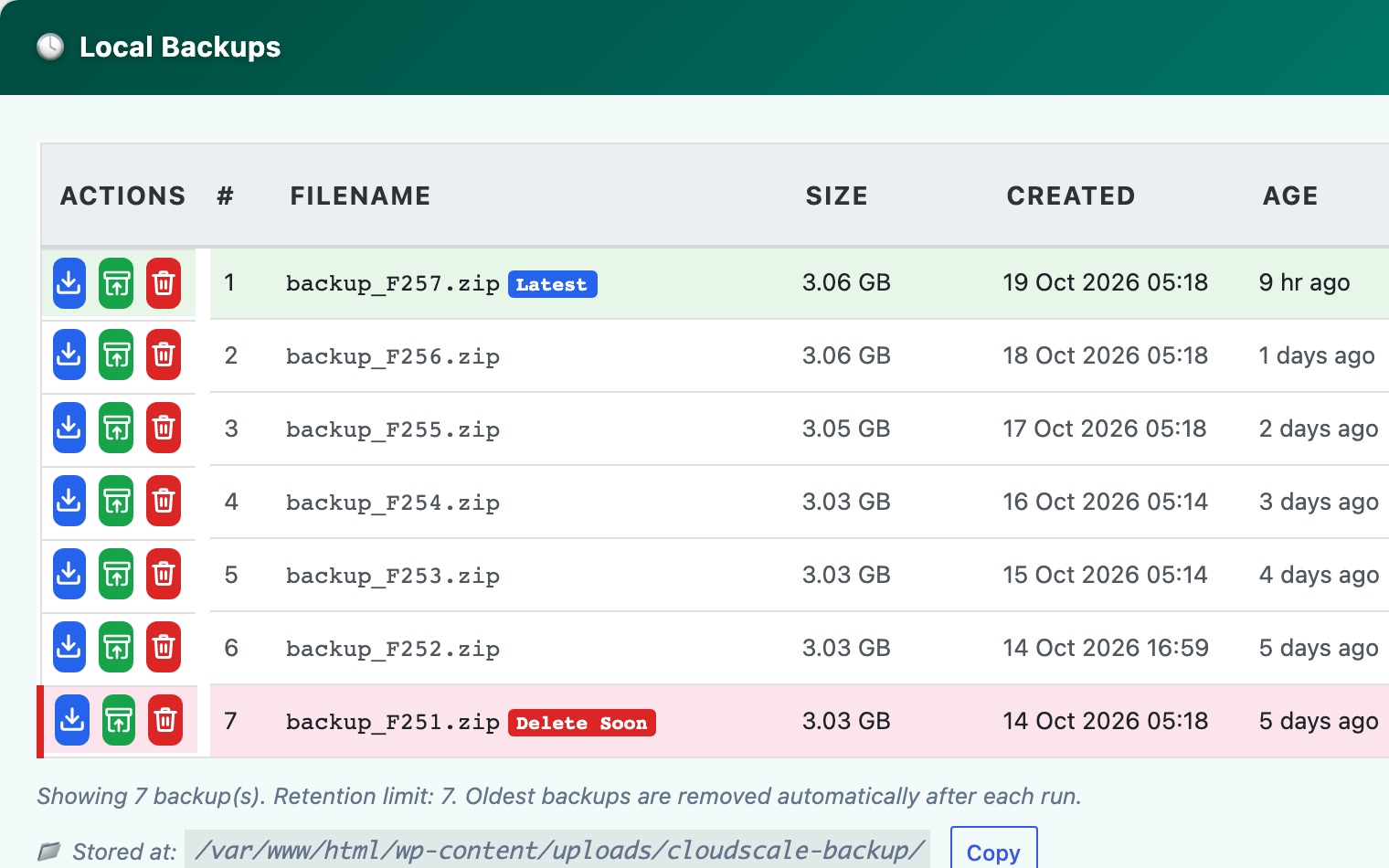
Every zip includes a backup-meta.json describing what it holds, so you can check a backup without restoring it. Here is this site’s own backup list, about 3 GB a night, with retention marking the oldest for deletion:
2.2 Fanning out to five destinations
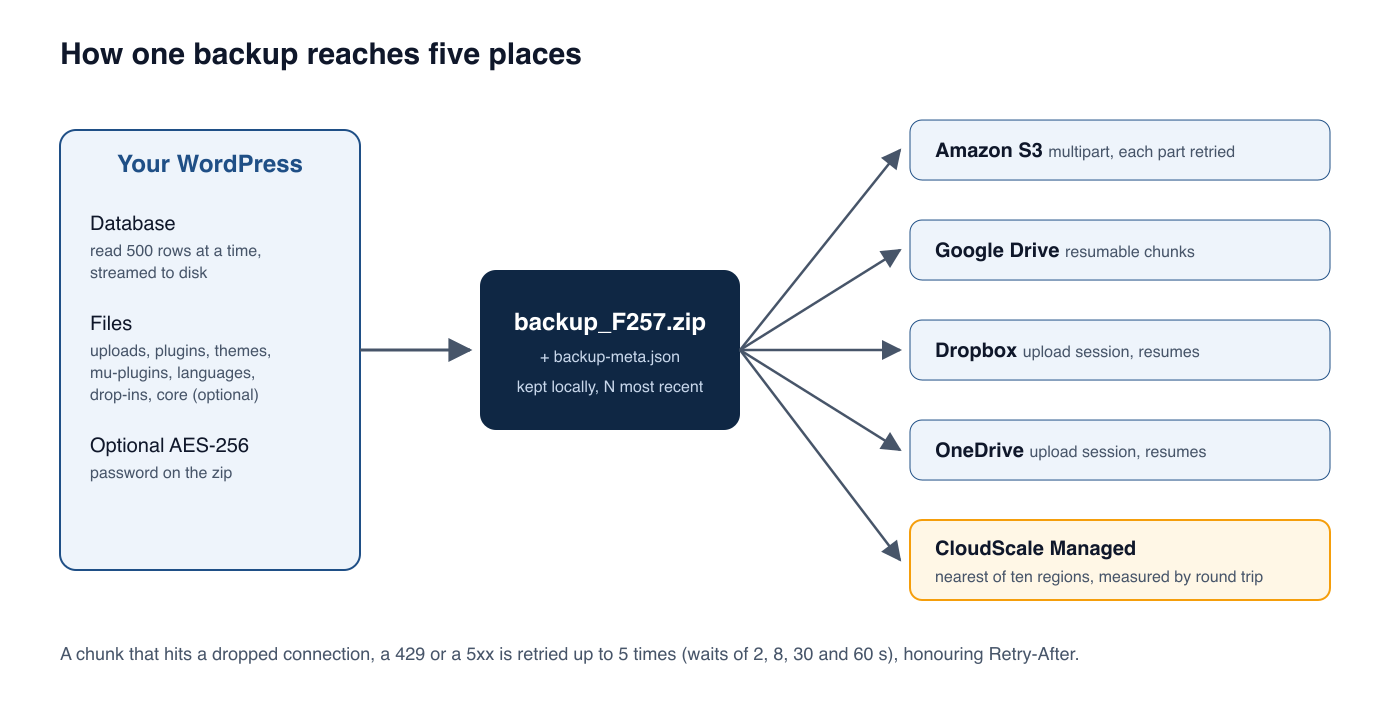
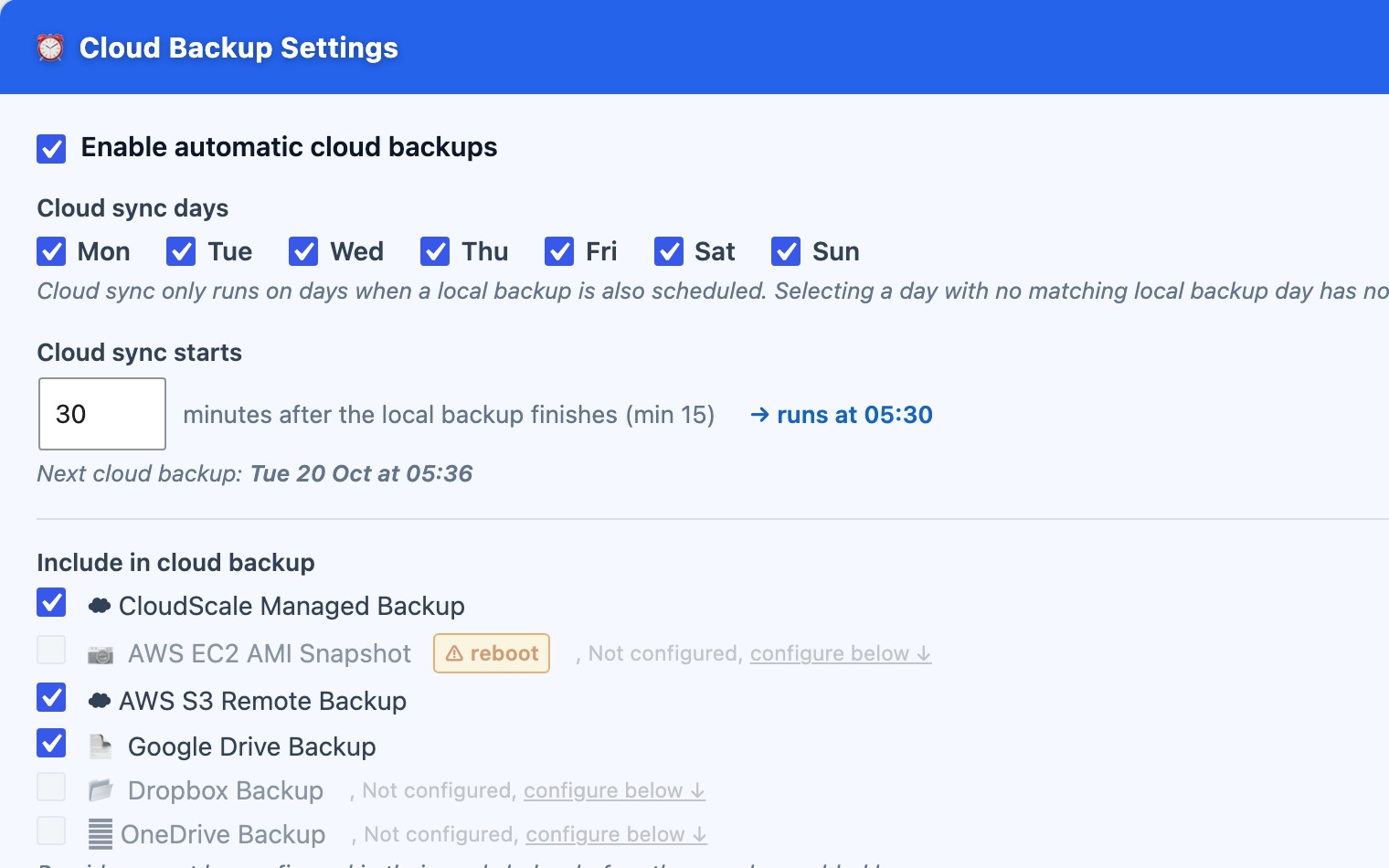
Once the zip exists, it goes to every destination you have ticked. You connect your own S3 bucket, Google Drive, Dropbox or OneDrive, and the plugin talks to each provider’s API directly. Nothing extra needs installing on your server. One retention count applies to the server and to each cloud destination independently, so the oldest copies are pruned everywhere after each run.
2.3 Regional affinity with Managed Cloud
Not everyone has an AWS account, so I added CloudScale Managed Cloud: $5 a month for 750 GB on Amazon S3 Glacier Instant Retrieval. Backups expire there after 90 days. It is the only paid part of the product, and it is optional.
The interesting part is where the backups go. There are ten regions: US East and US West, South America, Ireland, Frankfurt, Cape Town, Mumbai, Singapore, Tokyo and Sydney. On Automatic, the plugin measures the round-trip time from your server to each region and uses the nearest one. That gives faster uploads and faster restores, and keeps your data close to where your site runs. If you need data held in a particular region for compliance, pick that region instead. Changing region sends new backups there; the old ones stay where they were until they expire.
2.4 Uploads that don’t fall over
A multi-gigabyte upload crosses a lot of network, and something will eventually go wrong partway through: a dropped connection, a throttle, a 503 from the provider. Many plugins send each chunk once, so one bad moment loses the whole upload.
From version 3.2.856, every chunk to OneDrive, Dropbox and Google Drive is retried on a dropped connection, a 408, a 429 or a 5xx. It makes up to 5 attempts, waiting 2, 8, 30 and 60 seconds, and waits longer if the provider asks for that in a Retry-After header. OneDrive is asked where to resume, so a chunk whose reply was lost is not sent twice. Dropbox recognises a chunk it already has, and refreshes an access token that expires during a long upload. Amazon S3 uploads over 100 MB use multipart upload, and each part is retried in the same way.
3. How a Restore Works
A restore is the moment that matters, so it is the part I put the most care into.
3.1 The full restore, step by step
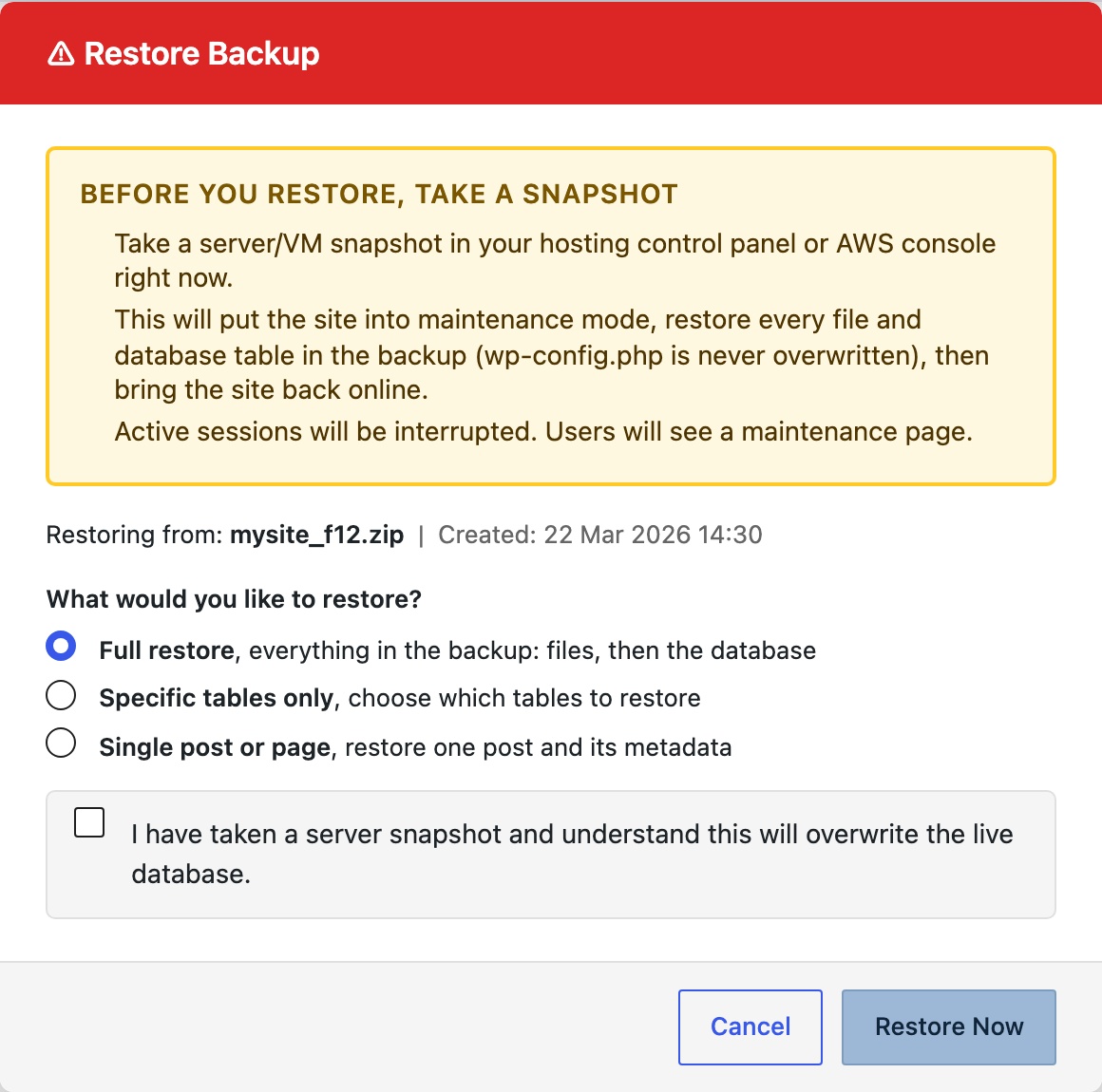
When you press Restore and choose Full restore, the work runs on the server, not in your browser:
- An encrypted backup is checked against the site’s backup password first. With the wrong password, the restore is refused before anything is touched.
- Maintenance mode switches on, so visitors get a proper maintenance page while wp-admin stays available.
- Files go first: uploads, plugins, themes, mu-plugins, languages, drop-ins and anything else the backup holds. They go first because the database refers to them.
wp-config.phpis never overwritten, because it holds this server’s own database credentials. - Then the database is imported, and the object cache is flushed so WordPress doesn’t serve stale values from Redis.
- Every restored file is reconciled against the backup, checking that it exists and is the right size.
- A health check renames out of the way any drop-in that would crash this server, such as an
object-cache.phpexpecting a Redis server that isn’t installed here, and tells you what it disabled. - Maintenance mode comes off, the result goes to the activity log, and an alert goes out on your notification channels.
If anything fails, maintenance mode is still removed and the failure is reported honestly. A database that rejected part of the dump is reported as a failure, not a success. If PHP itself dies mid-restore, the next admin page load clears the stale maintenance file and records which phase it died in.
After a restore onto a different server, the plugin also compares the two environments. It flags a different PHP version, missing extensions, lower memory or upload limits, or a different MySQL version, so you know about them before your users do.
3.2 Restoring less than everything
Sometimes you only need a single page back, not the whole site from yesterday. The restore window offers two narrower options:
- Specific tables only. Tick, for example,
wp_commentsandwp_commentmeta. Only those tables are replaced, with no maintenance mode. - Single post or page. Pick one post from the backup and restore it with its metadata.
You can also restore from a .zip or a raw .sql file uploaded from your computer, which is how you restore a backup you downloaded from the cloud.
4. Automated Restore to a New Site: A Standby That Rebuilds Itself
This is the feature I’m proudest of, and the one I haven’t seen in other free backup plugins.
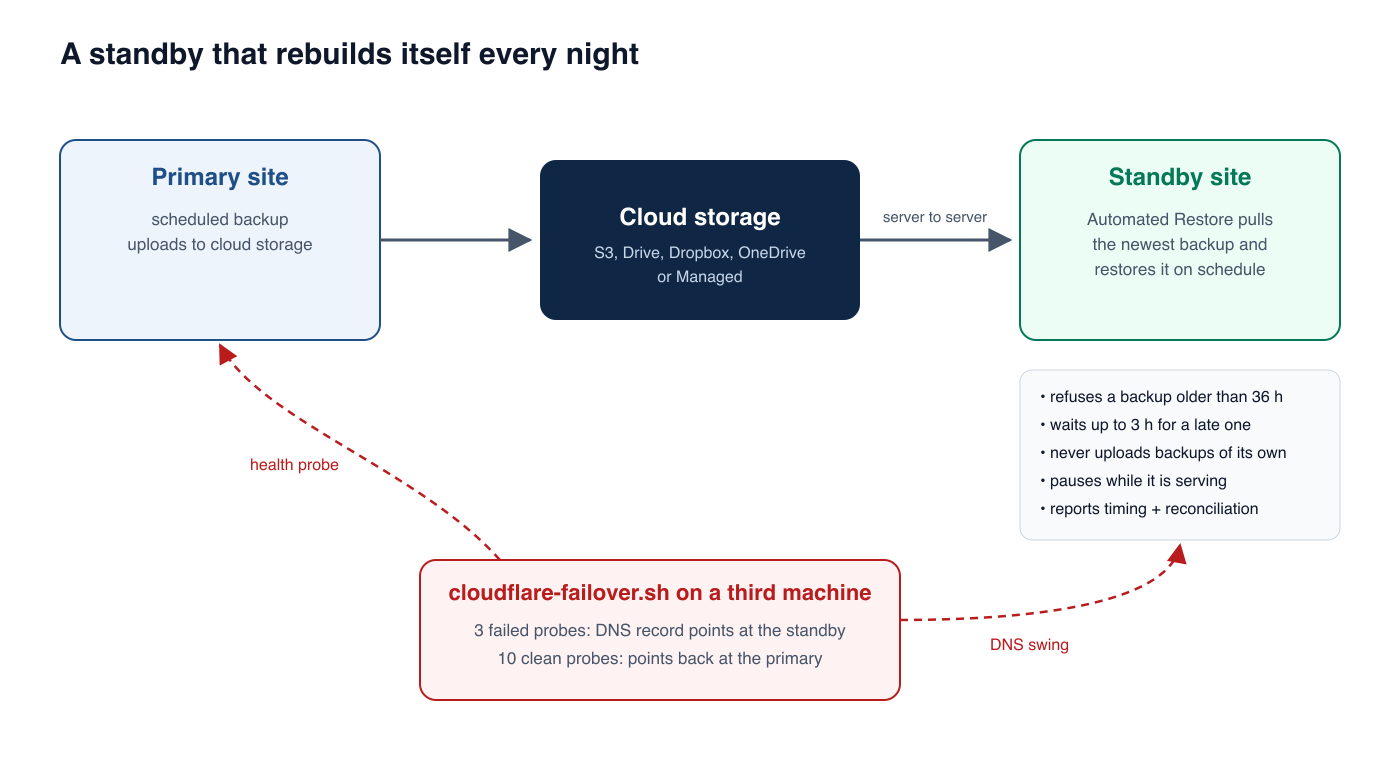
A backup that has never been restored onto a different machine is a hypothesis. So the plugin can turn a second WordPress install into a hot standby that restores the live site’s newest cloud backup on a schedule, unattended:
- Set the role in one step. On the second site, the Standby & DR tab asks whether it is a hot standby or a refreshed test copy. You type a confirmation and it sets the role, failover mode and the alert label, and switches off the live site’s scheduled jobs on the copy. A six-step checklist then shows what is done and what is left.
- Server to server. The standby copies the backup straight from S3, Google Drive, Dropbox, OneDrive or Managed Cloud. It never passes through your laptop. A copy that stops partway resumes, and an unattended run retries a stalled copy up to twelve times.
- Freshness rules. By default it refuses a backup older than 36 hours. If tonight’s backup is late, it checks every 15 minutes for up to three hours, then raises an alert rather than failing silently.
- Safe by design. A standby never uploads backups of its own, so it can’t overwrite the live site’s backups or delete them through retention. While it is serving live traffic the refresh is suspended, so nothing visitors wrote gets overwritten.
- A report every time. Each refresh reports how long it took, phase by phase, how far behind the primary it was, and a file-by-file reconciliation. The result only shows Clean when a real comparison ran and found nothing wrong.
For the DNS half, the plugin’s GitHub repository includes tools/cloudflare-failover.sh. Run it on a third machine. After three failed health probes it points one Cloudflare DNS record at the standby, and after ten clean probes it points the record back. I run exactly this setup for andrewbaker.ninja, with a standby on a second Raspberry Pi.
There is also Clone Targets, for staging: it restores any backup into a separate WordPress install on the same server and rewrites every URL, including inside serialized data and JSON. Before touching anything, it refuses to overwrite the live site’s own directory or database.
5. Automatic Crash Recovery
Plugins are the most common reason a WordPress site goes down, and plugin updates usually run when nobody is watching.
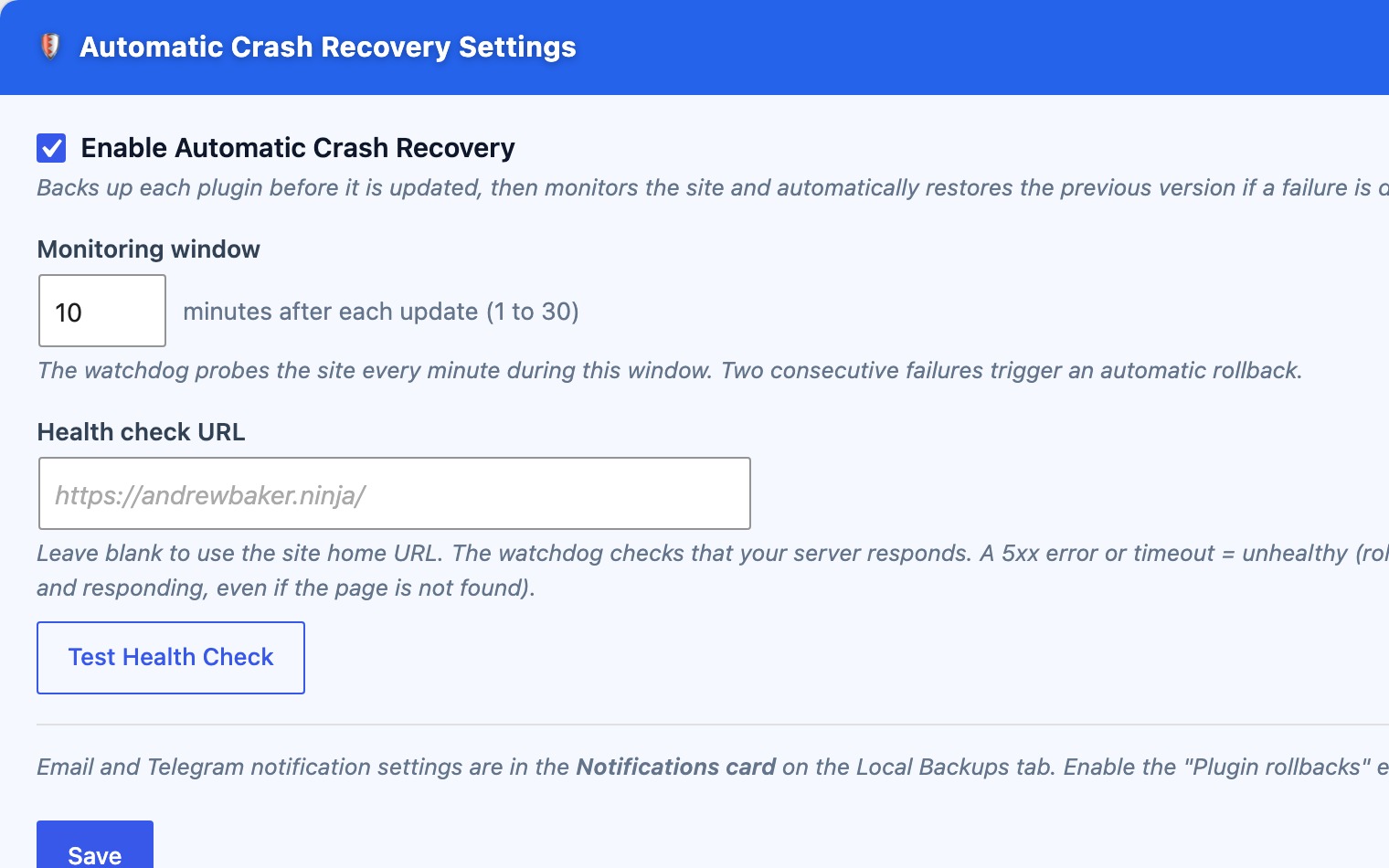
With Automatic Crash Recovery switched on:
- The moment WordPress starts updating a plugin, the current version is copied aside.
- After the update, a small watchdog run by the server’s own cron probes your site every minute for a monitoring window (10 minutes by default, up to 30).
- Two consecutive failures (a 5xx or a timeout) trigger a rollback. The broken plugin is moved aside and the previous version put back. This happens outside WordPress, so it works even when PHP is throwing a fatal error.
- Visitors see a branded “recovering” page instead of a white screen, and you get an alert.
6. Everything Else That’s Included
- AES-256 encryption. Password-protect every zip. A padlock marks encrypted backups in the list.
- Alerts. Email, SMS through Twilio, push through ntfy, and Telegram. Email, SMS and push can be set to failures only, successes only or both, plus plugin rollbacks.
- EC2 AMI snapshots. On AWS, create a full machine image from the plugin, with an optional reboot for filesystem consistency.
- A locked-down backup folder. It is protected with Apache, nginx and IIS rules plus
0700permissions. A daily self-check fetches its own backup URL to prove it isn’t publicly readable. - WP-CLI. The same restore as the button, from a shell:
wp csbr doctor
wp csbr cloud-list
wp csbr cloud-pull --newest
wp csbr restore backup_F184.zip --yes
wp csbr restore backup_F184.zip --files-only --components=uploads,themes --yes
wp csbr sync-from-cloud --max-age-hours=26 --yes
wp csbr auto-restore --status
wp csbr restore takes a database safety backup first unless you pass --no-safety-backup, and refuses to start if another restore is already running. wp csbr doctor exits with an error when any health check fails, so you can use it to gate a deploy.
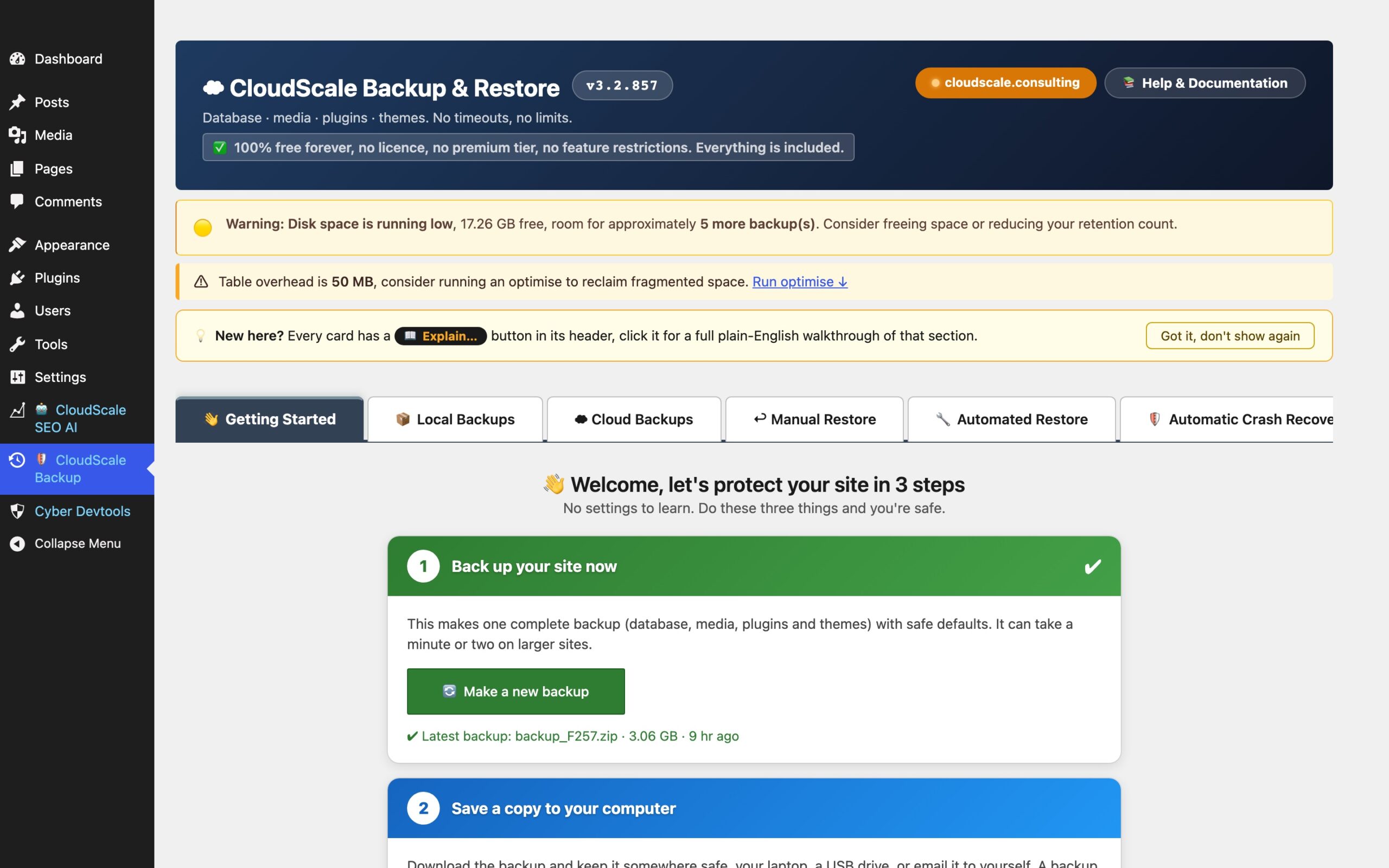
Every card in the admin screen also has an Explain button that opens a plain-English walkthrough of that section.
7. How It Compares
I want this table to be fair, so every competitor entry comes from the vendor’s own page as of October 2026, linked below. Where I couldn’t confirm something, the cell says “not stated” rather than guessing. These are all good products with long track records. The differences are mostly about what you get without paying.
| CloudScale Backup & Restore | UpdraftPlus (free) | Duplicator Lite | All-in-One WP Migration (free) | BlogVault | |
|---|---|---|---|---|---|
| Free version | Yes, everything | Yes | Yes | Yes | No free plan |
| Restore in the free version | Yes, full, tables or single post | Yes | Yes, 1-click | Restore from Backups page needs Unlimited Extension | Paid |
| Cloud destinations in free version | S3, Google Drive, Dropbox, OneDrive | S3, Google Drive, Dropbox and others (OneDrive is paid) | Local and Duplicator Cloud | Premium extensions | BlogVault’s own storage (EU) |
| Several destinations at once, free | Yes, all five | Premium | Pro | Not stated | Not applicable |
| Scheduled backups, free | Yes | Yes | Pro | Premium extension | Paid |
| Backup encryption, free | AES-256 | Premium (database encryption) | Not stated | Not stated | Encrypted (paid) |
| WP-CLI, free | Yes | Premium | Not stated | Needs Unlimited Extension | Not stated |
| Automated restore to a standby site | Yes | Not stated | Not stated | Not stated | Not stated |
| Rollback of a bad plugin update | Yes | Not stated | Not stated | Not stated | Not stated |
| Entry paid price | Optional Managed Cloud storage, $5/month | Personal $70/year (2 sites) | Basic listed at $79 | Not stated | Personal $49.50/year (discounted from $99) |
Sources: UpdraftPlus on WordPress.org, UpdraftPlus pricing, Duplicator on WordPress.org, Duplicator pricing, All-in-One WP Migration on WordPress.org, BlogVault pricing. Prices and plans change, so check the vendor’s page before you buy.
The pattern is clear. Other plugins give you a good backup for free, but sending to several clouds at once, OneDrive, encryption, WP-CLI or scheduling usually needs a paid tier. CloudScale includes all of these for free, and adds the two things I care about most: a standby that proves your backups restore every night, and crash recovery for plugin updates.
8. Tips From Running It in Production
- Use a real cron. WP-Cron only fires when someone visits the site. On a quiet site, or one behind a heavy cache, scheduled backups drift. Add a system cron that hits
wp-cron.phpevery minute. - Run your first backup by hand. Automatic backups are off by default. Press the button once, watch it finish, and check the System Info card before you trust a schedule.
- Keep one copy off the server. A backup on the same disk as the site doesn’t survive the disk failing. Tick at least one cloud destination.
- Size retention to your disk. The retention count is shown with an estimate of the storage it needs and your free space. Keep it inside what the disk can hold.
- Snapshot before a restore. The restore window asks you to tick that you’ve taken a server snapshot. On AWS, the plugin’s AMI snapshot button covers it.
- Test your restores. The best test is a standby or a staging clone that restores the newest backup every night. Then a restore becomes something you watch work every day, not something you hope works during an outage.
- Write down your encryption password. Without it, an encrypted backup can’t be restored. That is the whole point of encryption.
- Use Specific tables for small mistakes. Deleted a batch of comments? Restore
wp_commentsandwp_commentmeta, not the whole site.
9. FAQ
Is CloudScale Backup & Restore really free?
Yes. Every feature in the plugin is free, with no licence key or premium tier. The only paid option is CloudScale Managed Cloud storage, at $5 a month, for people who don’t want their own cloud account.
Will it time out on a large site?
No. The database is streamed in 500-row chunks and the restore runs on the server, so neither memory limits nor your browser session cut it short. This site backs up about 3 GB every night.
Can I back up to more than one cloud at once?
Yes. Tick as many of Amazon S3, Google Drive, Dropbox, OneDrive and Managed Cloud as you like, and each one receives every backup.
Where does Managed Cloud keep my data?
In one of ten AWS regions. On Automatic, that is the region with the lowest round-trip time from your server. You can also choose a region yourself.
Can I move my site to a new host?
Yes. Install WordPress and the plugin on the new host, upload the backup zip, and run a full restore. Files and the database both come across. If the domain changes, run wp search-replace afterwards.
Does the restore overwrite wp-config.php?
No. wp-config.php holds the new server’s own database credentials, so a restore never overwrites it.
What happens if a restore fails?
The site is taken out of maintenance mode, the failure is recorded and an alert is sent. Restore again from a known-good backup, or from the server snapshot you took first.
10. Get It
- Install it from WordPress.org (search for CloudScale Backup under Plugins > Add New).
- Read the full documentation at the CloudScale Backup & Restore help centre, including Restore, Automated Restore, Standby & DR, Automatic Crash Recovery and Clone to a Staging Site.
If you try it, I’d love to hear how it handles your largest site.