System Sentinel: A Menu Bar Doctor for Your Mac

System Sentinel is a free, open source menu bar app for macOS that watches CPU, memory, disk, network, power and battery. It samples every five seconds, explains problems in plain English, names the culprit process, and offers one click fixes with confirmation and undo. It reads the Mac locally using built in tools.
A free, open source menu bar app that tells you in plain English why your Mac is slow, hot, full or flat, and fixes it with a click.
A few months ago my MacBook ran warm and drained its battery for a day and a half before I worked out why. A macOS energy logger called PerfPowerServices had been using one and a half cores for 37 hours. Nothing told me. Activity Monitor would have shown it if I had opened it, sorted by the right column and known that the name was not normal, but it never volunteers anything.
So I built System Sentinel: it sits in the menu bar, watches what the Mac does, speaks up only when something is genuinely wrong, names the culprit in a sentence, and offers a button to fix it. It is MIT licensed, written in Swift, and the source is on GitHub at andrewbakercloudscale/system-sentinel.
1. What It Does
System Sentinel samples the Mac every five seconds and keeps a rolling history: CPU per process and per core, memory pressure and swap, disk space and what is growing, network traffic per app, power draw, sleep and what keeps the Mac awake, battery health, and a security and configuration checkup. From that history it writes insights: short, specific findings such as “WindowServer is at 10.9 times its usual”, “7 things are keeping your Mac awake” or “Memory is tight: 5.4 GB in swap”, each with the reasoning behind it and the buttons to act on it.
A few principles shaped it:
- Plain English first. Every number comes with what it means and whether it is a problem.
- Manual changes are confirmed; automation is opt-in. Every button that changes something shows what will happen and how to undo it before it acts. Automatic rules, such as auto-kill, run without asking each time, but only after you have created them yourself.
- Undo wherever possible. Settings it changes are backed up first; Undo puts back exactly what was there before.
- Never be the problem. A monitor that eats your CPU is worse than none. System Sentinel runs its heavy work at background priority, measures its own CPU, and holds automatic jobs back whenever it has used more than 10% of one core over the last minute. On my MacBook Air (M4, 10 cores, macOS 26), a three-minute measurement with the app running normally came to about 3% of one core, or 0.3% of the whole machine. Storage scans and network diagnostics cost more while they run.
- Monitoring is local. System monitoring runs on the Mac, using the tools macOS ships (
ps,netstat,pmsetand friends), and nothing is uploaded. Network diagnostics contact the services they test: DNS servers, Cloudflare and Google for encrypted DNS, Apple’s speed test servers, and the hosts you trace. Update checks contact GitHub. Explain opens ChatGPT in your browser with the process and system details in the question.
2. Installing It
You need macOS 14 (Sonoma) or later. The release download is built for Apple silicon; on an Intel Mac, build it from source as shown below.
The app is signed but not notarised by Apple, so macOS has not scanned it and will block it by default. Opening it means trusting this build, which is why the source is public. If you would rather check the code first, skip to building from source.
The quickest route is to paste this into Terminal. It downloads the latest release from GitHub, installs it into Applications, removes only the download quarantine flag, and opens it. Each step runs only if the one before it succeeded:
URL=$(curl -fsSL https://api.github.com/repos/andrewbakercloudscale/system-sentinel/releases/latest \
  | grep -o '"browser_download_url": *"[^"]*\.zip"' | cut -d'"' -f4) \
  && [ -n "$URL" ] \
  && curl -fL -o /tmp/system-sentinel.zip "$URL" \
  && unzip -o -q /tmp/system-sentinel.zip -d /Applications \
  && xattr -dr com.apple.quarantine "/Applications/System Sentinel.app" \
  && open "/Applications/System Sentinel.app" \
  || echo "Install did not complete; nothing was opened."
The xattr -dr com.apple.quarantine step removes just the flag macOS puts on downloaded files, and leaves any other attributes alone. If you prefer to do it by hand: download the zip from the releases page, move System Sentinel to Applications, then either run that xattr line or right-click the app, choose Open, and confirm.
Building from source
If you would rather read the code and build it yourself, you need the Xcode command line tools (xcode-select --install). Then:
git clone https://github.com/andrewbakercloudscale/system-sentinel.git
cd system-sentinel
bash scripts/build-app.sh
That runs the test suite, builds a release binary, signs it with your local signing identity (or ad hoc if you have none), installs it to ~/Applications and launches it.
First run
A coloured badge appears in the menu bar: green, amber or red for how hard the Mac is working, with a glyph for the biggest risk right now (CPU, memory, disk, heat or battery). Click it for the panel; Pop out turns the panel into an ordinary window you can leave open. A banner offers to grant the permissions it can use, notifications and Full Disk Access chiefly, in one go. Everything works without them; they just let it see more (the Trash, Mail and Messages storage, for example).
3. A Tour of the Screens
Overview: is anything wrong right now?
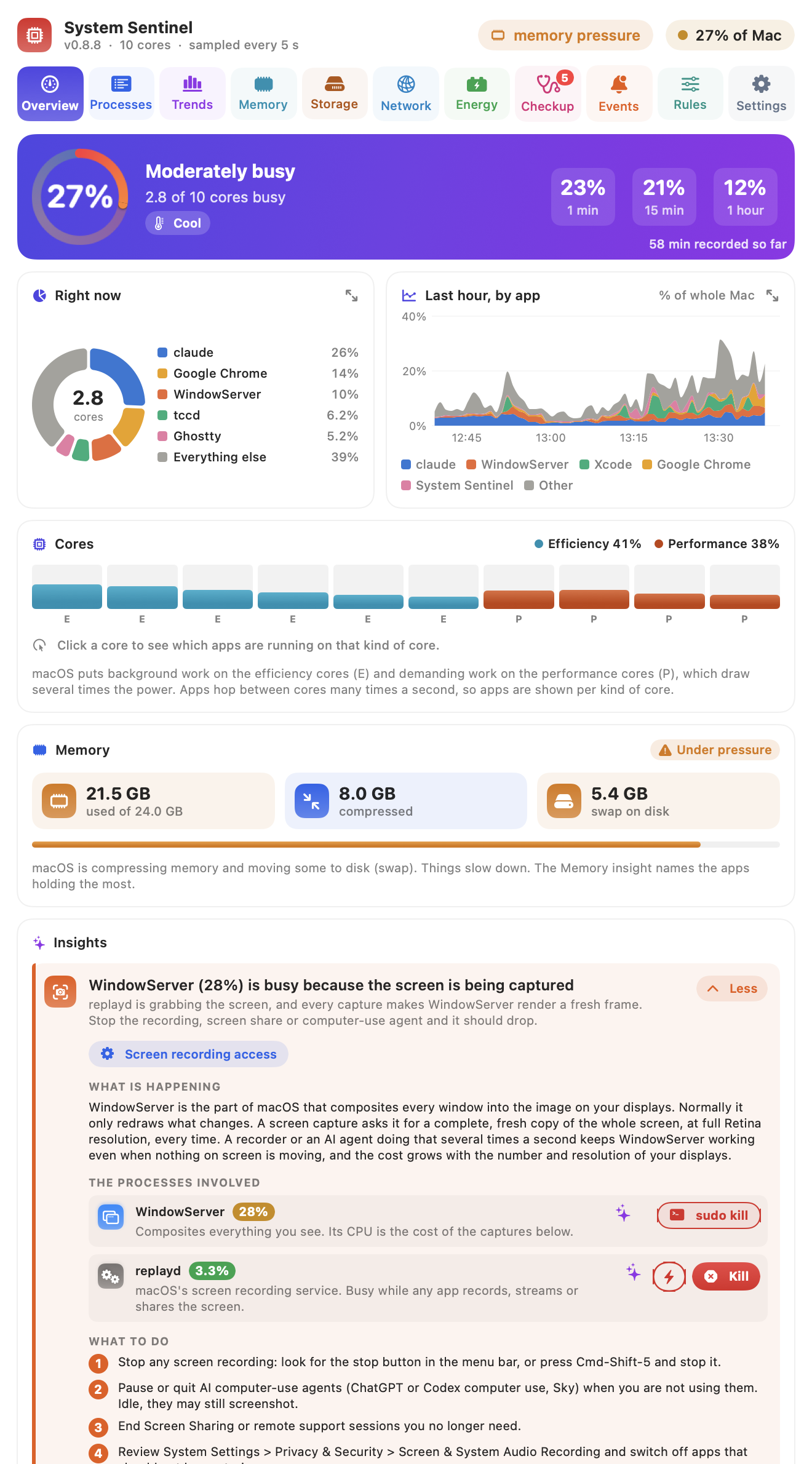
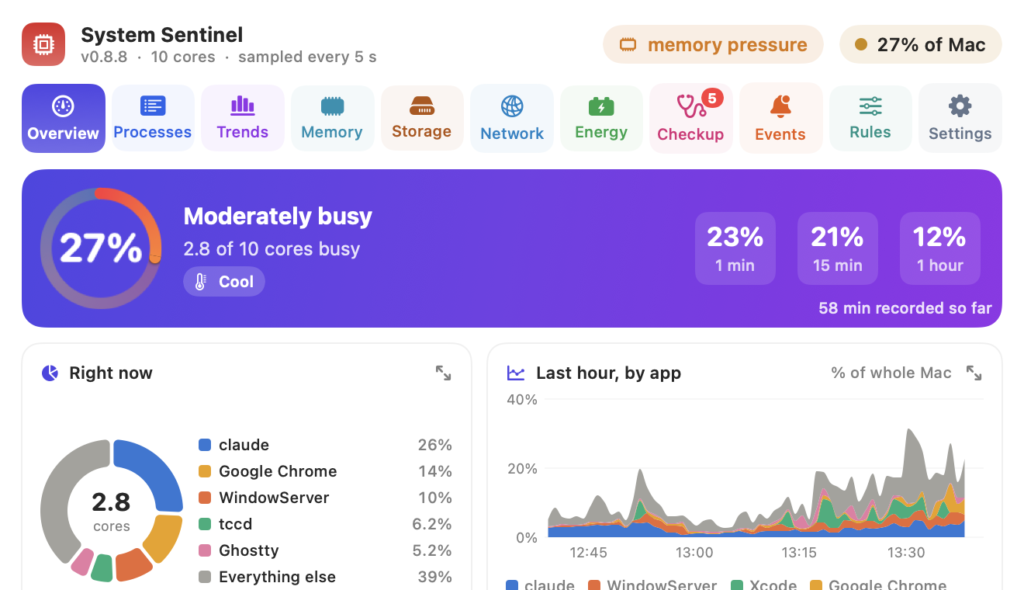
The top card is the one-glance answer: how busy the Mac is as a share of all its cores, with the 1 minute, 15 minute and 1 hour averages beside it. Under it:
- Right now is a donut of what is using the CPU at this moment, and Last hour, by app shows the same over time. Both open into a larger window.
- Cores shows every efficiency (E) and performance (P) core. Background work lives on the E cores; busy P cores mean heavy foreground work, and that is where most of the power goes. Click a core to see which apps are running on that kind of core.
- Memory shows used memory, how much macOS has compressed, and how much has spilled to swap on disk. Swap on its own is not a problem; it matters when memory pressure is also high and the Mac is actively swapping, which is what the pressure badge tracks.
- Insights are the findings, worst first. In the screenshot it has spotted that WindowServer is busy because something is capturing the screen, explains why that costs so much, lists the processes involved, and gives the steps to stop it. Memory findings list each app with the total memory it holds (in RAM, compressed and in swap) and a Quit for the whole app, not just one of its processes. The list is rebuilt every five seconds, so while the pointer is on it or an insight is open it holds still, and a Show latest button appears when newer findings are waiting.
Processes: who is busy, and what can I do about it?
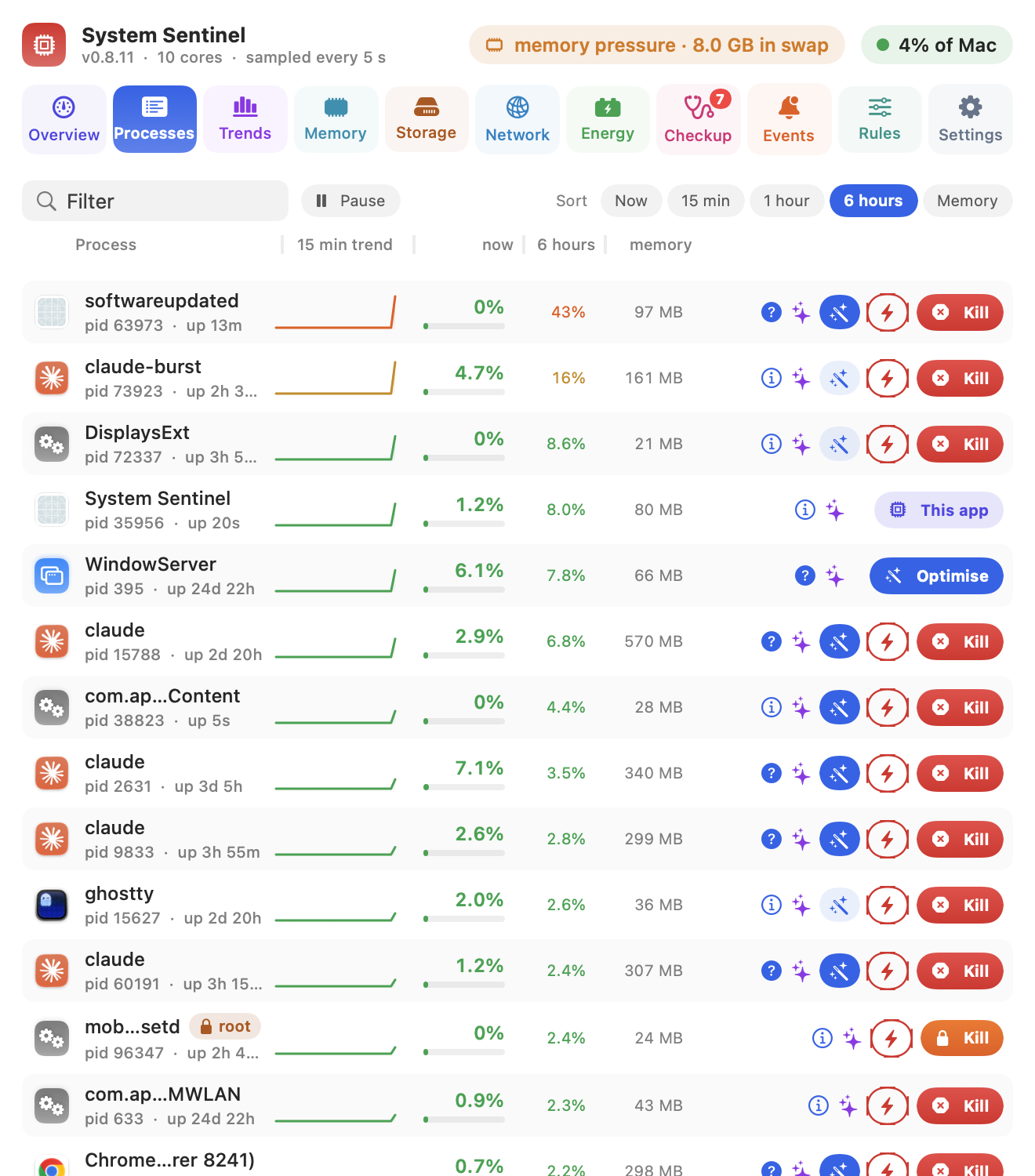
A sortable list of every busy process: a 15 minute sparkline, CPU now, the average over 15 minutes, an hour or six hours, and memory. Drag a column header’s edge to resize it. On each row:
- ? explains what the process is, from a built-in guide to common macOS and developer processes, including whether it is safe to stop.
- The sparkles ask ChatGPT why it is busy and how to bring it down, with the process’s history included.
- The wand is Optimise: what can be done about this process short of stopping it. More on that below.
- Kill stops it politely and forces it after five seconds; the lightning bolt is an immediate
kill -9. Root processes need your password, and core macOS processes get a separate, clearly marked sudo option. - WindowServer gets a full Optimise button in place of Kill, because stopping it ends your session and can lose unsaved work. More on that below too.
Right-click a row for rules: alert me (the default), ignore during work hours or overnight, or auto-kill (always, on battery, or only when the battery is low). Auto-kill rules act without asking each time, which is why you have to create them explicitly, and they are limited to three kills per app per hour so an app that keeps relaunching is not killed over and over.
Optimise: what to do short of killing it
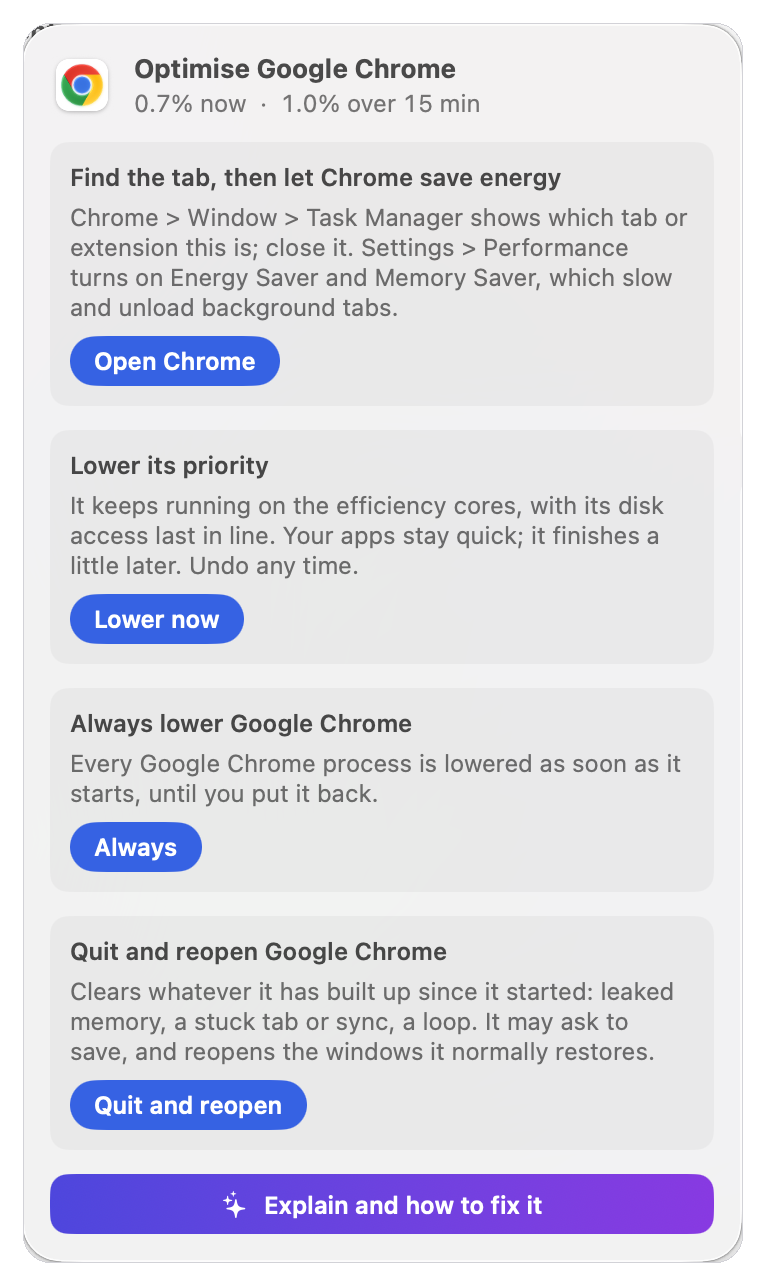
Killing a busy process is rarely the real fix: most of them come straight back, and the work they were doing still needs doing. The wand on each row opens what else can be done. Where System Sentinel knows something specific, the wand is filled in and that fix comes first:
- Spotlight indexing points you to the folders worth keeping out of the index, such as code, build output, virtual machines and Downloads.
- Time Machine can back up daily or weekly instead of hourly, and leave out caches and build folders.
- iCloud Drive, Dropbox, OneDrive and Google Drive usually mean big folders that change all the time; pause syncing or move them.
- Photos analysis has no deadline, so it can finish overnight on the charger.
- Chrome has its own Task Manager to find the tab, and Energy Saver and Memory Saver to slow background tabs. Safari gives each tab its own process, so close the busy one.
- Docker and virtual machines use whatever the guest asks for; give them a CPU limit.
- kernel_task is the Mac deliberately holding CPU time back to cool down, so the fix is whatever is heating it.
- Compilers use every core on purpose; let the build finish, or give it a job limit.
Then come the levers every process has. Lower its priority makes it background work: macOS gives it CPU and disk time after everything else, which on Apple silicon usually means the efficiency cores, so the apps you are using stay quick. Always lower does that for every future process of the same name, which suits things like compilers that start a fresh process for every file. Quit and reopen restarts the app it belongs to, helpers included, which clears leaked memory, a stuck tab or a sync loop. Each asks first, and priority changes can be undone with one click.
Manual actions ask first
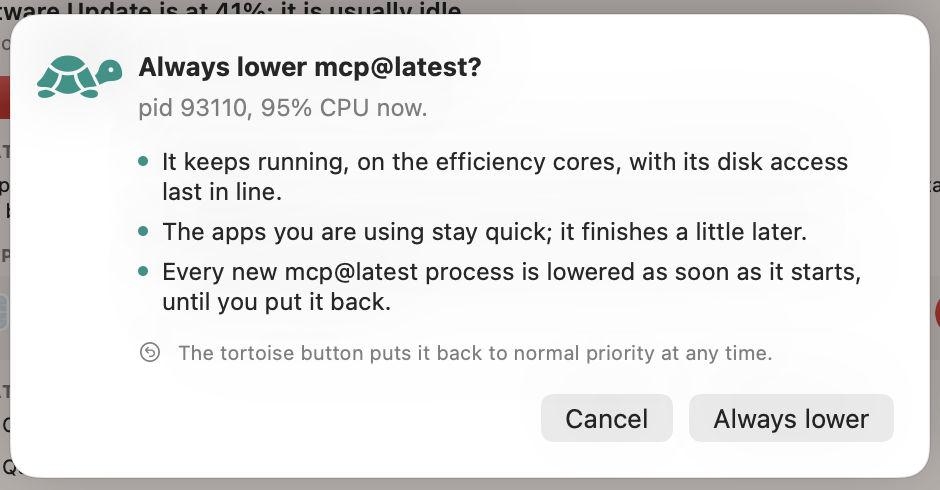
Every button that changes something shows a card like this one before it acts: what the action is, what will happen point by point, and how to undo it. Return confirms, Escape cancels, and destructive actions are drawn in red. Every button also has a tooltip saying what it does.
Optimise the screen: making WindowServer lighter
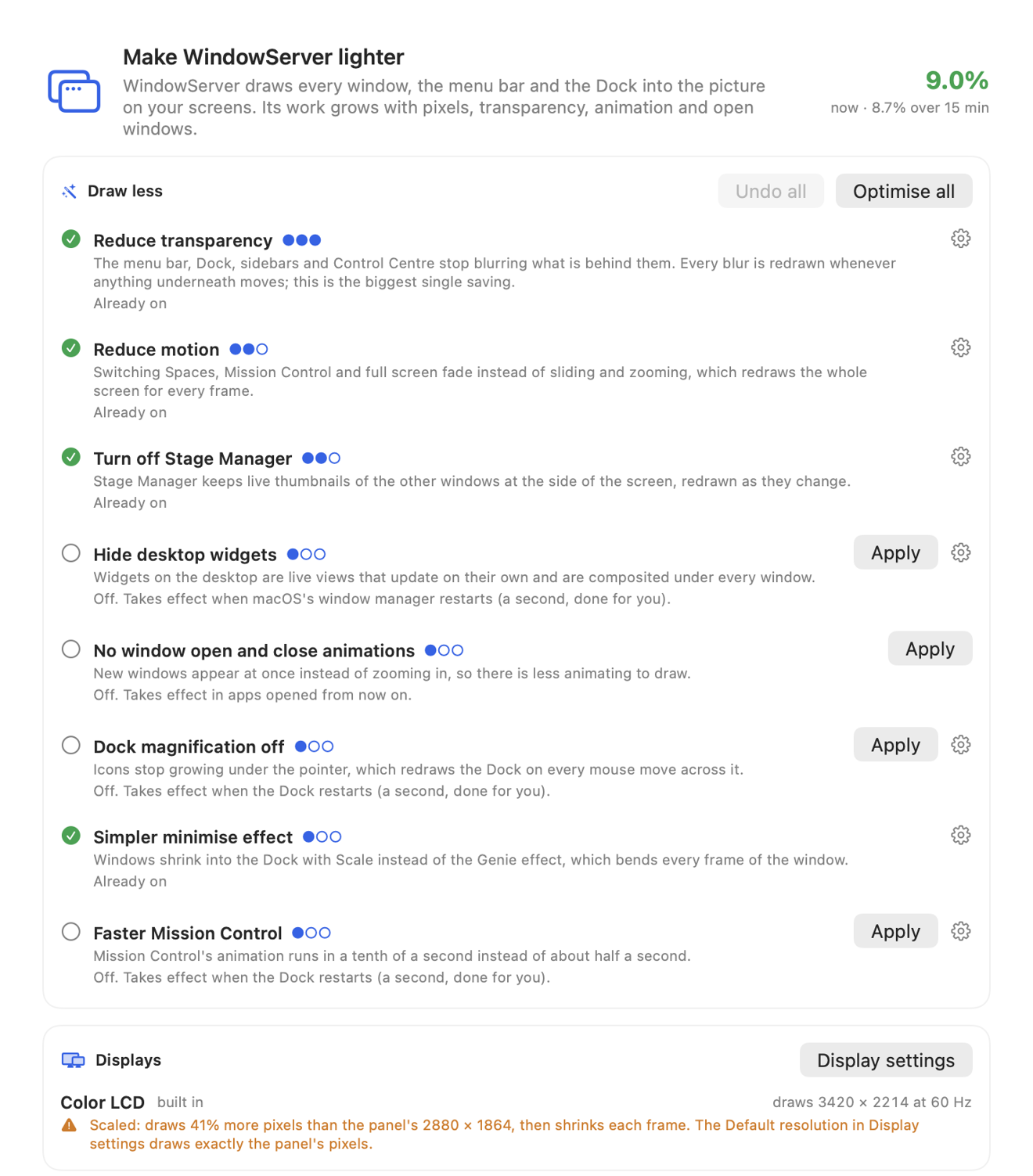
WindowServer is the part of macOS that draws every window, the menu bar and the Dock into the picture on your screens, and on many Macs it is quietly one of the top CPU users all day. Stopping it ends your graphical session and can lose unsaved work, so its row offers Optimise rather than Kill: the better fix is to give it less to draw. The Optimise window lists the settings that make the biggest difference, ranked by impact: reduce transparency, reduce motion, turn off Stage Manager, hide desktop widgets, drop window animations, and simplify the Dock’s effects.
Each shows whether it is on, what it does, and when it takes effect. Apply changes one, Optimise all applies the lot, and Undo puts back exactly what was there before, because System Sentinel saves the original value of every setting it touches.
The Displays card explains how many pixels WindowServer is drawing. Most MacBooks default to a scaled resolution, so macOS renders a larger image and shrinks it every frame. That is normal and the card says so, but if WindowServer stays high it offers a one-click switch to the resolution that draws exactly the panel’s pixels, with an undo.
Storage: where did my disk go?
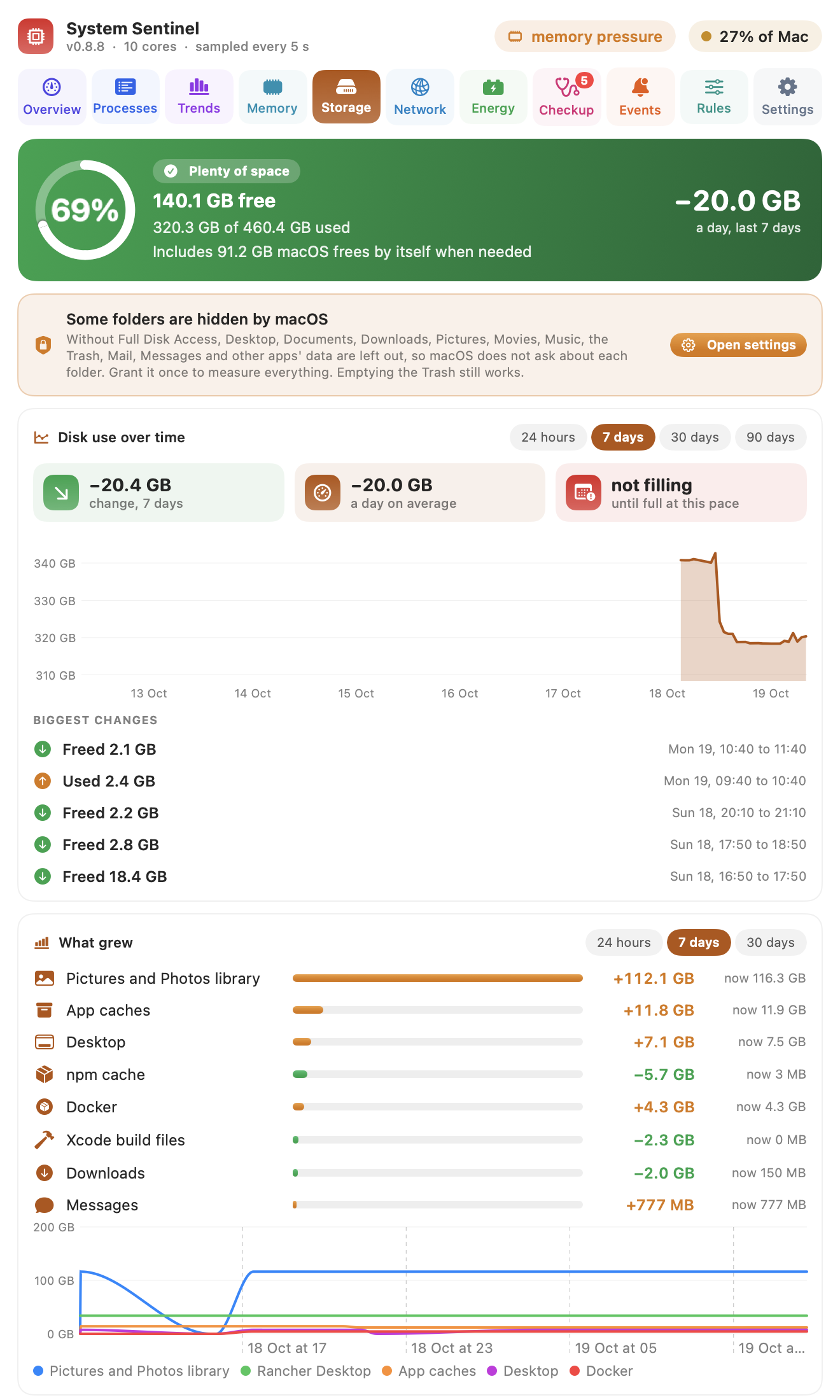
Free space, how fast it is changing, and a projection of when the disk fills at the current rate. Biggest changes pinpoints the hours when large amounts of space were used or freed, and What grew ranks the folders and caches that changed over the last day, week or month (here, a Photos library that grew by 112 GB). Further down are quick cleanups for caches that rebuild themselves (npm, pip, Homebrew, Xcode build files and more), old installers and downloads, the largest files, and apps not opened in six months. Everything goes to the Trash first, so it can be put back.
Energy: what is draining the battery?
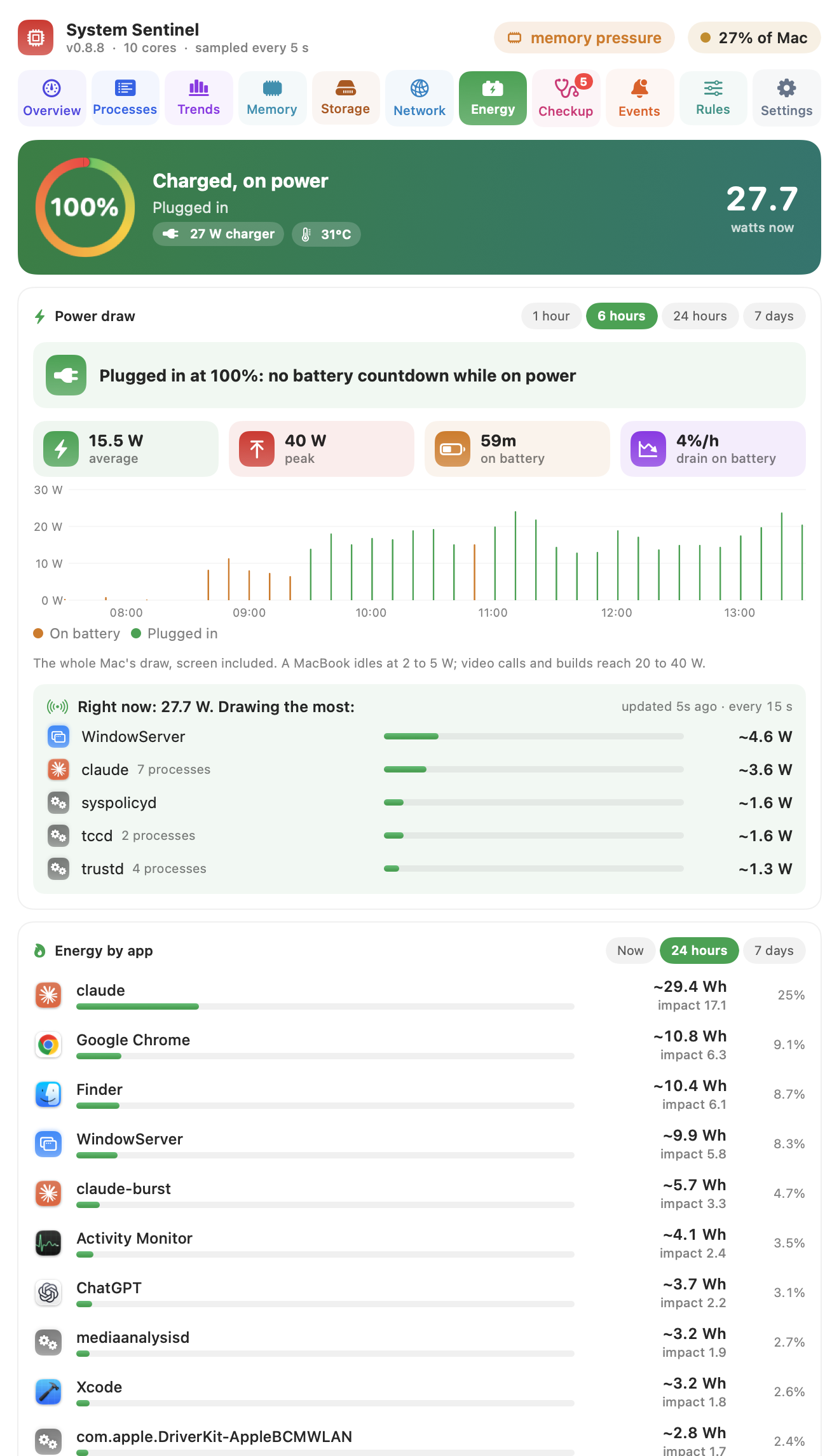
The Mac’s real power draw from the battery controller, charted over the last hour, six hours, day or week, split into time on battery and time plugged in. Right now shows which apps are drawing the most, and Energy by app estimates the watt-hours each one used. The total is measured; the split by app is an estimate based on macOS’s energy impact figures, and the screen shows it with a ~. Further down: what is keeping the Mac awake (with a Let it sleep button that stops stray caffeinate processes without touching the tool that started them), how well it sleeps, battery health and wear over time, and charging habits.
Network and the DNS map
The Network tab is an Activity Monitor style view of traffic per app, plus a link and quality check, a speed test using macOS’s own networkQuality, a DNS doctor that tests every configured DNS server individually, and a check for HTTPS inspection that tells you whether developer tools like npm, pip and git will trust the inspecting certificate.
For the times when one site or service just will not load, Map a name opens a window that traces a single name end to end:

It shows how this Mac looks the name up and which DNS server it asks (VPN and split DNS rules included), what every DNS server answers, all the records, and how each address is reached. It also asks Cloudflare and Google over encrypted DNS (DNS over HTTPS) for an independent comparison. A difference can point to a filter hiding a name, or to a name that only exists inside your network, though answers can also differ because of VPN policy, caching or geographic routing, and HTTPS inspection on a corporate network can sit in the middle of these lookups too.
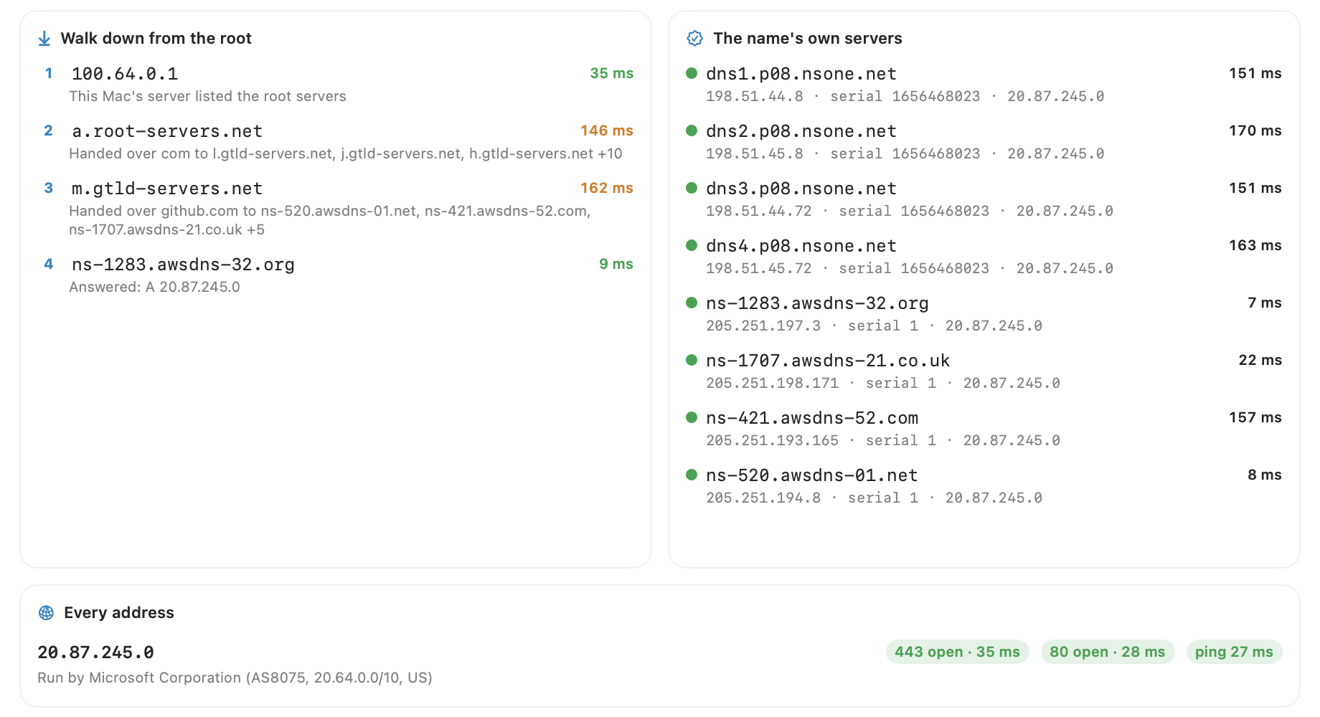
It walks the delegation from the root servers down to the answer, asks each of the name’s own authoritative servers directly (catching ones that are down or out of sync), and for every address it finds the network owner, ping time, whether ports 443 and 80 accept connections, and the full route with who runs each hop. Copy report puts the whole thing on the clipboard as plain text, ready to paste into a support ticket.
4. Everything Else
There is more than fits in one post:
- Checkup runs a security and configuration check every six hours: FileVault, the firewall, Gatekeeper, System Integrity Protection, updates, Time Machine, startup items, recent crashes, and network basics, with a fix button where one exists.
- Trends shows which apps used the most CPU over the day and week, and how much went to macOS itself.
- Events is a log of everything flagged, alerted and killed, with a weekly summary and a report you can save as Markdown or PDF for IT support or a repair shop.
- Alerts arrive as notifications for runaway processes, memory pressure and swap, low disk space, heat, things keeping the Mac awake for hours, and an accidental connection to a phone hotspot, with a running total of the mobile data used.
- Updates are checked against the GitHub releases, and Install and relaunch updates it in place, keeping settings and history.
5. Try It, and Tell Me What Breaks
System Sentinel is free and MIT licensed. Install it with the command above, leave it in the menu bar for a day, and see what it finds. If it gets something wrong, or there is a problem it should spot and does not, open an issue on GitHub. Pull requests are welcome too.