A shell script that wraps curl with browser-like headers, HTTP/2, cookie management, and async capabilities to bypass basic bot detection and perform load testing.
2.
Why it matters
Many websites block plain curl requests, but this tool can get past simple filters without needing full browser automation, making API testing and light scraping much faster and easier.
3.
Key takeaway
This approach works for basic bot defenses but won't solve JavaScript challenges or advanced fingerprinting - use real browser automation tools for those cases.
WordPress Plugin Crashed Your Site: Restore From Backup Instead
You updated a plugin five minutes ago. Maybe it was a security patch. Maybe you were trying a new caching layer. You clicked “Update Now,” saw the progress bar fill, got the green tick, and moved on with your day. Now the site is down. Not partially down. Not slow. Gone. A blank white page. No error message, no admin panel, no way in. Your visitors see nothing. Your contact forms are dead. If you are running WooCommerce, your checkout just stopped processing orders.
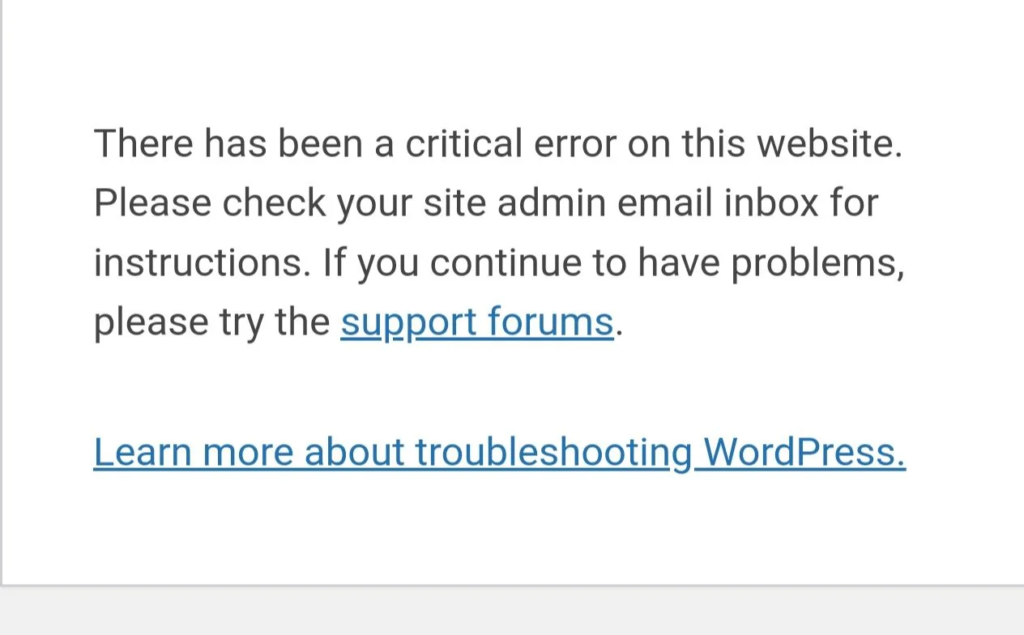
If you are running WordPress 5.2 or later, you might not even get a white screen. Instead you get this:
There has been a critical error on this website. Please check your site admin email inbox for instructions.
No stack trace. No file name. No line number. Just a sentence telling you to check an email that may or may not arrive. WordPress sends a notification to the admin address with a recovery mode link, but in practice the email takes minutes, lands in spam, or never arrives at all if your site’s mail configuration is broken (which it often is on cheap shared hosting).
If you are running WordPress older than 5.2, you get nothing. A blank white page. The original White Screen of Death.
Either way, the question is not whether this will happen to you. The question is what you have ready for when it does.
1. Why WordPress Does Not Protect You
WordPress has no runtime health check. There is no circuit breaker, no post-activation validation, no automatic rollback. When you activate a plugin, WordPress writes the plugin name into an active_plugins option in the database and then loads that plugin’s PHP file on the next request. If that file throws a fatal error, PHP dies and takes the entire request pipeline with it. WordPress never gets far enough into its own boot sequence to realise something is wrong.
The core issue is architectural. WordPress loads every active plugin on every request. There is no sandbox, no isolation, no health gate between plugin activation and the next page load. A single throw or a require of a missing file in any active plugin will take down the entire application. The plugin system is cooperative, not defensive.
2. What Recovery Normally Looks Like (Without a Backup)
If you have SSH access, the fix takes about 30 seconds. You connect to the server, navigate to wp-content/plugins/, and rename or delete the offending plugin directory. The next request skips the missing plugin and the site comes back.
If you do not have SSH, you try FTP. This takes longer because FTP clients are slow, and if you do not have your credentials saved, you are now hunting through old emails from your hosting provider.
If you do not have FTP, or you are on a managed host that restricts file access, you file a support ticket. On a good host this gets resolved in minutes. On a bad one it takes hours. On a weekend it takes longer. Your site is down the entire time.
These options all assume technical knowledge, preconfigured access, or a responsive support team. Most WordPress site owners have none of the three. And none of these options account for the situation where the bad plugin also corrupted your database, your widget settings, or your page builder data before it died.
3. The Better Option: Restore From a Known Good State
When a plugin crashes your site, the fastest path back is not to surgically remove the offending file. It is to roll back the entire site to the state it was in before you made a change. That means having a recent, complete, and externally stored backup ready to go.
This is what CloudScale Backup & Restore is built for.
Before you update any plugin, CloudScale Backup & Restore can take a complete snapshot of your site: your database, your uploads, your theme files, and all your plugin files. That snapshot is compressed and pushed to S3 (or your configured destination) before the update runs. If the update crashes the site, you have a clean restore point created seconds before the problem existed.
The recovery flow is straightforward. You access the plugin’s restore interface (either through your admin panel via recovery mode, or directly via the CLI if the admin panel is unavailable), select the pre-update snapshot, and trigger a restore. The plugin overwrites the current broken state with the known good state and the site comes back exactly as it was. No SSH required. No FTP client. No support ticket. No guessing which plugin was the problem.
4. Pre-Update Snapshots: The Right Moment to Backup
Most backup plugins run on a schedule: daily, weekly, or hourly. That schedule has nothing to do with when you actually make risky changes. You might update five plugins on a Tuesday afternoon, five days after the last scheduled backup. If one of those updates crashes the site, your restore point is five days old. You get the site back, but you also lose five days of content, orders, and configuration changes.
The correct moment to take a backup is not on a schedule. It is immediately before you make a change.
CloudScale Backup & Restore supports pre-update snapshots triggered automatically when plugin or theme updates are queued through the WordPress dashboard. When you click “Update Now” on a plugin, the backup runs first. The update runs only after the snapshot is confirmed complete and uploaded to your configured destination. If the upload fails, the update is blocked. You never end up in a state where an update has run but no backup exists.
This is the design principle that makes the difference. A scheduled backup protects you from server failures and external attacks. A pre-update snapshot protects you from yourself.
5. When the Admin Panel Is Unreachable
The obvious objection is that if the site is completely down with a fatal PHP error, you cannot reach the admin panel to trigger a restore. This is correct, and it is the scenario worth designing for explicitly.
CloudScale Backup & Restore includes a standalone recovery script: cloudscale-restore.php. You place this file in your WordPress root directory during setup. It runs independently of WordPress, with no dependency on the plugin loader or the active plugins list. It does not require WordPress to boot successfully. It connects directly to your database using the credentials from wp-config.php, reads the list of available snapshots from your configured S3 bucket, and presents a minimal interface for selecting and restoring a snapshot.
The script prompts for a recovery passphrase that you configure during plugin setup. Once authenticated, you select a snapshot from the list and confirm the restore. The script downloads the snapshot from S3, unpacks it, overwrites the database and file system, and redirects you to your WordPress admin panel once complete.
You are not dependent on WordPress being functional. You are not dependent on SSH or FTP access. You need a browser and the recovery passphrase you set up when the site was healthy.
One important note: the recovery script should be removed or access-restricted once you have finished the restore. A publicly accessible restore script with only a passphrase standing between it and your entire site is a security risk. CloudScale Backup & Restore will remind you of this and can optionally delete the script automatically after a successful restore.
6. What Gets Restored
A full restore from a CloudScale snapshot brings back everything: the database, wp-content/uploads/, wp-content/themes/, wp-content/plugins/, and wp-config.php. The entire site returns to exactly the state it was in at snapshot time.
This means the bad plugin is gone. Not deactivated, not renamed on disk. Gone, because it did not exist yet at the time the snapshot was taken.
It also means anything created between the snapshot and the crash is gone. If you published three posts this afternoon, updated your homepage, and processed eight WooCommerce orders before the plugin update crashed the site, those changes are not in the pre-update snapshot. This is the honest tradeoff of point-in-time recovery: you get a clean state, not the current state. For most crash scenarios this is entirely acceptable. A pre-update snapshot taken five seconds before the update ran means you lose nothing except the update itself. The reason to understand the tradeoff explicitly is so you can design your backup frequency accordingly. High-traffic WooCommerce stores with continuous orders need more frequent snapshots than a personal blog updated once a week.
7. The Combination That Covers the Most Ground
Crash recovery and backup restore are complementary, not competing approaches. They handle different failure modes.
The CloudScale Crash Recovery watchdog (covered in detail in the companion post to this one) handles the narrow case: a plugin installed within the last 10 minutes that is immediately fatal on every request. It works automatically, requires no human intervention, and resolves in under two minutes. For that specific scenario it is the fastest possible recovery.
Backup and restore handles everything else. A plugin that runs cleanly for 15 minutes before a deferred hook fires and corrupts your database. A theme update that breaks your layout without throwing a fatal error. A plugin that quietly rewrites your widget configuration on activation. A database corruption from an unrelated cause. A malicious plugin that modifies your content before you realise what it is. None of these are cases where deleting the plugin file fixes the problem. They are cases where you need to go back.
The recommended setup is both: the Crash Recovery watchdog for immediate automated recovery from fatal plugin errors, and Backup & Restore for everything the watchdog cannot handle, with pre-update snapshots configured so every risky change has a restore point.
8. Test It Before You Need It
A backup you have never tested is not a backup. It is a file you are hoping is a backup.
The test procedure for CloudScale Backup & Restore follows the same principle as testing any disaster recovery system: run the actual restore on a staging environment before you need it on production. Install CloudScale Backup & Restore on your site and configure your S3 destination, run a manual snapshot and confirm the backup appears in your S3 bucket, set up a staging environment (a local Docker instance, a subdomain, or a spare VPS), place the cloudscale-restore.php recovery script in the staging WordPress root, use the recovery script to restore the production snapshot onto the staging environment, and then verify the staging site is a functional copy of your production site.
If you get through that sequence without issues, you know three things: the backup is being written correctly, the recovery script can read it, and you know the steps before you are doing them at 2am under pressure. If anything in that sequence fails, you want to find out now, not during an actual outage.
9. When This Does Not Help
No tool solves every problem, and it is worth being direct about the limits of backup and restore.
A restore is a destructive operation. It overwrites your current state with a past state. If your current state has data you want to keep (recent orders, new users, published content), you need to export that data before restoring, or accept that it will be lost. For some crashes this is straightforward because the site has been down since the bad update and nothing new has been created. For others, particularly sites that stayed partially functional before a delayed failure, it requires more care.
A restore also does not tell you what went wrong. It gets your site back, but it does not identify the plugin that caused the problem, does not prevent you from reinstalling the same plugin, and does not leave you with any diagnostic information about the failure. If you need to understand the root cause, you need to investigate separately (check your PHP error logs, test the plugin on a staging environment, contact the plugin author) rather than treating the restore as the end of the story.
Finally, backup and restore requires that your backup destination is external and independent of your WordPress host. A backup stored on the same server that just crashed is not a useful backup. CloudScale Backup & Restore pushes to S3 precisely because S3 is separate from your web server. If your web server burns down, your backups survive.
Install CloudScale Backup & Restore. Configure pre-update snapshots. Set your S3 destination. Run through the restore test once on a staging environment. Then forget about it until a plugin update goes wrong at 2am on a Saturday. That is exactly when it earns its place.