CloudScale DevTools: Online Help
CloudScale DevTools
A free WordPress developer toolkit: syntax-highlighted code blocks, read-only SQL query tool, bulk code migrator, hide login URL, two-factor authentication (TOTP, email, passkeys), and a site performance monitor. Everything runs on your server — no external APIs, no subscriptions.
Code Block Overview
Why CloudScale DevTools?
Popular code highlighting plugins like Enlighter and SyntaxHighlighter load external CDN scripts that add 100–300ms to your page load time. Others charge $30–$50/year for features that should come included. Some require you to write custom CSS just to make the output look presentable.
CloudScale DevTools bundles everything locally — zero external requests, zero impact on your CDN cache hit rate. Auto language detection, clipboard copy button, dark and light theme toggle, and line numbers all work out of the box. It also includes a one-click migrator to import code blocks from other popular plugins.
Completely free. No premium version, no nag screens, no feature gating. Use it on as many sites as you want.
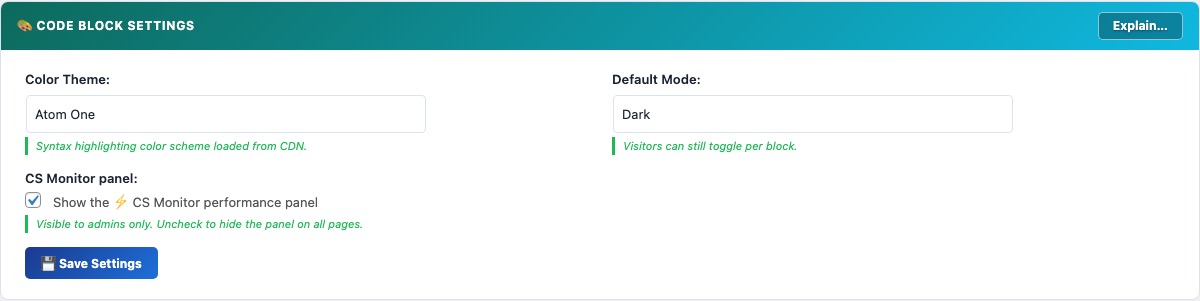
The Code Block feature is a registered Gutenberg block (cloudscale/code) and a [cs_code] shortcode for displaying syntax-highlighted code in WordPress posts and pages. Syntax highlighting is powered by highlight.js 11.11.1 loaded from the cdnjs CDN, supporting over 190 languages with auto-detection.
Block and shortcode usage:
- Gutenberg block — search for “CloudScale” in the block inserter (/code). Language, theme override, title, and line numbers are all configurable in the block sidebar panel.
- Shortcode:
[cs_code lang="php" title="functions.php"]your code here[/cs_code]. Supported attributes:lang(any highlight.js language alias),title(displayed as a filename label above the block),theme(overrides the site-wide theme for this block).
Features:
- Auto language detection — highlight.js analyses the code content and selects the most likely language. Accuracy is high for common languages (PHP, JavaScript, Python, SQL, Bash) but lower for short snippets. Override manually via the block sidebar when detection is wrong.
- 14 colour themes — Atom One (default), GitHub, Monokai, Nord, Dracula, Tokyo Night, VS 2015, VS Code, Stack Overflow, Night Owl, Gruvbox, Solarized, Panda, Shades of Purple. Each theme loads a dark and light variant; the toggle button switches between them. The selection is stored in
localStorageper browser, so each reader’s preference persists across page loads. - Copy to clipboard — uses the Clipboard API (
navigator.clipboard.writeText()) with a fallback todocument.execCommand('copy')for older browsers. - Line numbers — toggle per block. Line numbers are rendered via CSS counter to avoid polluting the copied text when a reader clicks Copy.
Automatic INI/TOML fragment repair: When you paste Markdown containing a fenced code block with INI or TOML content, Gutenberg intercepts bare [section] headers on their own line and converts them into core/shortcode blocks, splitting your code block into fragments. CloudScale DevTools detects this automatically and silently merges those fragments back into the preceding code block before you even see the broken state. A brief toast notification confirms when this happens:
The merge is conservative — only blocks whose entire content matches a plain section header like [mysql] or [global-settings] are absorbed; real shortcodes like are never touched.
Requirements: WordPress 6.0+, PHP 7.4+. The block editor script uses @wordpress/blocks API version available in WordPress 5.8+, but full sidebar panel support requires 6.0.
Code Block Migrator
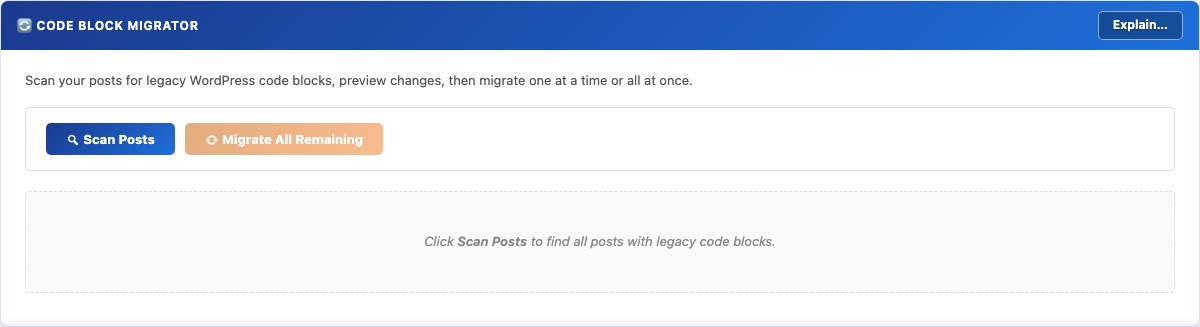
The Code Block Migrator converts legacy code block shortcodes and HTML from other WordPress syntax highlighting plugins to CloudScale DevTools blocks in a single batch operation — without manual copy-paste or post-by-post editing.
Supported source formats:
- WordPress core
<!-- wp:code -->blocks — preserves language class attributes where present. - WordPress core
<!-- wp:preformatted -->blocks. <!-- wp:code-syntax-block/code -->blocks from Code Syntax Block plugin.- Legacy
[code],[sourcecode], and similar shortcodes — language attribute is preserved if present.
Migration workflow:
- Scan — queries
wp_postsfor all posts and pages whosepost_contentcontains aLIKEmatch on the supported block comment and shortcode patterns. Results are displayed as a list with post title, status, date, and block count. - Preview — for each post, shows a before/after diff of the exact content changes that will be made. No database writes occur at this stage.
- Migrate single — converts one post at a time. Calls
$wpdb->update()to write the convertedpost_contentand immediately flushes the post cache withclean_post_cache(). - Migrate all — processes every remaining post in a single AJAX request. For large sites (>500 posts), run this during low-traffic periods as it holds a series of database write locks.
Always take a backup before running the migrator. The conversion modifies post_content directly in the database. If the output is not what you expected, restore from backup — there is no undo button.
SQL Query Tool

The SQL Query Tool lets WordPress administrators run read-only SELECT queries against the live database from within wp-admin — without needing phpMyAdmin, Adminer, or SSH access. Results are displayed in a paginated table with column headers and query execution time.
Security model:
- Access is restricted to users with the
manage_optionscapability (Administrators only). All AJAX handlers verify a nonce generated with the actioncs_devtools_sql_nonce. - Every query is validated by
is_safe_query()before execution. This function: strips all block comments (including MySQL optimizer hint syntax/*!...*/) and line comments (--and#), rejects any query containing a semicolon (prevents statement stacking), blocksINTO OUTFILE,INTO DUMPFILE, andLOAD_FILEclauses, and only allows queries starting withSELECT,SHOW,DESCRIBE,DESC, orEXPLAIN. - Queries are executed via
$wpdb->get_results()withsuppress_errors(true). Any MySQL error is caught and displayed without exposing the full stack trace.
14 built-in quick queries organised into four groups:
- Health & Diagnostics: database health check, site identity options, table sizes and row counts.
- Content Summary: posts by type and status, site stats, latest 20 published posts.
- Bloat & Cleanup: orphaned postmeta, expired transients, revisions/drafts/trash, largest autoloaded options.
- URL & Migration Helpers: HTTP references, posts with HTTP GUIDs, old IP references, posts missing meta descriptions.
Keyboard shortcuts: Enter or Ctrl+Enter runs the query. Shift+Enter inserts a newline.
Hide Login URL
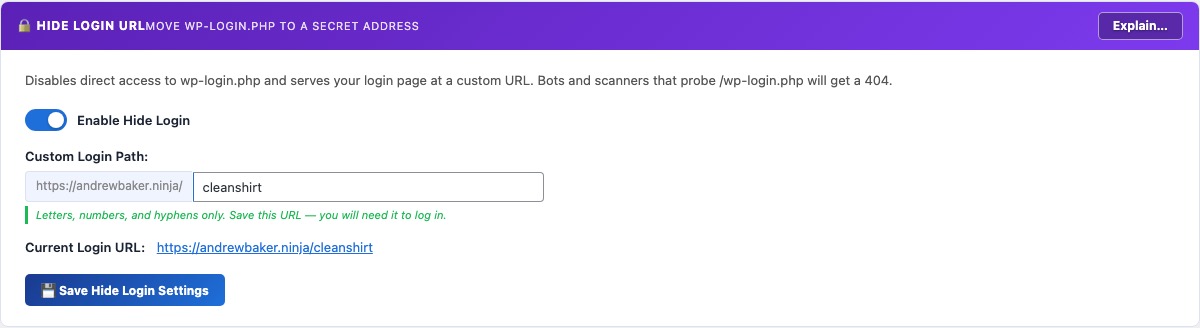
The Hide Login URL feature moves your WordPress login page away from the default /wp-login.php address to a secret URL of your choosing. Bots and automated scanners that probe /wp-login.php receive a 404 response — they never see the login form, which eliminates the vast majority of brute-force and credential-stuffing traffic.
How it works:
- When enabled, a custom WordPress
inithook (priority 1) intercepts requests to your chosen slug and serveswp-login.phptransparently, so the login form loads correctly at the new URL without any redirect. - Direct requests to
/wp-login.phpare blocked by alogin_inithook and return a 404. - The
wp_login_url(),logout_url(), andlostpassword_url()filters are overridden to always produce your custom URL, so all internal WordPress links (password reset emails, “Back to login” links) continue to work correctly.
Setup:
- Toggle Enable Hide Login on.
- Enter a slug in Custom Login Path — letters, numbers, and hyphens only (e.g.
my-secret-login). Avoid obvious words likelogin,admin, ordashboard. - Click Save Hide Login Settings.
- Immediately note the new URL shown after saving. If you lose it, you can recover access via WP-CLI:
wp option get cs_devtools_login_slug.
Compatibility: WP-CLI, XMLRPC, REST API, and WP Cron are unaffected — they bypass the login URL check entirely. Other security plugins that check $pagenow === 'wp-login.php' will continue to work because the plugin sets $pagenow correctly when serving the custom slug.
Two-Factor Auth
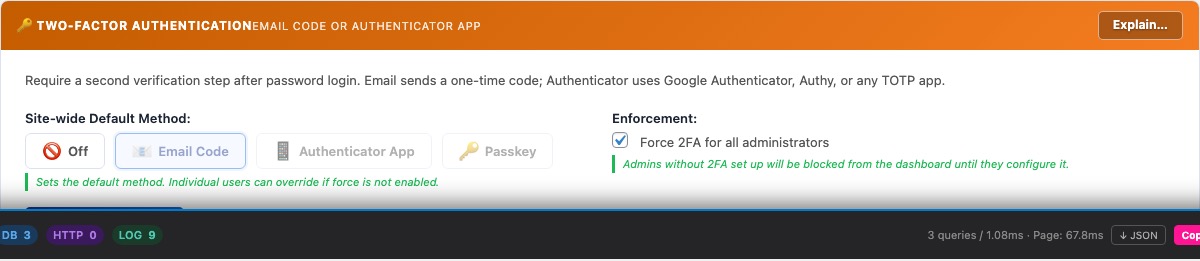
Two-Factor Authentication (2FA) requires users to prove their identity with a second factor — a one-time code — in addition to their password. Even if a password is compromised, an attacker cannot log in without also having access to the second factor.
Available methods:
- Email code — after a successful password login, a 6-digit code is emailed to the user’s account address. The code expires after 10 minutes. No app required, but relies on reliable email delivery.
- Authenticator app (TOTP) — uses the industry-standard Time-based One-Time Password algorithm (RFC 6238). Users scan a QR code with Google Authenticator, Authy, 1Password, or any compatible app. The app generates a fresh 6-digit code every 30 seconds. Works completely offline.
- Passkey — replaces the code prompt with a biometric check (Face ID, Touch ID, Windows Hello) or hardware security key. The fastest and most phishing-resistant method. Requires at least one registered passkey (see the Passkeys section).
Site-wide settings:
- 2FA Method — sets which method is available to users. “Off” disables 2FA entirely.
- Force 2FA for all administrators — when checked, any user with the Administrator role who has not yet configured their chosen 2FA method will be blocked from the dashboard after login until they complete setup. This enforces 2FA without requiring each admin to opt in manually.
Per-user setup: Each user configures their own 2FA credentials in the Your 2FA Setup panel. TOTP setup requires scanning a QR code or manually entering the Base32 secret into an authenticator app, then verifying with a live code. Email 2FA requires confirming a verification link sent to the account email before it is activated.
Passkeys (WebAuthn)

Passkeys are FIDO2/WebAuthn credentials that replace password-based 2FA codes with a biometric or hardware-key verification. When you log in, instead of typing a 6-digit code, you authenticate with Face ID, Touch ID, Windows Hello, or a physical security key (YubiKey, etc.).
How passkeys work:
- Registration generates a public/private key pair on your device. The private key never leaves your device — only the public key is stored on the server (in WordPress user meta).
- At login, the server sends a random challenge. Your device signs it with the private key. The server verifies the signature against the stored public key. No secret is transmitted over the network.
- Passkeys are bound to the site’s domain (Relying Party ID), making them inherently phishing-resistant — a fake domain cannot trigger your real passkey.
Registering a passkey:
- In the Passkeys (WebAuthn) panel, click + Add Passkey.
- Give the passkey a recognisable label (e.g. “MacBook Pro”, “iPhone 16”, “YubiKey 5”).
- Click Register — your browser will prompt you for biometric verification or to insert a hardware key.
- On success, the passkey appears in the list. Register one passkey per device you want to use for login.
Using passkeys for login: In the Two-Factor Authentication settings, set the 2FA method to Passkey. After a successful password login, you will be prompted to verify with your passkey instead of typing a code.
Browser support: Chrome 108+, Safari 16+, Edge 108+, Firefox 122+. Older browsers fall back to an email OTP code automatically.
Testing: Use the Test button next to each registered passkey to verify it is working correctly without logging out. The test performs a full WebAuthn assertion round-trip and reports success or failure.