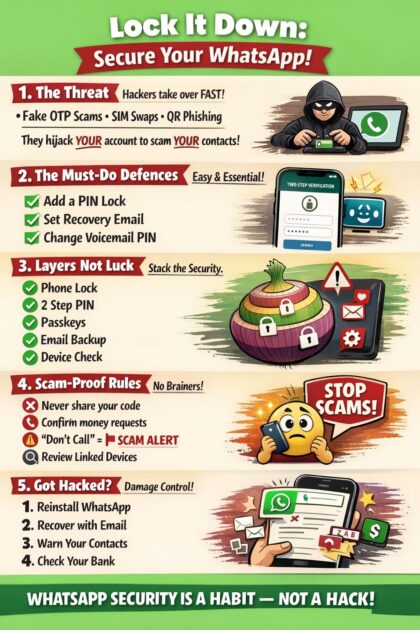
Lock It Down: The Complete Guide to Securing Your WhatsApp

Securing WhatsApp starts with enabling two step verification in Settings, Privacy, and then Two Step Verification, which adds a six digit PIN that blocks anyone who steals your SIM from accessing your account. Never share verification codes with anyone, lock the app with biometrics, and regularly review linked devices to remove any you do not recognise.
Your WhatsApp account is not just a chat app. It is your identity, your contacts, your banking OTPs, your family photos, and your most private conversations. When criminals take it over, they use it immediately to impersonate you and defraud everyone you know. This guide walks through every meaningful control available to you, explains what each one actually does, and shows you exactly where to find it on both Android and iPhone.
Before You Read: Share This With Your Parents
The attacks described in this guide target everyone, but the family emergency impersonation scam is specifically designed to exploit older people who trust WhatsApp messages from numbers they recognise. If your parents or grandparents use WhatsApp, the five things below are the only things they need to know. Send them this section, or read it with them.
1. A six digit code is the key to your account. Never share it with anyone. When WhatsApp sends you a six digit SMS, that code is the only thing standing between your account and a criminal. No friend, family member, WhatsApp support agent, or bank will ever have a legitimate reason to ask you for it. If someone asks, refuse immediately and treat the request as a confirmed attack.
2. If a family member messages you asking for money urgently, call them first. Criminals take over WhatsApp accounts specifically to send fake emergency messages to contacts. Before you send any money, call the person on a number you already have saved. If the message says “please don’t call,” that is the criminal trying to stop you from catching them. Call anyway.
3. If your phone suddenly has no signal and you have not changed anything, treat it as an emergency. A complete, unexplained loss of mobile signal can mean someone has fraudulently taken your SIM number. The section below explains exactly what to check and what to do. Do not wait and see. Act within minutes.
4. Ask a family member to enable Two Step Verification on your phone today. This is a six digit PIN inside WhatsApp that blocks criminals even if they get hold of your SIM card. It takes two minutes to set up and it is the single most effective protection available. Instructions are in Section 3 of this guide.
5. Set up a Passkey on your Whatsapp today! A passkey means WhatsApp recognises your face or fingerprint instead of relying on a code that can be stolen or forwarded. Once it is set up, criminals cannot log into your account from another device even if they somehow get your number. Ask a family member to do this for you now.
On Android: Open WhatsApp, tap the three dot menu, tap Settings, tap Account, tap Passkeys, tap Create a passkey, then confirm with your fingerprint or face.
On iPhone: Open WhatsApp, tap Settings, tap Account, tap Passkeys, tap Create a passkey, then confirm with Face ID or Touch ID. Your passkey will save to iCloud so it works across all your Apple devices.
1. Why WhatsApp Accounts Are Stolen and What Happens Next
WhatsApp accounts are stolen for one reason above all others: they are immediately profitable. The moment an attacker controls your account, they have a trusted identity backed by a full contact list and message history, and they can impersonate you to your family, friends, and colleagues within minutes of gaining access.
In South Africa, the two dominant attack methods are SIM swap fraud and the stolen phone with SIM removal. OTP forwarding scams, voicemail interception, and malicious QR codes are all real vectors and these will be covered later on in the article.
Lets first understand how WhatsApp registration works. With default settings, all it takes to register your number on a new device is receiving the six digit OTP on a SIM card. If an attacker controls your SIM, whether through a fraudulent swap or by physically removing it from your stolen phone, they control your WhatsApp.
1.1 The Two Primary Attack Vectors
1.1.1 Attack Type 1: SIM Swap Fraud
A SIM swap is when an attacker causes your mobile network operator to port your number to a new SIM card in their possession. It is the most consequential WhatsApp attack vector in South Africa because it operates entirely outside the app and bypasses every in app security control except Two Step Verification. Once your number is on their SIM, every SMS and call intended for you goes to them, including WhatsApp OTPs, banking OTPs, and password reset messages for every account that uses your phone number as a second factor. The financial damage routinely extends far beyond WhatsApp.
There are three ways a SIM swap happens in practice, and the third is the one most people do not expect.
Social engineering the call centre: The attacker calls your network operator’s customer service line with personal information gathered from data breaches, social media, or prior conversations with you, and impersonates you convincingly enough to have your number ported to their SIM. South Africa’s RICA database has been breached multiple times, and the personal information it contains (name, ID number, address) is actively used by criminals to construct convincing SIM swap requests at call centres.
Presenting fraudulent RICA documents at a branch: The attacker visits a network operator store with a fake ID, a forged proof of address, or other falsified RICA documentation, and requests a SIM swap directly over the counter. This requires more preparation but is effective against branch staff who do not rigorously verify documents.
Bribing or coercing a network operator employee: This is the least discussed and the most difficult to defend against individually. An insider with access to the porting system processes the swap without any customer interaction or documentation at all. This vector is not theoretical; it has been documented in South Africa and is the reason why operator level protections alone are not sufficient. Even if your operator has a SIM swap PIN on your account, an insider can bypass that control entirely. Two Step Verification inside WhatsApp is the backstop that remains effective even against this scenario, because it is a control that exists within WhatsApp’s own systems rather than your operator’s.
South Africa specific: MTN South Africa requires a SIM swap protection PIN to process a SIM swap, which you can activate via the MyMTN app or by calling 135. Vodacom and Cell C offer similar RICA anchored controls. Contact your operator and ask specifically how to add SIM swap protection to your account before you need it. Be aware that insider threats at branch level can potentially bypass these controls, which is why Two Step Verification inside WhatsApp remains the essential backstop.
1.1.2 How to Tell If You Have Been SIM Swapped: What to Check First
The warning sign of a SIM swap is a sudden and complete loss of all mobile signal, where your phone stops making calls, receiving SMS, or connecting to mobile data entirely. However, loss of signal has many mundane causes, and before you conclude you have been SIM swapped you should work through the basics quickly so you can tell the difference between a technical problem and a criminal one.
Check these things first, in this order:
- Check whether you have accidentally enabled Airplane Mode. It sounds obvious, but Airplane Mode cuts all signal immediately and is easy to enable by accident on a touchscreen. Pull down your notification shade or check your Control Centre and confirm it is off.
- Check whether mobile data is toggled on. Some phones allow you to disable mobile data independently of calls and SMS. Go to Settings and confirm mobile data is enabled. A missing data connection does not by itself indicate a SIM swap, but it is worth ruling out.
- Check your signal bars and network name. One or two bars in a weak coverage area is normal. Zero bars with no network name shown at all is different. Note what your phone is showing. “No service” or a blank network name where your operator’s name usually appears is meaningful.
- Toggle Airplane Mode on and off. Enable Airplane Mode for ten seconds, then disable it. This forces your phone to register again with the nearest cell tower and resolves most temporary signal drops caused by handoff failures or tower congestion. If your signal returns, it was almost certainly a software or coverage issue rather than a SIM swap.
- Restart your phone. A full restart clears any stuck network state and forces a fresh SIM registration. If your signal returns after a restart, it was almost certainly not a SIM swap.
- Try making a call or sending an SMS. If your phone shows a network name and some signal bars but calls fail with an error like “SIM not registered” or “call not permitted,” that is a meaningful warning sign. Normal weak signal produces poor call quality; a swapped SIM produces outright rejection of the call attempt.
- Ask someone to call your number. If your number rings through to voicemail immediately without ringing on your device at all, your number is active somewhere else.
If none of the above resolves the issue and you have been unable to make or receive calls or SMS for more than a few minutes with no obvious explanation, call your network operator immediately from another phone: a landline, a family member’s mobile, or any available device. Ask them directly whether a SIM swap or number port has been processed on your account in the last 24 hours. Do not wait to see whether it resolves itself.
- MTN: 135 (from another MTN number) or 083 135 (from any phone)
- Vodacom: 082 111
- Cell C: 084 135
- Telkom Mobile: 081 180
If a fraudulent SIM swap has been processed, ask the operator to reverse it immediately, flag your account for additional verification, and add a SIM swap protection PIN if you have not already done so.
1.1.3 Attack Type 2: The Stolen Phone and SIM Removal
A common misconception is that a thief needs to crack your locked phone to access your WhatsApp, but the attack is much simpler than that. If your phone is stolen, the thief can remove your SIM card and insert it into any Android device or an unlocked iPhone, reinstall WhatsApp, enter your number, and receive the OTP directly on their device. Your screen lock PIN or fingerprint is entirely irrelevant to this attack path because the attacker never attempts to unlock your original phone at all.
How this attack plays out step by step:
- Phone stolen or SIM removed : the attacker removes the SIM card from your locked device without needing to unlock the screen
- SIM inserted into attacker’s phone : any unlocked Android device will accept the SIM immediately, as will an unlocked iPhone
- WhatsApp installed and registration triggered : the attacker enters your mobile number into a fresh WhatsApp installation
- OTP received directly on the attacker’s phone : your SIM is physically in their device, so no interception is needed and the code arrives instantly
- Account registered without further friction : unless Two Step Verification is enabled, which is the subject of Section 3 and the single most important step in this guide
This is precisely why the controls that follow are designed as layers rather than a single solution. A PIN lock on your phone protects the content already on it; Two Step Verification protects the registration of your number on any new device; and passkeys with email recovery ensure you can regain access and that the recovery process itself cannot be weaponised against you.
1.1.4 eSIM Hijacking: The SIM Swap With No Physical Card
eSIM hijacking is a modern evolution of SIM swap fraud that is becoming increasingly relevant in South Africa as eSIM adoption grows across flagship Android and iPhone models. Instead of porting your number to a physical SIM card, the attacker convinces your operator to provision your number to a digital eSIM profile on their device. The process is handled entirely through app based, web based, or call centre channels depending on the operator, which means no branch visit is required and in many cases no RICA document check is involved either.
The result is identical to a traditional SIM swap: your number stops receiving calls and SMS on your device, and everything goes to the attacker instead. The same operator level protections apply in principle, but eSIM provisioning processes at some South African operators are currently less rigorous than their physical SIM swap procedures. If your device supports eSIM, contact your operator and ask specifically what authentication is required to provision an eSIM on your account, and whether a PIN or in person verification can be added to that process.
1.1.5 Number Porting vs SIM Swap: Not the Same Attack
Number porting and SIM swap are often used interchangeably but they are distinct processes with different mechanics and different warning signs. A SIM swap keeps your number on the same network and transfers it to a new SIM card, and it can be completed in minutes. A number port moves your number to an entirely different network operator (from MTN to Vodacom, for example) and is governed by ICASA’s local number portability regulations, which require a signed porting authorisation and typically takes several hours to a full business day to complete.
Both attacks achieve the same outcome for WhatsApp: the attacker’s device receives your OTP. The warning sign of a port is the same as a swap: sudden complete loss of signal. Ports are sometimes also preceded by a seemingly legitimate SMS asking you to confirm a porting request that you did not initiate. If you receive an unexpected porting confirmation message, contact your current operator immediately and do not reply to or confirm the message. ICASA’s process includes a 24 hour cooling off window intended to catch fraudulent ports, but this only helps if you notice and report the loss of signal quickly.
1.2 Secondary Attack Vectors
The following attacks are less common than SIM swap and stolen phone, but they do occur and exploit different weaknesses in the system.
1.2.1 The OTP Forwarding Scam
Someone messages you, claims to be a friend or colleague, and says they accidentally sent a verification code to your number. They ask you to forward it quickly. That code is your WhatsApp OTP, and forwarding it immediately hands them complete control of your account. This is social engineering rather than a physical attack, and it relies entirely on the victim not recognising what a WhatsApp OTP is or why forwarding one is dangerous.
Example of what this looks like:
+27 82 xxx xxxx: Hey! It’s Sipho from work. Sorry to message out of the blue. WhatsApp sent a verification code to your number by mistake when I was trying to log in. Can you send it to me quickly? It’s urgent, I’ve been locked out all day.
+27 82 xxx xxxx: The code would be a 6-digit number, starts with something like 123-456. WhatsApp support said it happens sometimes with number recycling.
Warning: No legitimate WhatsApp process involves sending your OTP to another person. Ever.
1.2.2 The Family Emergency Impersonation
Once an attacker has any compromised account, they use it to impersonate the owner to their contacts. The messages typically fabricate an emergency requiring an urgent money transfer, and the instruction to avoid calling is a classic social engineering deflection designed to prevent you from verifying the request through a channel the attacker cannot control. Always verify money requests by calling the person on a known number, regardless of how urgent the message sounds.
Example of what this looks like:
Mom (compromised account): Hi love, I’m stuck at Pick n Pay. My bank card is blocked and I need to pay R850 for groceries. Can you SnapScan or send me the money? Will pay you back tonight. Please it’s urgent.
You: Sure mom, sending now, are you okay?
Mom (compromised account): Yes just embarrassed! Please don’t call I’m at the till.
Warning: “Please don’t call” is the signal. Always verify on a number you already know before sending any money.
1.2.3 The Voicemail OTP Interception
Many people do not realise their mobile network voicemail uses a predictable or default PIN. Attackers can call your number repeatedly until it goes to voicemail, at which point WhatsApp’s fallback system leaves the OTP as a voicemail message. The attacker then calls your voicemail directly, guesses or knows the default PIN (many South African networks use 0000 or 1234), retrieves your code, and completes the account takeover without you receiving any notification.
Immediate action required: Call your mobile network operator today and either change your voicemail PIN to something unique and non obvious, or disable voicemail entirely. This closes a significant attack vector that bypasses WhatsApp’s own security completely.
1.2.4 The Malicious WhatsApp Web QR Code
Attackers have been known to send phishing pages that look identical to the real WhatsApp Web login screen. When a victim scans the displayed QR code, the attacker gains a linked device session to the victim’s account without any further interaction required, and the victim’s account continues working normally on their phone while the attacker has full read and write access through the linked session, often for extended periods before the victim notices anything unusual.
2. Registering an Email Address: The Recovery Anchor
Adding an email address to your WhatsApp account is often the least appreciated control and one of the most important. Its purpose is recovery rather than active authentication, and WhatsApp uses your registered email to allow you to reset your Two Step Verification PIN if you forget it, giving you an out of band recovery channel that does not depend on your phone number being in your possession.
2.1 What It Does
When you register an email address, WhatsApp sends account recovery links to that address, and if an attacker has your phone number but not access to your email account, they cannot complete the PIN reset process. The email address becomes an independent second factor for account recovery that sits entirely outside the telephone network and therefore cannot be bypassed through SIM swap or OTP interception.
2.2 What It Does Not Do
Registering an email address alone does not prevent someone from taking over your account if they have your phone number and you have not set a Two Step Verification PIN. It is a recovery mechanism, not a primary access control, and it only becomes meaningful when combined with Two Step Verification. WhatsApp does not offer backup or recovery codes the way Google or Apple accounts do, and there is no printed list of one time codes to fall back on. The registered email address is your only recovery path if both your phone number and your 2SV PIN are inaccessible, which makes it a foundational requirement rather than a nice-to-have.
On Android:
- Open WhatsApp and tap the three dot menu (top right)
- Tap Settings
- Tap Account
- Tap Email address
- Enter a personal email you actively monitor
- Verify via the confirmation link sent to that address
On iPhone (iOS):
- Open WhatsApp and tap Settings (bottom right)
- Tap Account
- Tap Email address
- Enter a personal email you actively monitor
- Verify via the confirmation link sent to that address
Critical detail: The email address you register must be one only you control, with its own strong password and two factor authentication enabled. If your Gmail or Outlook account has no 2FA, registering it with WhatsApp adds little meaningful protection. Secure the email account first, then rely on it as a recovery anchor.
3. Two Step Verification: The Most Important Control You Are Not Using
Two Step Verification (2SV) is a PIN you set inside WhatsApp that must be entered whenever your phone number is registered on any device, whether new or existing. It is the single most impactful control available to ordinary WhatsApp users because it directly closes both the SIM swap and stolen phone attacks described in Section 1. When it is enabled, an attacker who has your SIM card in their hands, whether obtained through a fraudulent swap, an insider at a branch, or physical theft, will still be stopped at a second screen asking for a six digit PIN that only you know, and without that PIN WhatsApp will not activate the account regardless of any other access the attacker has obtained.
3.1 What It Does
Two Step Verification requires your PIN to complete any fresh registration of your phone number in WhatsApp on any device anywhere in the world, regardless of whether the registration was triggered legitimately or by an attacker. Even if someone has physically swapped your SIM with the help of a network insider and is holding the OTP in their hand, they cannot activate your WhatsApp without this PIN. It is the control that remains effective even against the attacks that bypass operator level protections.
3.2 What It Does Not Do
Two Step Verification does not protect an already active WhatsApp session. If an attacker adds a linked device through WhatsApp Web while your phone is unlocked, the 2SV PIN is not requested for linked device sessions since it only applies to full registration again of the number. It also does not protect the content already on your phone if your device is physically compromised and someone has access to the unlocked screen.
On Android:
- Open WhatsApp, tap the three dot menu, then tap Settings
- Tap Account
- Tap Two step verification
- Tap Enable
- Create a 6-digit PIN (do not use your birth year, phone number, or ID number fragments)
- Confirm the PIN
- Add your email as a fallback recovery option
On iPhone (iOS):
- Open WhatsApp and tap Settings
- Tap Account
- Tap Two step verification
- Tap Enable
- Create a 6-digit PIN
- Confirm the PIN
- Add your email as a recovery fallback
Best practice: Choose a PIN that is not predictable from your personal information. Write it down and store it somewhere physically secure and separate from your phone, since WhatsApp will periodically prompt you to enter it to keep it fresh in memory.
4. Registration Alerts and Lockout Mechanics: What the Timers Mean
WhatsApp has built two protective mechanisms into the registration process that most users encounter only when something has gone wrong, and not understanding them in advance causes unnecessary panic and sometimes causes people to take actions that make the situation worse.
4.1 Registration Notifications: Your Early Warning System
When someone attempts to register your phone number in WhatsApp on any device, WhatsApp delivers the six digit OTP via SMS to your number. If you receive an unexpected OTP SMS for WhatsApp and you did not trigger it yourself, someone is actively attempting to register your number on another device. The correct response is to do nothing: do not enter the code anywhere, do not share it with anyone, and do not reply to any message claiming to be from WhatsApp support. The OTP expires after a short window and the attacker cannot complete registration without it. Immediately after receiving an unexpected OTP, open WhatsApp on your current device, go to Linked Devices, and review whether anything unfamiliar has been added.
4.2 The 12-Hour Window After a Successful Takeover
If an attacker successfully registers your number on their device using a valid OTP, you have a window of typically up to 12 hours during which the attacker’s session is active but you can reclaim the account by reinstalling WhatsApp on your own device, entering your number, and receiving a new OTP. Doing this immediately logs out the attacker’s session entirely. If you notice unusual activity on your account or your contacts start receiving strange messages, reinstalling and registering again is the first thing to do, not the last.
4.3 The 7-Day Lockout When an Attacker Sets Two Step Verification
The more serious scenario is when an attacker who has successfully registered your account then enables Two Step Verification with a PIN you do not know. When you attempt to register again your number and WhatsApp asks for a 2SV PIN you cannot provide, you will need to use the “Forgot PIN” option. WhatsApp will send a recovery link to your registered email address, but it will also enforce a mandatory seven day waiting period before the PIN can be reset, and during those seven days neither you nor the attacker can fully access the account. This delay is intentional and it is a protection, not a flaw: it prevents the attacker from immediately registering again after you begin recovery. If you do not have a registered email address on your account, this recovery path is not available to you at all, which is the clearest possible illustration of why Section 2 is not optional.
4.4 WhatsApp Does Not Offer Backup Codes
Many security conscious users are familiar with backup or recovery codes from Google and Apple accounts, where you are given a set of one time codes at setup to use if you lose access to your primary authentication method. WhatsApp does not currently offer this feature. There are no printed codes, no downloadable recovery sheet, and no alternative code path if both your registered phone number and your registered email are inaccessible. The email recovery anchor is your only fallback, which makes securing that email account with its own strong password and two factor authentication a foundational requirement rather than an optional extra.
5. Passkeys: The Strongest Authentication WhatsApp Offers
Passkeys represent a fundamental shift in how authentication works, and WhatsApp has supported them since 2023. Unlike a PIN or password that you memorise and type, a passkey is a cryptographic key pair where the private half lives securely inside your device’s secure enclave (the same hardware chip that protects your fingerprint data) and the public half is registered with WhatsApp. Authentication happens through a biometric or device PIN prompt on your side, and no secret is ever typed or transmitted across the network, which removes the entire category of credential theft attacks from the threat picture.
5.1 What Passkeys Actually Do
When you log into WhatsApp with a passkey, your phone proves to WhatsApp that it holds the registered private key by signing a challenge using that key, with your biometric or screen lock confirming the operation locally. WhatsApp verifies the signature using the stored public key, and because no password or PIN travels over the network, there is nothing for an attacker to intercept, steal from a database, or guess. Passkeys are also inherently phishing resistant because the key pair is bound to the specific WhatsApp domain at the time of registration, which means a fake WhatsApp phishing page cannot trigger or accept a passkey authentication since the device recognises that the domain is wrong and refuses to respond.
5.2 What Passkeys Do Not Do
A passkey is created on a specific device, but in practice it follows you across devices through your credential manager. On Android, passkeys sync through Google Password Manager and move with your Google account. On iPhone, they sync through iCloud Keychain and are essentially “attached” to your Apple ID. Switching to a new phone does not mean starting over. Your passkey will be available once you login to your app store/play store account.
What passkeys do not protect against is someone who already has your unlocked phone. Any biometric enrolled on the device can approve the authentication challenge, so a thief with physical access to an unlocked device can still get in. Passkeys are designed to stop remote attacks, sim swaps, moving you physical sim to a new device and account takeovers in transit.
The one scenario where device loss does become a problem is if you deliberately stored a passkey without sync enabled and have no other recovery method configured. For most users with a standard Google or Apple account setup, this will not apply.
On Android:
- Open WhatsApp, tap the three dot menu, then tap Settings
- Tap Account
- Tap Passkeys
- Tap Create a passkey
- Authenticate using your fingerprint, face, or screen lock PIN
- Confirm the passkey is saved to Google Password Manager or your device
On iPhone (iOS):
- Open WhatsApp and tap Settings
- Tap Account
- Tap Passkeys
- Tap Create a passkey
- Authenticate with Face ID or Touch ID
- Passkey saves to iCloud Keychain for cross device availability
Note on iCloud Keychain: On iOS, passkeys sync via iCloud Keychain, making them available across all your Apple devices signed into the same Apple ID. This is convenient but it means your iCloud account security directly affects your WhatsApp passkey security. Ensure your Apple ID has a strong password and two factor authentication enabled.
6. Additional Security Controls and How to Enable Them
6.1 Linked Devices: Know What Is Connected to Your Account
WhatsApp allows you to use your account on up to four additional devices simultaneously, such as a tablet, laptop, or desktop, and any device linked this way has full access to your messages without needing your phone nearby. Attackers who have had brief physical access to your phone, or who have tricked you into scanning a QR code, may have added a linked device without your awareness, which is why this list should be reviewed periodically rather than assumed to be trustworthy by default.
On Android:
- Tap the three dot menu, then tap Linked devices
- Review every device listed carefully
- Tap any unrecognised device, then tap Log out
On iPhone (iOS):
- Tap Settings, then tap Linked devices
- Review every device listed carefully
- Tap any unrecognised device, then tap Log out
6.2 WhatsApp Web on Shared and Public Devices
WhatsApp Web creates a persistent linked device session that remains active until explicitly logged out, and this creates a specific risk when you use it on a device you do not own. Logging into WhatsApp Web on a work laptop, a family member’s computer, a hotel business centre machine, or any public terminal and then simply closing the browser tab does not end the session. The device remains linked and retains full read and write access to your account, often for weeks, until you manually remove it from your linked devices list.
If you have ever used WhatsApp Web on any device other than your personal computer, you should review your linked devices list immediately. Make it a habit to explicitly log out of WhatsApp Web sessions at the end of each use rather than simply closing the browser. On truly public devices such as internet cafés, hotel business centres, and shared work terminals, the safest policy is not to use WhatsApp Web on them at all, as keyloggers or browser session hijacking on a compromised machine can capture your session in ways that persist even after you think you have logged out.
6.3 Screen Lock: Require Biometrics to Open the App
WhatsApp has a built in screen lock feature that requires fingerprint or face authentication to open the app independently of your device’s own lock screen, which protects your messages from someone who picks up your already unlocked phone and attempts to browse your conversations or read your banking OTPs.
On Android:
- Tap the three dot menu, then Settings
- Tap Privacy, then Fingerprint lock
- Toggle on and set timeout to Immediately
On iPhone (iOS):
- Tap Settings, then Privacy
- Tap Screen Lock
- Enable Face ID or Touch ID, and set to Immediately
6.4 Privacy Settings: Limit Your Attack Surface
Information visible on your profile can be harvested by attackers before they attempt social engineering, and setting your last seen, profile photo, and about section to My Contacts or Nobody limits the reconnaissance available to someone who does not already know you. You can find these settings under Settings > Privacy on both platforms, and at minimum you should configure Last seen, Profile photo, About, and Status to My Contacts.
6.5 Live Location and Silence Unknown Callers
Live location sharing is a persistent feature that continues broadcasting until you manually stop it, so you should audit any active shares under Settings > Privacy > Live location and remove anything you did not intentionally start. Unknown caller silencing sends calls from numbers not in your contacts directly to voicemail, reducing the exposure surface for vishing attacks where criminals call to extract personal information by voice, and you can enable it under Settings > Privacy > Silence unknown callers.
6.6 Encrypt Your WhatsApp Backups
WhatsApp backs up your message history to Google Drive (Android) or iCloud (iPhone), and by default these backups are not end to end encrypted in the same way your live messages are. If an attacker gains access to your cloud storage account, an unencrypted backup gives them your full message history even if they never successfully register your WhatsApp number. Enable end to end encrypted backups under Settings > Chats > Chat backup > End-to-end encrypted backup on both platforms, and store the encryption key or password securely and separately from your device.
7. The Complete Control Reference
| Control | What It Blocks | What It Does Not Block | Priority |
|---|---|---|---|
| Two Step Verification PIN | New device registration with your number, including after SIM swap, phone theft, or insider assisted swap | Active linked device sessions; content on a physically compromised device | Critical |
| Network SIM Swap Protection | Operator level SIM swap fraud via call centre or branch | Insider threats at the operator; physical SIM theft from a stolen phone | Critical |
| Passkey | Phishing login pages; credential interception; remote account takeover; replay attacks | Attacks from an unlocked device in hand; registration takeover without 2SV | Critical |
| Registered Email Address | Attacker resetting your 2SV PIN; provides out of band recovery outside the phone network | Primary account takeover; does nothing if 2SV is not set | High |
| Linked Devices Audit | Ongoing access from a device an attacker previously linked | Real time monitoring; does not alert you when a new device is added | High |
| Network Voicemail PIN Change | Voicemail OTP interception through a weak or default voicemail PIN | Direct SMS interception; SIM swap; attacks not using voicemail | High |
| Encrypted Chat Backup | Exposure of message history via compromised cloud storage account | Account registration attacks; SIM swap | High |
| App Screen Lock (Biometric) | Message access from a physically unlocked phone left unattended | Account registration attacks; SIM swap; linked device access | Medium |
| Silence Unknown Callers | Vishing calls from attackers probing for personal information | SMS based attacks; impersonation from compromised contacts | Medium |
| Privacy Settings | Reconnaissance by attackers building a targeting profile | Active attacks in progress; not useful once attacker has your number | Medium |
8. Your Priority Action List
If you take nothing else from this guide, work through the items below in order. Everything in the “do right now” list can be completed in under fifteen minutes and should be treated as overdue the moment you finish reading this.
Do right now:
- Enable Two Step Verification with a non obvious PIN
- Register an email address on your account and confirm the verification link
- Change your network voicemail PIN from the default, or disable voicemail entirely
- Contact your operator and activate SIM swap protection
- Review and remove any unknown linked devices
Do this week:
- Set up a Passkey on your device
- Enable App Screen Lock set to Immediately
- Enable end to end encrypted backups
- Set Last Seen and Profile Photo to My Contacts
- Enable Silence Unknown Callers
- Ensure your registered email has its own 2FA enabled
Ongoing habits:
- Review linked devices monthly
- Never share OTP codes with anyone for any reason
- Verify money requests by calling a known number before paying
- Audit live location shares regularly
- Keep WhatsApp updated to the current version
- If your phone loses all signal unexpectedly, work through the signal checklist in Section 1.1 and call your operator within minutes if it is not resolved
The golden rule: WhatsApp will never ask you to share your six digit verification code or your Two Step Verification PIN with anyone, through any channel, for any reason. No one you know has a legitimate reason to ask you to forward a WhatsApp code to them, and if you receive such a request from a friend, a family member, a company, or a support contact, you should refuse it immediately and treat the account that sent it as already compromised.
9. If Your Account Is Already Compromised
If you suspect your account has been taken over, it is important to act quickly because WhatsApp has a 30 day window before an account registered on a new device can fully displace your access and change your core security settings.
- Reinstall WhatsApp and register your number again. Entering a new OTP on your own device will immediately log out the attacker’s session and lock them out of your account.
- If the attacker has set Two Step Verification, WhatsApp will ask for a PIN you do not know, so use the “Forgot PIN” option and recover via your registered email. You will be locked out for seven days during this process, and that delay is intentional because it prevents the attacker from immediately registering again once you begin recovery.
- Alert your contacts immediately via SMS, another messaging platform, or a phone call, telling them your WhatsApp was compromised and that any recent messages asking for money or codes were not from you.
- Contact your bank and review recent transactions. Attackers with access to your WhatsApp history may have seen OTPs, account references, or used the account to social engineer your contacts into making payments. South African banks including Capitec, FNB, Standard Bank, Nedbank, and Absa all use WhatsApp as an official communication channel, which means an attacker who controls your WhatsApp can intercept or mimic banking messages in a way that looks completely legitimate to your contacts.
- Report to WhatsApp directly by emailing [email protected] with the subject “Lost/Stolen: Please deactivate my account” to formally request that WhatsApp deactivate the compromised account from their side while you work through the recovery process.
- If you believe a SIM swap was involved, contact your network operator immediately to reverse it and consider reporting to the South African Police Service, as fraudulent SIM swaps are a criminal offence. You can also contact the Hawks cybercrime hotline on 0878023000 and report banking fraud to SABRIC (South African Banking Risk Information Centre) at sabric.co.za if your bank accounts were accessed or used in the fraud.
Securing WhatsApp is not technically difficult, and every control described in this guide is built into the app and takes minutes to enable. The gap between knowing and doing is the only thing standing between you and a very bad afternoon explaining to your contacts why your account sent them an “urgent” payment request at two in the morning.
Published on andrewbaker.ninja