CloudScale Code Block Plugin: Syntax Highlighting for WordPress
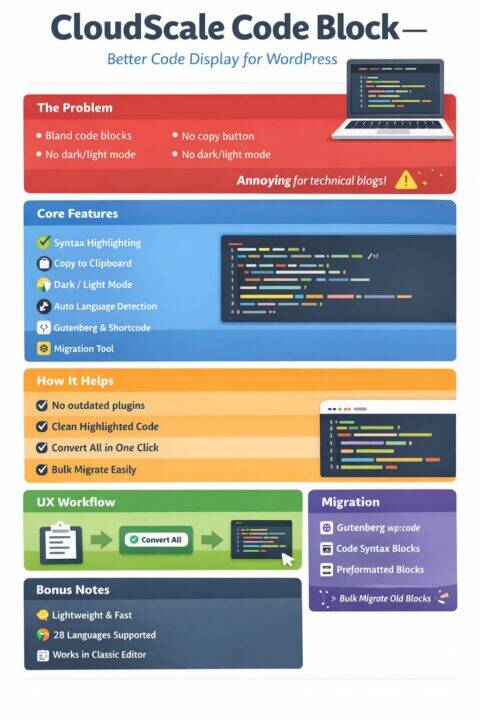
If you run a technical blog on WordPress, you know the pain. You paste a markdown article with fenced code blocks, Gutenberg creates bland core/code blocks with no syntax highlighting, no copy button, no dark mode. You end up wrestling with third party plugins that haven’t been updated in years or manually formatting every code snippet.
I built CloudScale Code Block to solve this once and for all. It’s a lightweight WordPress plugin that gives you proper syntax highlighting with automatic language detection, a one click clipboard copy button, dark and light theme toggle, full width responsive display, and a built in migration tool for converting your existing code blocks. It works as both a Gutenberg block and a shortcode for classic editor users.
In this post I’ll walk through how to install it, how to handle the Gutenberg paste problem, and how to migrate your existing code blocks.
1 What You Get
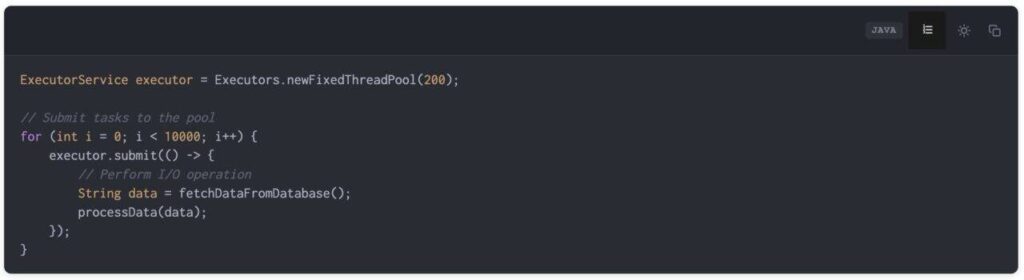
CloudScale Code Block uses highlight.js 11.11.1 under the hood with support for 28 languages out of the box. When you add a code block in the editor, you get a clean textarea with a toolbar showing the block type, detected language, and optional title (useful for filenames). On the frontend your visitors see beautifully highlighted code with line numbers, a copy to clipboard button, and a toggle to switch between dark (Atom One Dark) and light (Atom One Light) themes.
The plugin has zero build step required. No webpack, no npm install, no node modules. Upload it and activate.
2 Installation
Download the plugin ZIP file:
Download CloudScale Code Block Plugin
Then install it through your WordPress admin:
- Go to Plugins > Add New > Upload Plugin
- Choose the ZIP file and click Install Now
- Click Activate Plugin
That’s it. You’ll see CloudScale Code Block available in the Gutenberg block inserter under the Formatting category. You can also access settings at Settings > CloudScale Code to configure the default theme.
3 The Gutenberg Paste Problem
Here’s something every WordPress developer needs to know. When you paste markdown containing fenced code blocks (the triple backtick syntax), Gutenberg’s built in markdown parser intercepts the paste event before any plugin can touch it. It converts the fenced blocks into core/code blocks, which are WordPress’s default code blocks with no syntax highlighting.
This isn’t a bug in any plugin. It’s how Gutenberg’s paste pipeline works internally. The markdown parser runs synchronously during the paste event, creates the core blocks, and only then gives plugins a chance to respond.
CloudScale Code Block handles this with a practical solution: a floating convert toast.
4 Converting Pasted Code Blocks
When you paste markdown that contains fenced code blocks, Gutenberg will create core/code blocks as described above. CloudScale detects this automatically and shows a floating notification in the bottom right corner of the editor:
⚠️ 2 core code blocks found ⚡ Convert All to CloudScale
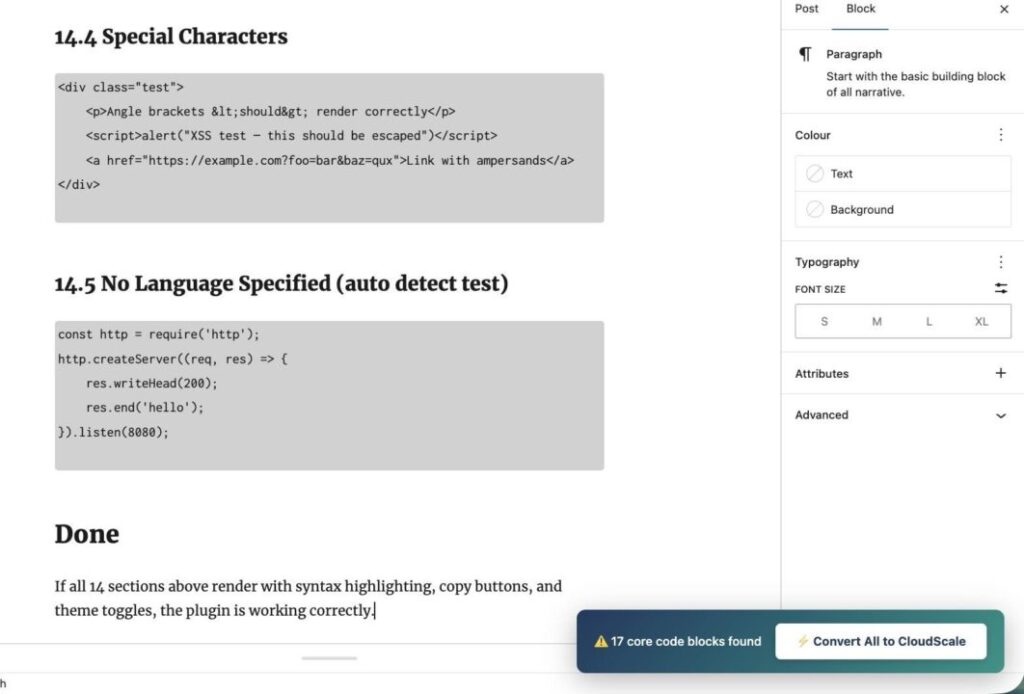
Click the Convert All to CloudScale button and every core/code and core/preformatted block in the post is instantly replaced with a CloudScale Code Block. The code content is preserved exactly as it was, and highlight.js will auto detect the language on the frontend.
This is a one click operation. Paste your markdown, click Convert All, done.
5 Migrating Existing Posts
If you have an existing blog with dozens or hundreds of posts using WordPress’s default code blocks or the Code Syntax Block plugin, you don’t want to edit each post manually. CloudScale Code Block includes a built in migration tool that handles this in bulk. Once the plugin is activated, go to Tools > Code Block Migrator in your WordPress admin.
5.1 How the Migrator Works
The migrator handles three types of legacy blocks:
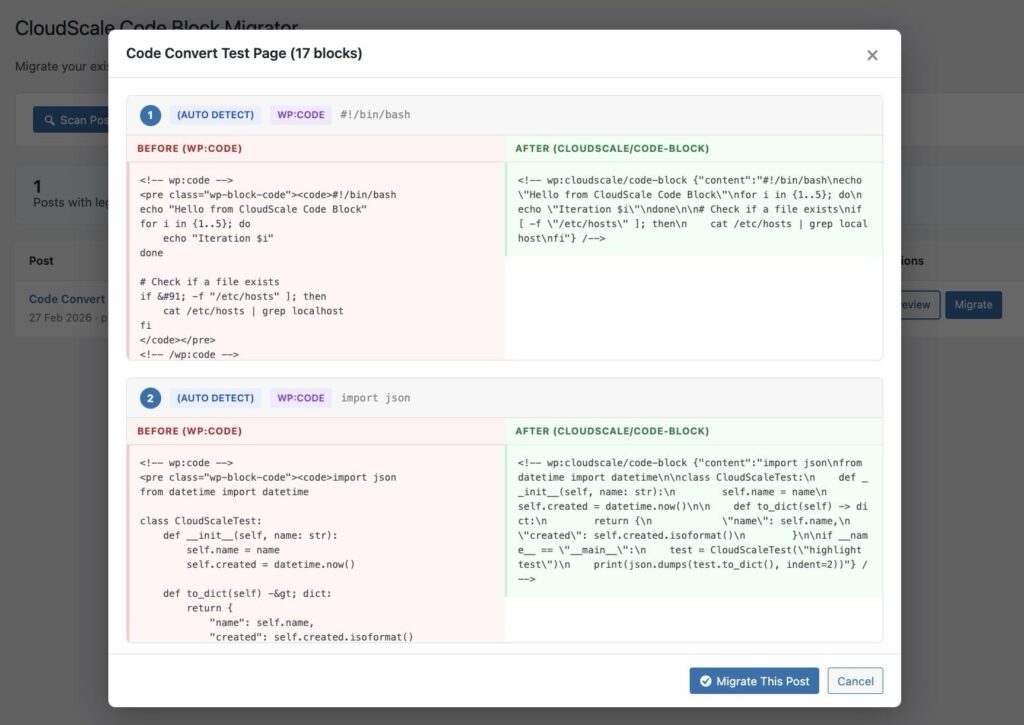
wp:code blocks are the default WordPress code blocks. The migrator extracts the code content, decodes HTML entities, and detects the language from any lang attribute or language-xxx CSS class.
wp:code-syntax-block/code blocks are from the popular Code Syntax Block plugin. The migrator reads the language from the block’s JSON attributes where Code Syntax Block stores it.
wp:preformatted blocks are WordPress preformatted text blocks that some themes and plugins use for code. The migrator converts br tags back to proper newlines and strips any residual HTML formatting.
5.2 Migration Workflow
The process is straightforward:
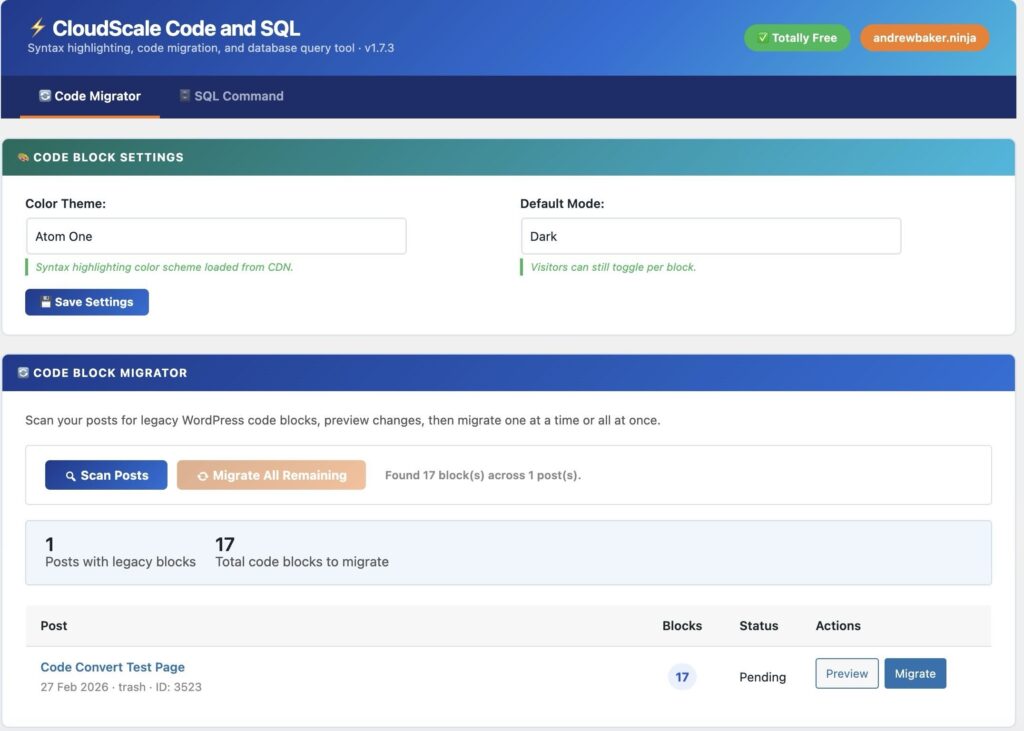
- Click Scan Posts to find every post and page containing legacy code blocks
- The scan results show each post with a count of how many code blocks it contains
- Click Preview on any post to see a side by side comparison of the original block markup and what CloudScale will produce
- Click Migrate This Post to convert a single post, or use Migrate All Remaining to batch convert everything
The migrator writes directly to the database and clears the post cache, so changes take effect immediately. I recommend taking a database backup before running a bulk migration, but in practice the conversion is deterministic and safe. The migrator only touches block comment delimiters and HTML structure. Your actual code content is never modified.
5.3 After Migration
Once migration is complete you can deactivate the Code Syntax Block plugin if you were using it. All your posts will now use CloudScale Code Block format and render with full syntax highlighting on the frontend.
6 Technical Details
For those interested in what’s under the hood:
The plugin registers a single Gutenberg block (cloudscale/code-block) with a PHP render callback. The block stores its data as three attributes: content (the raw code text), language (optional, for explicit language selection), and title (optional, shown above the code). The block uses save: function() { return null; } which means all rendering happens server side via PHP. This makes the block resilient to markup changes and avoids the dreaded “This block contains unexpected or invalid content” error that plagues so many WordPress code plugins.
Frontend assets are loaded on demand. The highlight.js library, theme stylesheets, and the clipboard/toggle JavaScript are only enqueued when a post actually contains a CloudScale Code Block. No unnecessary scripts on pages that don’t need them.
The auto convert watcher uses wp.data.subscribe to monitor the Gutenberg block store for core/code and core/preformatted blocks. When it finds them, it renders a floating toast with a convert button. The conversion calls wp.data.dispatch(‘core/block-editor’).replaceBlock() to swap each core block for a CloudScale block, preserving the code content and extracting any language hints from the original block’s attributes.
7 Configuration
The plugin includes a settings page at Settings > CloudScale Code where you can set the default theme (dark or light) for all code blocks on your site. Individual blocks can override this setting using the Theme dropdown in the block’s sidebar inspector.
You can also set the language explicitly per block if auto detection isn’t picking the right one. The language selector supports 28 languages including Bash, Python, JavaScript, TypeScript, Java, Go, Rust, SQL, YAML, Docker, and more.
8 Shortcode Support
For classic editor users or anywhere you need code highlighting outside of Gutenberg, the plugin provides a shortcode called cs_code. Wrap your code between the opening and closing tags and optionally set the language, title, and theme parameters. The shortcode renders identically to the Gutenberg block on the frontend, complete with syntax highlighting, copy button, and theme toggle.
After you publish this post, you can add a shortcode example manually by inserting a CloudScale Code Block in the editor and typing the example there. This avoids WordPress trying to execute the shortcode during paste.
9 Fourteen Color Themes
The original release shipped with Atom One as the only color scheme. That’s a fine default but if you’re running a blog with a specific visual identity, you want options. Version 1.7 adds 14 of the most popular syntax highlighting themes, all loaded directly from the highlight.js CDN with zero local files.
The full theme list: Atom One, GitHub, Monokai, Nord, Dracula, Tokyo Night, VS 2015 / VS Code, Stack Overflow, Night Owl, Gruvbox, Solarized, Panda, Tomorrow Night, and Shades of Purple.
Each theme comes in both a dark and light variant. When you select a theme in the settings, the plugin loads the appropriate dark and light CSS files from the CDN. The frontend toggle button switches between the two variants of your chosen theme. So if you pick Dracula, your visitors see Dracula Dark by default and can toggle to Dracula Light. If you pick Solarized, they get Solarized Dark and Solarized Light.
To change the theme, go to Tools > CloudScale Code and SQL. The Code Block Settings panel at the top of the Code Migrator tab has a Color Theme dropdown. Pick your theme and click Save Settings. The change applies site wide immediately, no page reload required.
Under the hood the theme system uses a registry pattern. Each theme entry defines its CDN filenames, dark background color, dark toolbar color, light background color, and light toolbar color. The frontend CSS uses CSS custom properties for all theme dependent values (background, toolbar, scrollbar, line numbers, hover states). When the page loads, JavaScript reads the theme colors from the registry and sets the custom properties on each code block wrapper. This means any new theme can be added to the registry without touching the CSS or JavaScript.
10 The Merged Admin Interface
In earlier versions, the Code Block Migrator and the SQL Command tool were separate plugins with separate admin pages. Version 1.6 merged everything into a single plugin with a unified admin interface at Tools > CloudScale Code and SQL.
The admin page uses a tabbed layout with two tabs: Code Migrator and SQL Command. The Code Migrator tab includes the inline settings panel (color theme and default mode) at the top, followed by the scan and migrate controls. The SQL Command tab has the query editor, results table, and quick query buttons.
The styling matches the CloudScale Page Views plugin exactly. You get the same navy gradient banner across the top, the dark tab bar with an orange underline on the active tab, white card panels with colored gradient section headers, and the same button styles, spacing, and typography throughout. If you’re running multiple CloudScale plugins, your Tools menu now has a consistent visual language across all of them.
11 SQL Command Tool
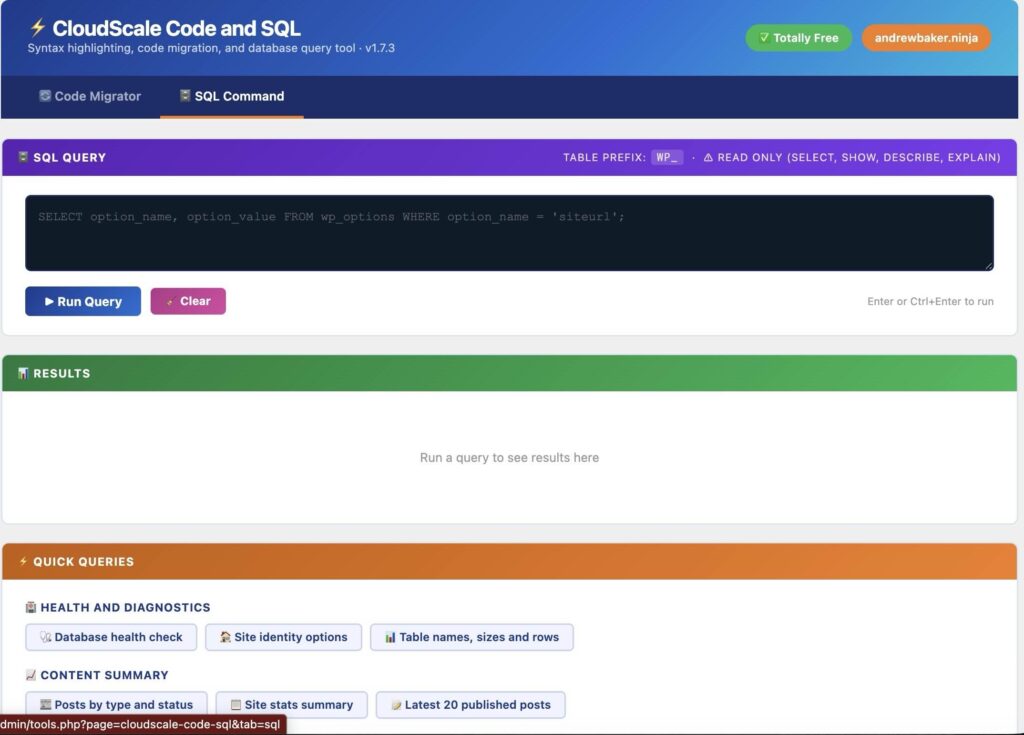
This is the feature I built for myself and use almost daily. If you manage a WordPress site and need to check database health, find bloat, or debug migration issues, you normally have to SSH into the server and run MySQL from the command line, or install phpMyAdmin, or use a separate database client. The SQL Command tool gives you a read only query interface right inside the WordPress admin.
Go to Tools > CloudScale Code and SQL and click the SQL Command tab. You’ll see a dark themed query editor at the top with a Run Query button. Type any SELECT, SHOW, DESCRIBE, or EXPLAIN query and press Enter (or Ctrl+Enter, or click the button). Results appear in a scrollable table below the editor with sticky column headers, striped rows, and hover highlighting.
The tool is strictly read only. All write operations are blocked at the PHP level before the query reaches the database. INSERT, UPDATE, DELETE, DROP, ALTER, TRUNCATE, CREATE, RENAME, REPLACE, LOAD, and GRANT are all rejected. The validation runs server side so it cannot be bypassed from the browser. You also need the manage_options capability, which means only WordPress administrators can access it.
11.1 Quick Queries
Below the query editor you’ll find 14 preset queries organized into four groups. Click any button to populate the editor and run the query immediately.
Health and Diagnostics gives you three queries. Database Health Check returns your MySQL version, max connections, wait timeout, max allowed packet size, and current database name. Site Identity Options pulls the six key values from wp_options: site URL, home URL, blog name, description, WordPress version, and database version. Table Sizes and Rows shows every table in your database with its storage engine, row count, data size in megabytes, index size, and total size, sorted largest first.
Content Summary has three queries. Posts by Type and Status gives you a grouped count of every post type and status combination in your database, which is useful for spotting unexpected post types from plugins. Site Stats Summary runs a single query that returns your total published posts, revision count, auto drafts, trashed items, total comments, spam comments, user count, and transient count. Latest 20 Published Posts shows your most recent content with title, publish date, and status.
Bloat and Cleanup Checks has four queries for finding waste. Orphaned Postmeta counts metadata rows where the parent post no longer exists. Expired Transients counts transient timeout entries that have passed their expiry. Revisions, Drafts and Trash shows how many revision posts, auto drafts, and trashed items are sitting in your database. Largest Autoloaded Options lists the 20 biggest entries in wp_options that have autoload set to yes, sorted by value size, which is usually the first place to look when your options table is bloated.
URL and Migration Helpers has four queries for sites that have changed domains or moved to HTTPS. HTTP References finds any wp_options rows still referencing HTTP versions of your domain. Posts with HTTP GUIDs finds posts where the GUID column still uses HTTP. Old IP References checks postmeta for values containing a specific IP address pattern (useful after migrating away from a legacy server). Posts Missing Meta Descriptions finds published posts that don’t have a CloudScale SEO meta description set, which is helpful for working through your SEO backlog.
11.2 Keyboard Shortcuts
Press Enter to run the query. Use Shift+Enter to insert a newline if you need to write a multiline query. Ctrl+Enter (or Cmd+Enter on Mac) also runs the query. The Clear button wipes both the editor and the results table.
12 Updated Configuration
With the merge, the old Settings > CloudScale Code Block page no longer exists. All settings have moved to the inline panel on the Code Migrator tab at Tools > CloudScale Code and SQL. You’ll find two dropdowns: Color Theme (the 14 theme options) and Default Mode (dark or light). Changes save via AJAX with no page reload.
In the Gutenberg editor sidebar, each individual block still has a Theme Override dropdown with Default, Dark, and Light options. Setting it to Default means the block follows the site wide setting. Setting it to Dark or Light forces that mode regardless of the site wide default. The help text in the sidebar now points to the Tools page for site wide theme selection.
The language selector in the editor sidebar has also been expanded. In addition to the original 28 languages, you can now select HCL/Terraform and TOML, bringing the total to 30+ supported languages.
13 Plugin Architecture
For developers interested in the internals, the merged plugin is a single PHP class (CS_Code_Block) with all functionality in one file. The admin interface uses inline CSS embedded directly in the page output rather than external stylesheet files. This is the same approach used by the CloudScale Page Views plugin and it eliminates browser caching issues entirely. The styles render correctly on first load every time, regardless of WordPress configuration, caching plugins, or CDN setups.
The theme registry is a static method that returns an associative array keyed by theme slug. Each entry contains the human readable label, dark CSS filename, light CSS filename, and four hex color values for backgrounds and toolbars. Adding a new theme means adding one array entry. The frontend JavaScript reads the active theme’s colors via wp_localize_script and sets CSS custom properties on each code block wrapper at page load.
The SQL query validation uses a whitelist approach. The is_safe_query method strips comments and checks that the query starts with SELECT, SHOW, DESCRIBE, or EXPLAIN. Everything else is rejected before it reaches wpdb. The AJAX handler also verifies a nonce and the manage_options capability on every request.
Quick query buttons are defined as HTML data attributes containing the full SQL string. Clicking a button copies the SQL into the textarea and triggers the run function. This keeps the query definitions in the PHP template where they can reference the WordPress table prefix dynamically, rather than hardcoding table names in JavaScript.
14 Wrapping Up
CloudScale Code Block is purpose built for technical bloggers who want clean, highlighted code on their WordPress sites without fighting the editor. The paste convert workflow means you can write in markdown, paste into Gutenberg, click one button, and publish. The built in migration tool means your existing content gets the same treatment without manual editing.
The plugin is free and open source. Grab it using the link above and let me know how it works for you.