Lightweight WordPress Free Analytics
Accurate page view tracking via a JavaScript beacon that bypasses caching. Includes a live statistics dashboard, Top Posts and Recent Posts sidebar widgets, IP throttling, and a Jetpack stats migrator — completely free, no data sent to third parties.
Statistics Dashboard
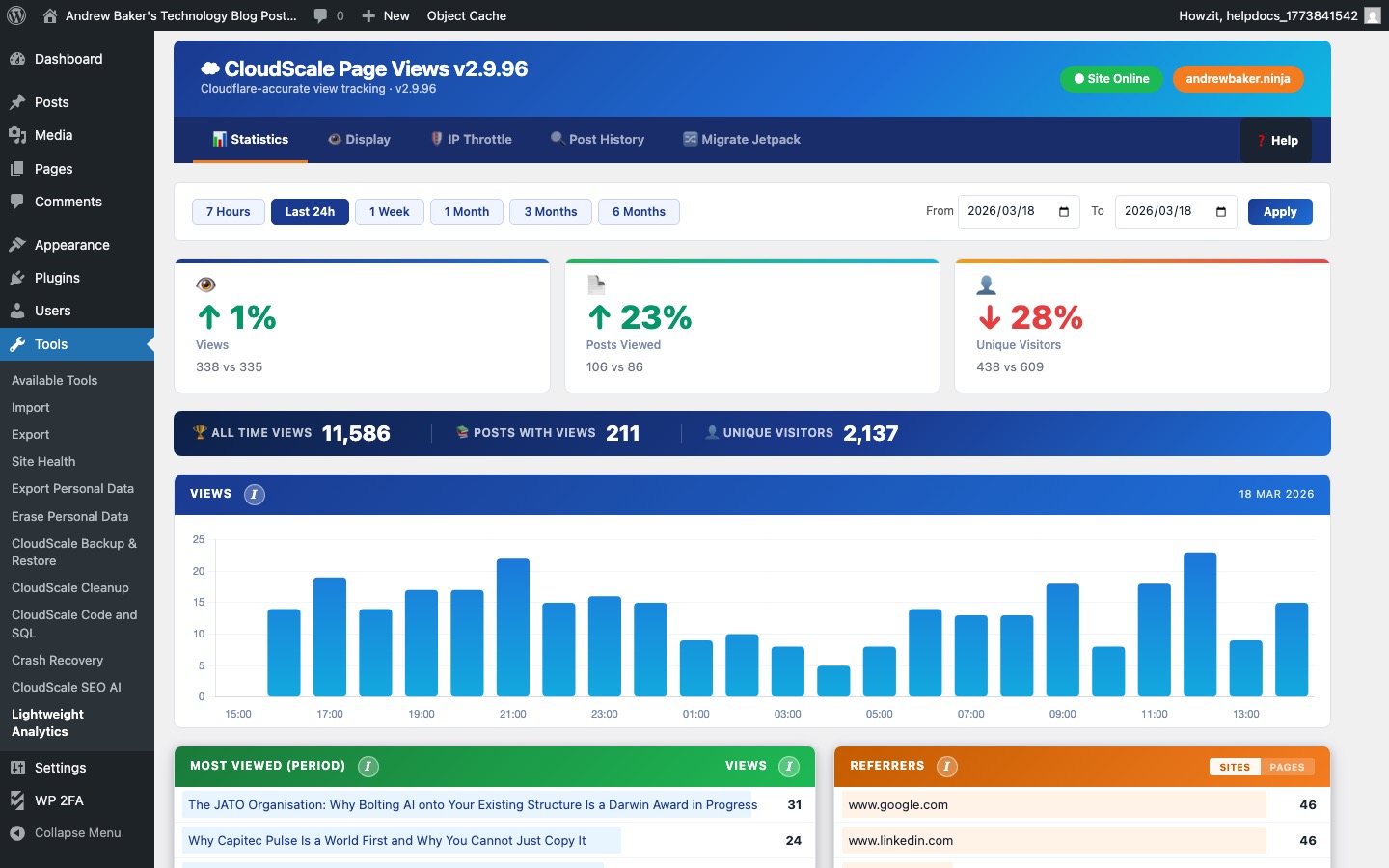
The Statistics Dashboard is the main analytics view, showing page view data stored directly in your WordPress database. No data is sent to Google, Facebook, or any third party.
- Period selector — switch between Today, 7 days, 30 days, 90 days, and All time to see view counts for that period.
- Totals bar — shows Total Views, Unique Posts Viewed, and Lifetime total at a glance.
- Views chart — a bar chart showing daily view volume over the selected period.
- Top Posts table — your most-viewed posts for the selected period, ranked by view count with links to edit each post.
- Referrer breakdown — shows which domains are sending traffic to your site.
Page views are recorded by a lightweight JavaScript beacon that fires after the page loads, bypassing Cloudflare and other caching layers that would block server-side tracking.
Display Settings
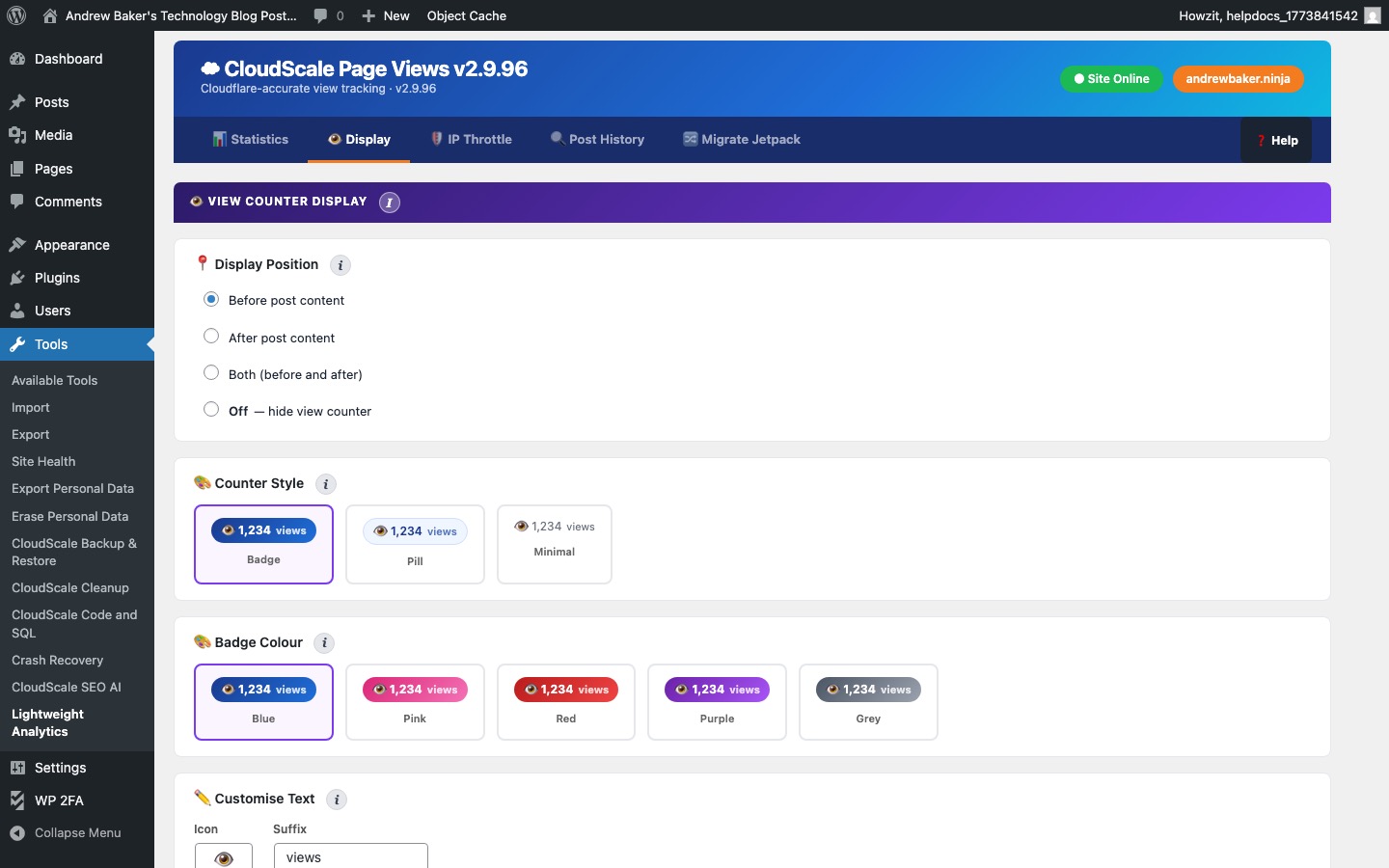
The Display Settings tab controls how and where view counts and widgets appear on your site.
- Show view count on posts — when enabled, a view counter is displayed on single post pages. Useful for social proof (“1,240 views”).
- View count position — place the counter before or after the post content, or in the post meta area.
- Top Posts widget — displays your most-viewed posts in any sidebar. Configure via Appearance → Widgets. Settings: number of posts to show (1–20), minimum view threshold (hides posts with very few views), and whether to show thumbnails.
- Recent Posts widget — shows recently viewed posts. Configure the number of entries and whether to display post thumbnails.
- Exclude post types — prevent certain post types (e.g. WooCommerce products, custom post types) from having their views tracked or displayed.
IP Throttle
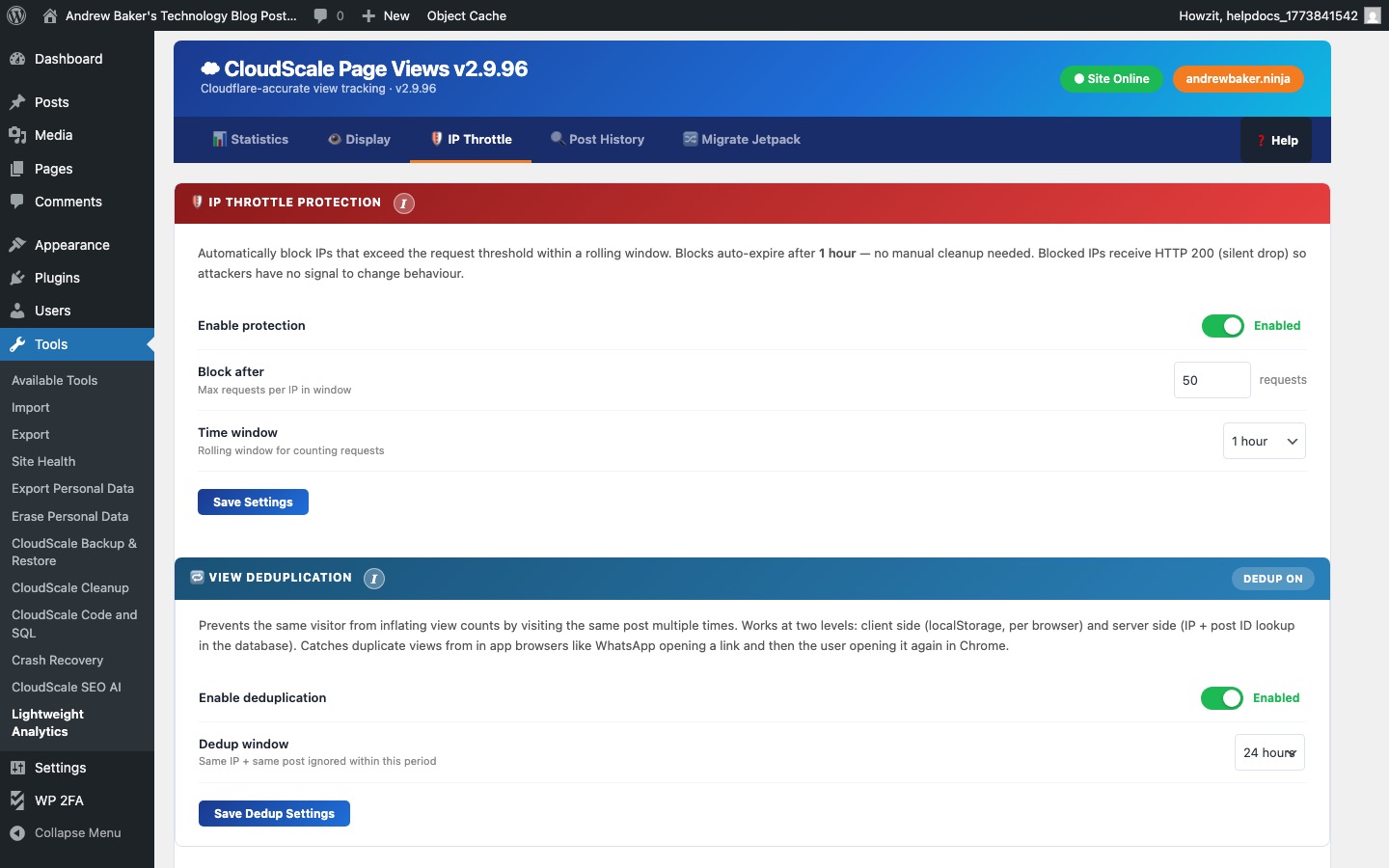
The IP Throttle tab prevents your own page views — and repeated views from the same visitor — from inflating your statistics.
- Throttle window — the time period (in minutes) during which a repeat view from the same IP address is not counted. Default: 30 minutes. Set to 0 to count every page load.
- Exclude logged-in users — when ticked, views from any logged-in WordPress user are not recorded. This prevents your own browsing from appearing in the stats.
- Exclude administrators — more specific than the above: only excludes users with the Administrator role, leaving Editor and Author views counted.
- Pause tracking — temporarily suspend all view recording without deactivating the plugin. Useful during maintenance, content imports, or testing.
- Bot filtering — automatically ignores known crawler and bot user agents. Bots do not trigger the JavaScript beacon, so this is a secondary safeguard.
Post History
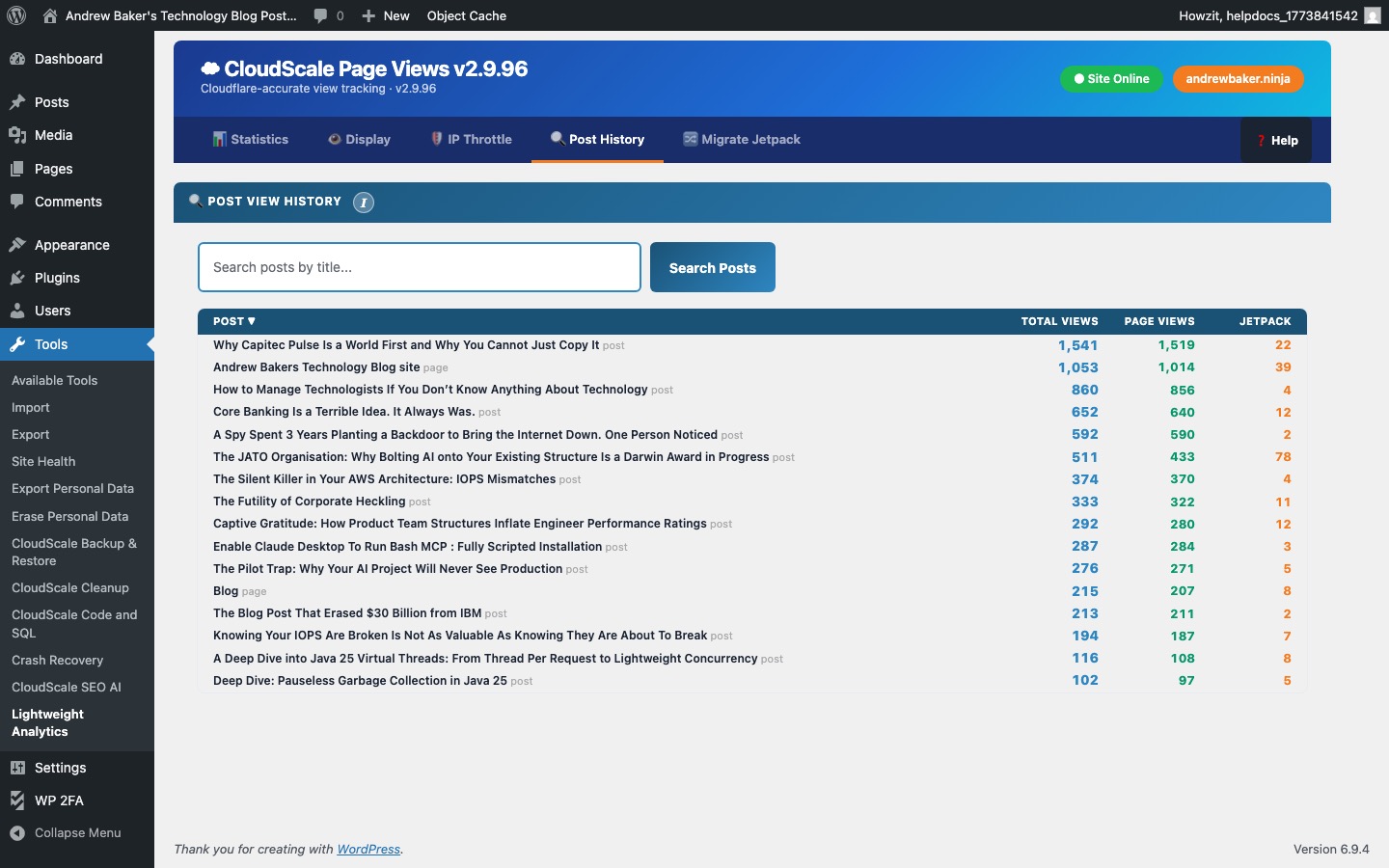
The Post History tab lets you look up the complete view history for any specific post or page.
- Post search — type the title of any post or page to find it. Select it from the autocomplete dropdown.
- View timeline — once a post is selected, the tab shows a day-by-day breakdown of its view count over its entire history.
- Total views — the lifetime view count for that specific post.
- Trending indicator — compares recent views to the post’s historical average, showing whether it is currently gaining or losing traffic.
This is useful for identifying which posts are driving traffic, spotting seasonal patterns, and measuring the impact of updates or promotions on a specific article.