MacOSX: How to Disable iCloud Desktop Sync Without Losing Your Files
The Problem: macOS Will Delete Your Local Files
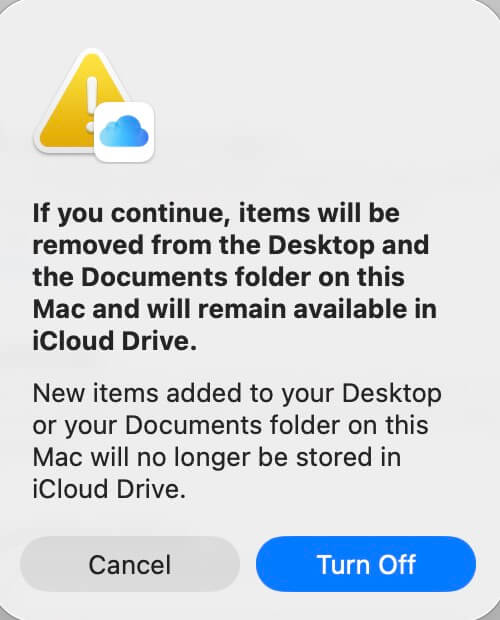
If you try to disable iCloud Drive syncing for your Desktop and Documents folders using the macOS System Settings interface, you’ll encounter this alarming warning:
If you continue, items will be removed from the Desktop and the Documents folder on this Mac and will remain available in iCloud Drive.
New items added to your Desktop or your Documents folder on this Mac will no longer be stored in iCloud Drive.
This is problematic because clicking “Turn Off” will remove all your Desktop files from your local Mac, leaving them only in iCloud Drive. This is not what most users want when they’re trying to disable iCloud sync.
The Solution: Use Terminal to Download First
The key is to ensure all iCloud files are downloaded locally before you disable the sync. Here’s the safe approach:
Step 1: Download All iCloud Desktop Files
Open Terminal and run:
# Force download all iCloud Desktop files to local storage
brctl download ~/Desktop/

# Check the download status
brctl status ~/Desktop/
Wait for the brctl download command to complete. This ensures every file on your Desktop that’s stored in iCloud is now also stored locally on your Mac.
Step 2: Verify Files Are Local
Check if any files are still cloud-only:
# Look for files that haven't been downloaded yet
find ~/Desktop -type f -exec sh -c 'ls -lO@ "$1" | grep -q "com.apple.fileprovider.status"' _ {} ; -print
If this returns any files, wait a bit longer or run brctl download ~/Desktop/ again.
Step 3: Now Disable iCloud Sync Safely
Once you’ve confirmed all files are downloaded:
- Open System Settings
- Click your Apple ID
- Click iCloud
- Click the ⓘ or Options button next to iCloud Drive
- Uncheck Desktop & Documents Folders
- Click Done
When you see the warning message about files being removed, you can click “Turn Off” with confidence because you’ve already downloaded everything locally.
Why This Happens
Apple’s iCloud Drive uses a feature called “Optimize Mac Storage” which keeps some files in the cloud only (not downloaded locally). When you disable Desktop & Documents sync through the UI, macOS assumes you want to keep files in iCloud and removes the local copies.
The brctl (iCloud Broadcast) command-line tool gives you more control, allowing you to force a full download before disabling sync.
Alternative: Disable Without the GUI
You can try disabling some iCloud behaviors via terminal:
# Disable optimize storage
defaults write com.apple.bird optimize-storage -bool false

# Disable automatic document syncing
defaults write NSGlobalDomain NSDocumentSaveNewDocumentsToCloud -bool false

# Restart the iCloud sync daemon
killall bird
Note: These commands affect iCloud behavior but may not completely disable Desktop & Documents syncing. The GUI method after downloading is still the most reliable approach.
Summary
To safely disable iCloud Desktop sync without losing files:
- Run
brctl download ~/Desktop/in Terminal - Wait for all files to download
- Use System Settings to disable Desktop & Documents sync
- Click “Turn Off” when warned (your files are already local)
This ensures you keep all your files on your Mac while stopping iCloud synchronization.
Have you encountered this issue? The warning message is genuinely scary because it sounds like you’re about to lose your files. Always download first, disable second.