Mac Command+Tab: Restore Minimised Windows Like Windows

Restoring minimised windows using Command+Tab on a Mac requires installing AltTab, a free third party app installable via Homebrew. Once installed and granted accessibility permissions, AltTab replicates Windows style window switching behaviour. By default it uses Option+Tab, but settings allow remapping to Command+Tab, ensuring minimised windows restore focus exactly as they do on Windows.
Mac Command+Tab: Restore Minimised Windows Like WindowsAndrew Baker's Technology Blog Posts, 25/Aug/2022
https://andrewbaker.ninja/2022/08/25/mac-commandtab-restore-minimised-windows-like-windows/
For those who like to maximise or minimise their windows on a Mac, you will likely be frustrated by the default behaviour of your Macbook (in that it doesn’t restore/focus minimised or maximised screens). Below are a few steps to make your mac screen restores behave like Microsoft Windows:
Install Homebrew (if you dont have):
## Install homebrew
/bin/bash -c "$(curl -fsSL https://raw.githubusercontent.com/Homebrew/install/HEAD/install.sh)"
## IMPORTANT: Once the install finishes run the two commands displayed in the terminal window
echo 'eval "$(/opt/homebrew/bin/brew shellenv)"' >> $HOME/.zprofile
eval "$(/opt/homebrew/bin/brew shellenv)"
Install AltTab:
brew install --cask alt-tabNext run the AltTab application (click the magnify glass/search glass in the top right of your macbook (near the clock) and then type “AltTab”). When it starts up it will ask you to permission it to access the various system accessibility functions (ie window preview). If you don’t adjust the settings you will need to switch from using “Command + Tab” to using “Option + Tab”, or read the note below to adjust the settings…
Note: I recommend the following tweaks…
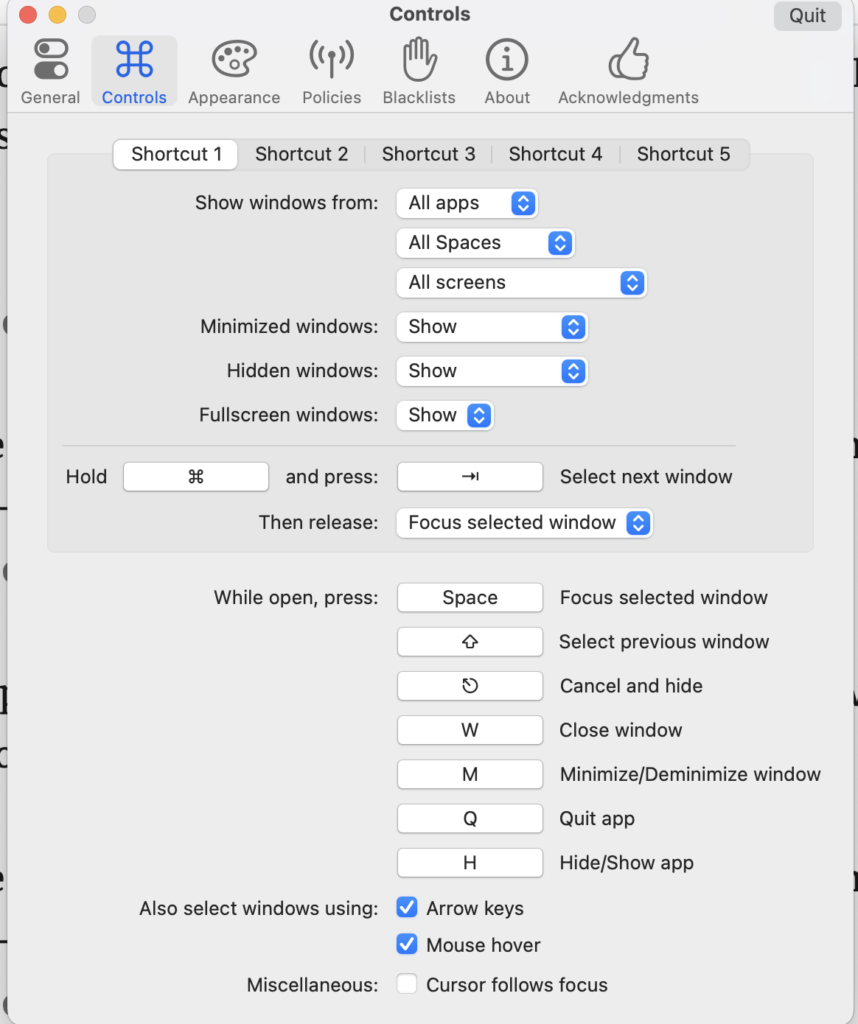
If you want to use the default windows style for tab keystrokes, you will need to change the “Controls” tab setting called “Hold” from “Option” to “Command” as per below:
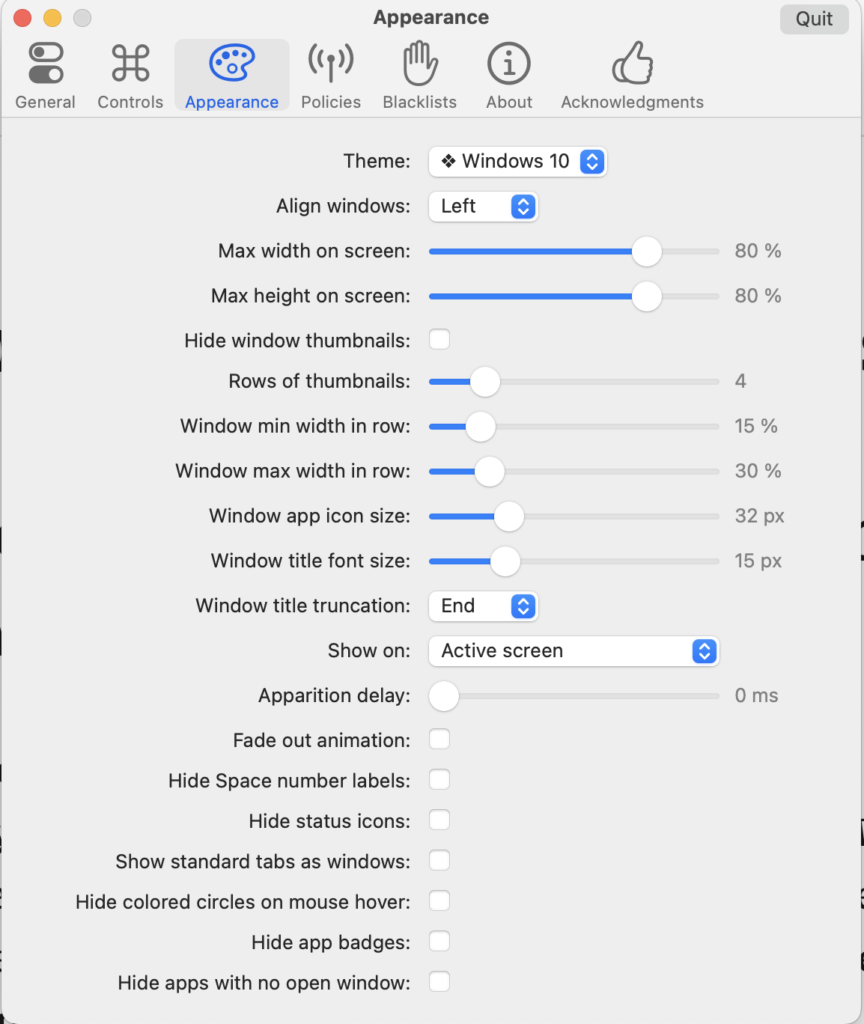
Next, go to Appearance tab and change the Theme to “Windows 10” (as its hard to see the focus window on Mac style):
Note: detailed documents on AltTab can be found here: https://alt-tab-macos.netlify.app/