WordPress Database & Media Cleanup Plugin: Free Guide

WordPress database and media cleanup plugins remove junk data that accumulates over time, including post revisions, expired transients, spam comments, orphaned metadata, and unused media files. Running a dedicated cleanup plugin reduces database size, speeds up queries, and recovers wasted server storage, keeping your WordPress site performing efficiently without manual database intervention.
If you run a WordPress site for any length of time, the database quietly fills with junk. Post revisions stack up every time you hit Save. Drafts you abandoned years ago sit there. Spam comments accumulate. Transients expire but never get deleted. Orphaned metadata from plugins you uninstalled months ago quietly occupies table rows nobody ever queries. On a busy blog or a site that has been running for several years, this accumulation can add up to tens of thousands of rows and hundreds of megabytes of wasted space.
I built CloudScale Cleanup to deal with this properly. It is a free, open source WordPress plugin that handles both database cleanup and media library cleanup: unused images, orphaned filesystem files, and image optimisation; through a clean admin interface with full dry run support so you can see exactly what will be deleted before anything is touched.
Github:
https://github.com/andrewbakercloudscale/wordpress-database-cleanup-plugin
You can download it here: cloudscale-cleanup.zip
What It Cleans
Database Cleanup
Post Revisions: Every time you update a post, WordPress stores a complete copy of the previous version. On an active blog this means hundreds of revision rows per post. CloudScale Cleanup removes revisions older than a configurable threshold (default 30 days), leaving recent ones intact.
Draft Posts: Posts saved as drafts but never published. The threshold (default 90 days) ensures you never accidentally lose something you were actively working on.
Trashed Posts: Posts moved to the WordPress trash. WordPress keeps them indefinitely. The plugin removes them after a configurable number of days.
Auto-Drafts: WordPress creates an auto-draft record every time you open the Add New Post screen. If you navigate away without saving, the empty record remains. These accumulate silently and are almost always safe to delete immediately.
Expired Transients: Temporary cached values stored in your options table by plugins and themes. After expiry WordPress should delete them, but many are never cleaned up. They are completely safe to delete and can number in the thousands on plugin-heavy sites.
Orphaned Post Meta: Metadata rows referencing post IDs that no longer exist. Left behind when posts are deleted without their associated metadata being cleaned up first.
Orphaned User Meta: The same problem for user accounts. When a user is deleted, their metadata rows often remain.
Spam Comments: Comments flagged as spam. A configurable threshold (default 30 days) gives you time to review false positives before they are permanently removed.
Trashed Comments: Comments you have manually moved to the comment trash, removed after a configurable threshold.
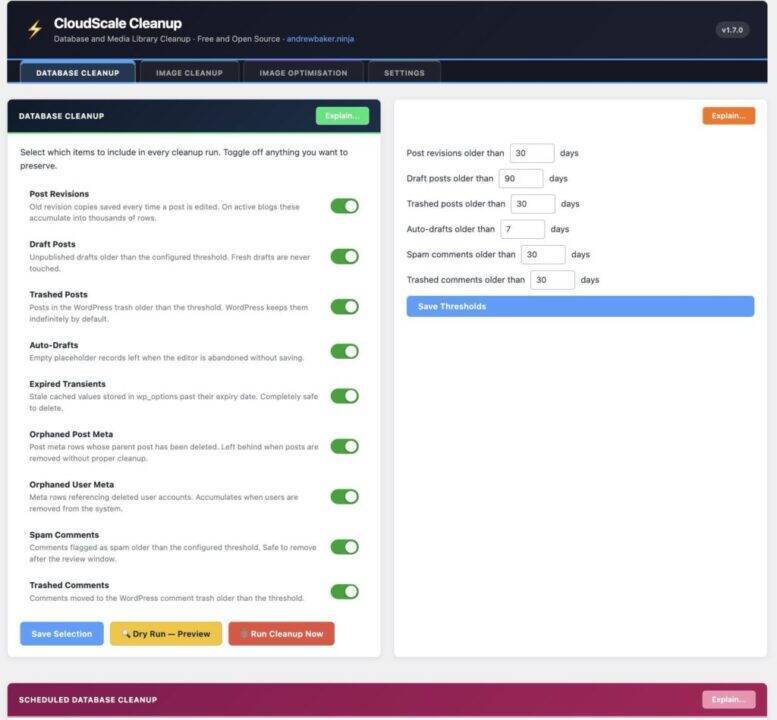
Image Cleanup
Unused Image: Attachments that exist in your media library but cannot be found anywhere on the site: not in post content, not as featured images, not in widget settings, theme mods, the site logo, or the site icon. The site logo and icon are always protected regardless of settings.
Orphaned Filesystem Files: Image files that exist physically on disk inside wp-content/uploads but have no corresponding WordPress attachment record in the database. These are typically left behind after failed imports, manual file operations, or plugin migrations.
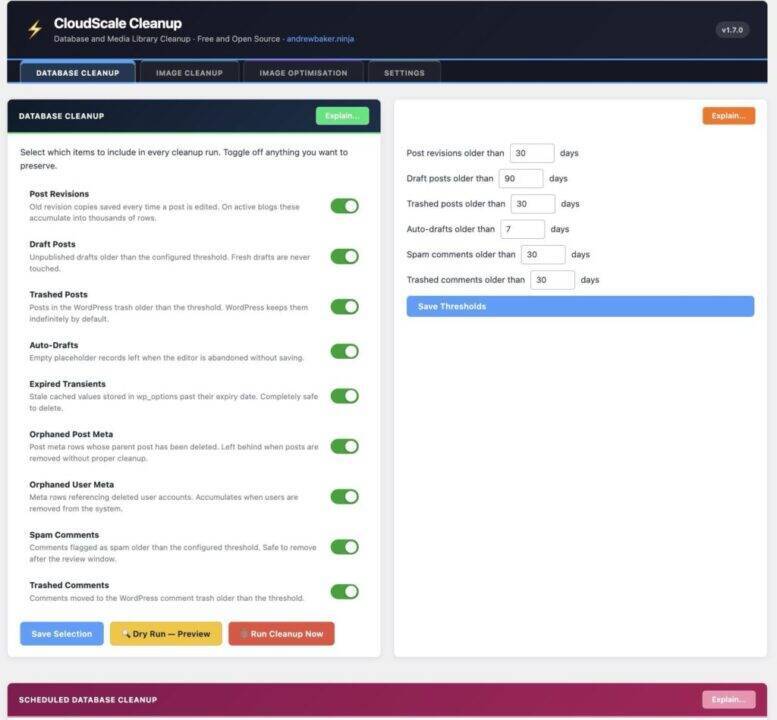
Image Optimisation
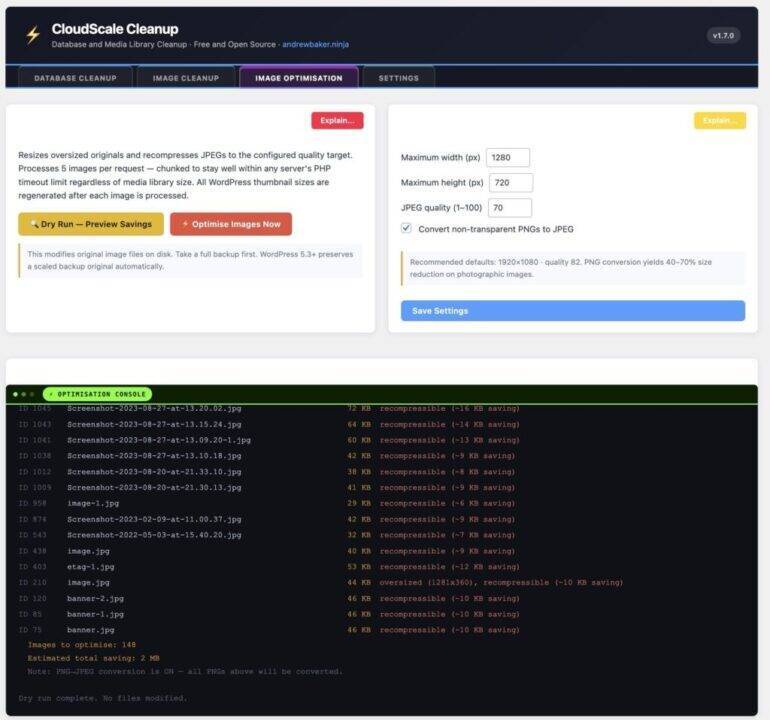
CloudScale Cleanup can resize and re-compress JPEG and PNG images that exceed configurable maximum dimensions or quality thresholds. This is a destructive operation; it modifies the original files on disk; so the plugin requires explicit confirmation and strongly recommends taking a backup first.
PNG to JPEG Converter
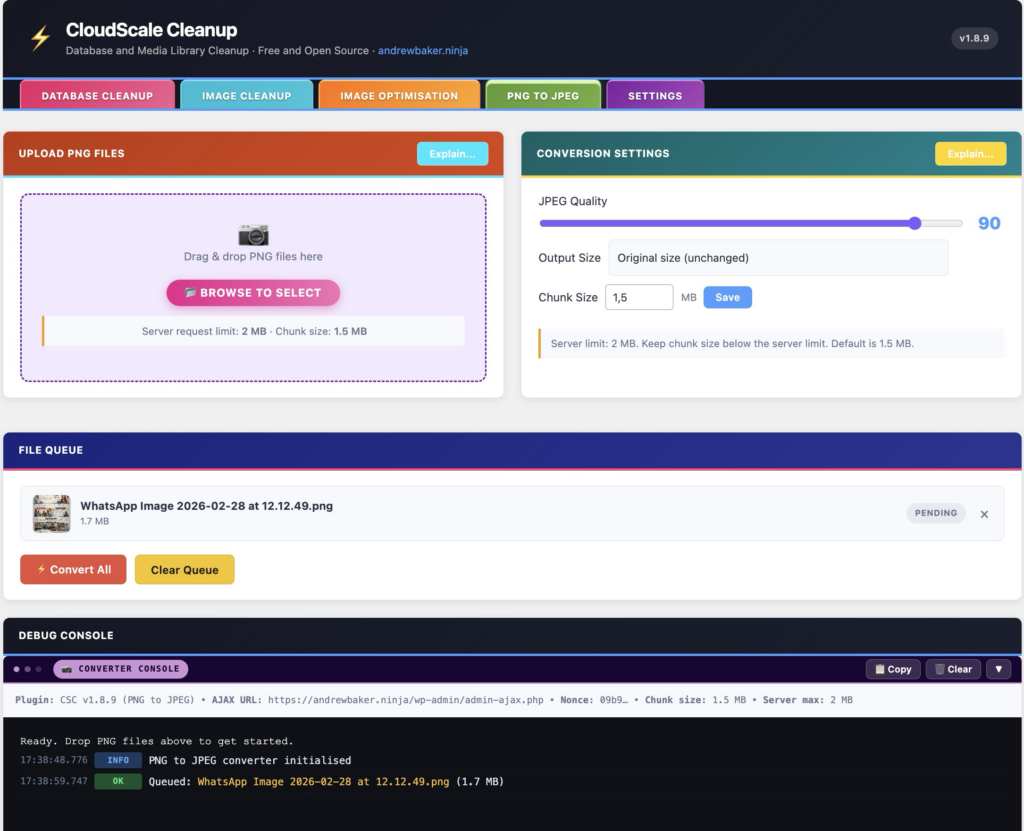
If you have ever looked at the size of your WordPress uploads folder and wondered why it is so large, the answer is almost certainly PNG files. A single PNG screenshot can easily be 3 to 8 MB. The same image saved as a JPEG at 85% quality is typically 200 to 400 KB; a reduction of 90% or more. Multiply that across dozens or hundreds of images and you are looking at gigabytes of wasted disk space and slower page loads for every visitor.
Most images uploaded to WordPress do not need to be PNGs. PNG is a lossless format designed for images where every pixel matters; technical diagrams, logos with transparency, pixel art. For photographs, screenshots, WhatsApp images, and the vast majority of blog content, JPEG is the correct format. The visual difference at 85% quality is imperceptible to the human eye, but the file size difference is enormous.
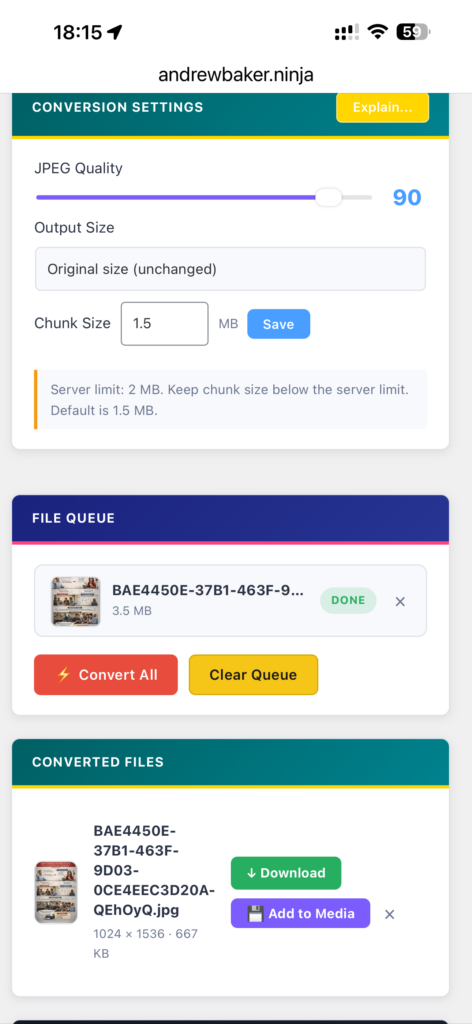
CloudScale Cleanup now includes a PNG to JPEG tab that handles this conversion directly inside your WordPress admin. Drop one or more PNG files onto the upload area, set your quality (1 to 100, default 85) and output dimensions, and hit Convert All. The converter uses the same chunked upload architecture that powers the database cleanup, so even very large PNG files are uploaded in small pieces that will not hit PHP upload limits or server timeouts. Once converted, you can download the JPEG directly or click Add to Media to send it straight into your WordPress Media Library.
A typical WordPress blog with 100 PNG images at an average of 4 MB each uses 400 MB of disk space. Converting to JPEG at 85% quality typically reduces that to around 40 MB. On sites with heavy image use, the savings run into multiple gigabytes.
The PNG to JPEG converter bypasses the standard WordPress 2 MB upload limit using chunked uploads. Instead of submitting the entire file through the WordPress media uploader, the browser slices the PNG into smaller pieces (defaulting to 1.5 MB each) and uploads them individually via separate AJAX requests. The server reassembles the chunks, then GD handles the conversion at your chosen quality and size. This lets you convert PNG files up to 200 MB without touching any PHP configuration or asking your host to raise limits.
Below is me using it from my iphone to post an article. Both Chatgpt and claude create pngs, so i just go to the addin and convert them to jpegs.
Installation
- Download the plugin zip from: https://andrewninjawordpress.s3.af-south-1.amazonaws.com/cloudscale-cleanup.zip
- In your WordPress admin, go to Plugins → Add New → Upload Plugin
- Choose the zip file and click Install Now
- Click Activate Plugin
- Navigate to Tools → CloudScale Cleanup in the admin sidebar
If you have an opcode cache running (OPcache, Redis object cache, or a caching plugin like WP Rocket or W3 Total Cache), deactivate and reactivate the plugin after installation to ensure the new files are loaded cleanly.
Using the Plugin
The Dry Run
Before deleting anything, always run a dry run. Click the Dry Run — Preview button on the Database Cleanup tab. The plugin will scan your database and report exactly what it found; how many revisions, which draft posts, how many orphaned meta rows, without touching anything.
The output terminal shows each category with a count, and for items like draft posts it lists the individual post IDs, titles, and dates so you can make an informed decision before proceeding.
If a toggle is switched off, the category will show as SKIPPED (disabled) in the output. Toggle states are respected at the point of scanning, so what you see in the dry run accurately reflects what the actual cleanup will do.
Toggles
Each cleanup category has a toggle switch. Green means it will be included in the next scan or cleanup run. Grey means it will be skipped. Toggle settings are saved independently using the Save Selection button on each card.
This lets you permanently disable categories you never want touched — for example, if you deliberately keep old drafts as reference material, toggle off Draft Posts and it will never appear in scans.
Thresholds
The Cleanup Thresholds card controls the age cutoffs for each category. Every threshold prevents the cleanup from touching items that are too recent. Defaults are conservative:
- Post revisions older than 30 days
- Drafts older than 90 days
- Trashed posts older than 30 days
- Auto-drafts older than 7 days
- Spam comments older than 30 days
- Trashed comments older than 30 days
Adjust these to match your workflow. If you publish daily and never need to recover a revision more than a week old, set the revision threshold to 7 days. If you occasionally return to old drafts, set the draft threshold to 180 days or higher.
Running the Cleanup
Once you are satisfied with the dry run output, click Run Cleanup Now. The plugin will ask for confirmation, then process deletions in chunks to avoid PHP timeout limits. A progress bar tracks completion in real time. The output terminal logs each deleted item.
The chunked processing engine means the cleanup is safe to run on large sites. Even if you have 50,000 orphaned meta rows, the plugin processes them in batches of 50 and reports progress throughout rather than attempting a single massive query that could time out.
Scheduled Cleanup
The Settings tab includes a scheduler that registers a WordPress Cron job to run the database cleanup automatically on selected days at a configured hour.
A note on WordPress Cron: it is not a real cron. It is triggered by page visits. On a low-traffic site, a job scheduled for 3:00 AM may not run until the first visitor arrives that morning. For precise scheduling, disable WP-Cron in wp-config.php and add a real system cron:
# wp-config.phpndefine('DISABLE_WP_CRON', true);# Server crontabn0 3 * * * curl -s https://yoursite.com/wp-cron.php?doing_wp_cron u003e /dev/null 2u003eu00261Architecture Notes
The plugin is deliberately self-contained; a single PHP file plus two asset files with no external dependencies and no calls home. It uses WordPress’s own $wpdb for all database operations, respects WordPress nonces for AJAX security, and hooks into the standard admin menu and enqueue system.
Cleanup operations use a three-phase chunked engine: a start action builds the queue and stores it in a transient, a chunk action processes one batch and updates the transient, and a finish action reports the final summary and cleans up. This pattern means the browser never waits more than a few seconds for any single request, and the cleanup can handle arbitrarily large datasets without running into PHP execution time limits.
The toggle state is passed from the browser to the PHP handler on every scan and run request. The PHP handler never assumes toggles are on, if a key is missing from the POST data it treats that category as disabled. This means the dry run and the actual cleanup always respect the current on-screen state, not just whatever was last saved to the database.
Download
The plugin is free and open source.
Download CloudScale Cleanup v1.5.3
Install it, run a dry run, and find out how much cruft has been accumulating in your WordPress database.