WordPress Totally Free Backup and Restore: CloudScale Backup Plugin – Does Exactly What It Says
I’ve been running this blog on WordPress for years, and the backup situation has always quietly bothered me. The popular backup plugins either charge a monthly fee, cap you on storage, phone home to an external service, or do all three. I wanted something simple: a plugin that makes a zip file of my site, stores it locally, runs on a schedule, and optionally syncs to S3. No accounts, no subscriptions, no mandatory cloud storage. The final straw for me was when my previous backup solution let me backup – but when I needed to restore, it would not let me restore unless I paid to upgrade to the premium version!
So I built one. It’s called CloudScale Free Backup and Restore. It’s completely free, and you can install it right now.
Github repo:
https://github.com/andrewbakercloudscale/wordpress-backup-restore-plugin
Download: cloudscale-backup.zip
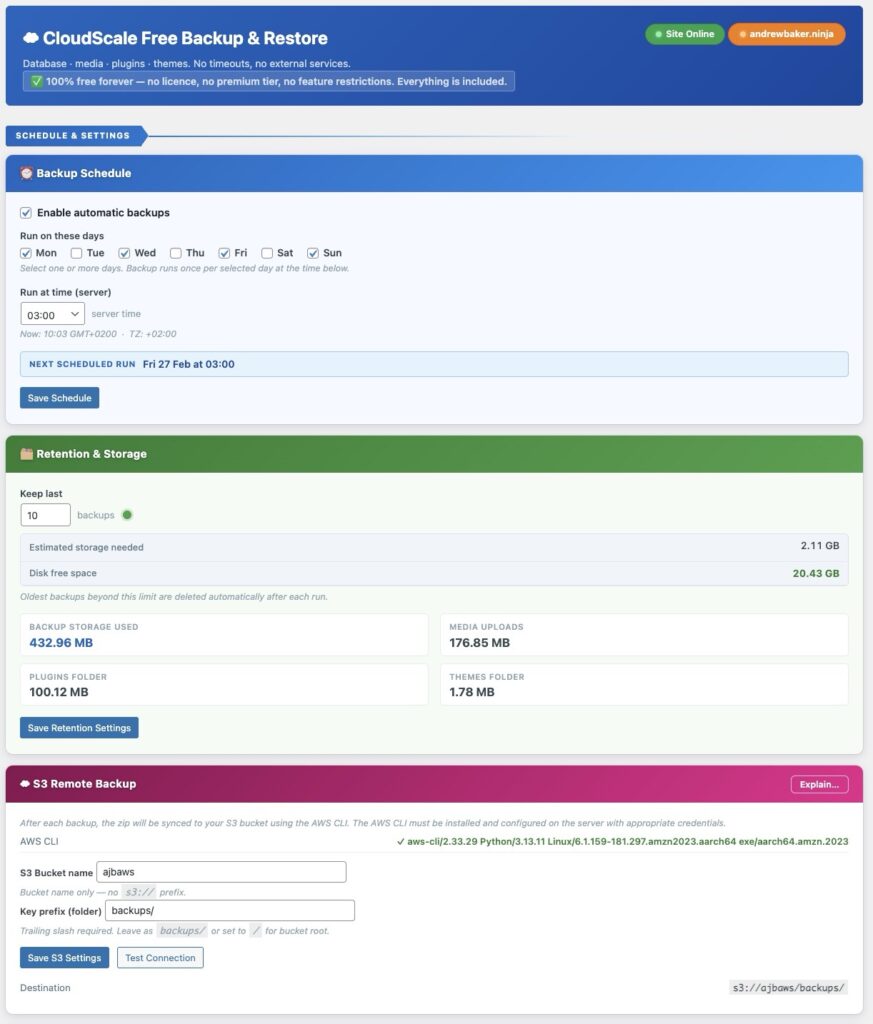
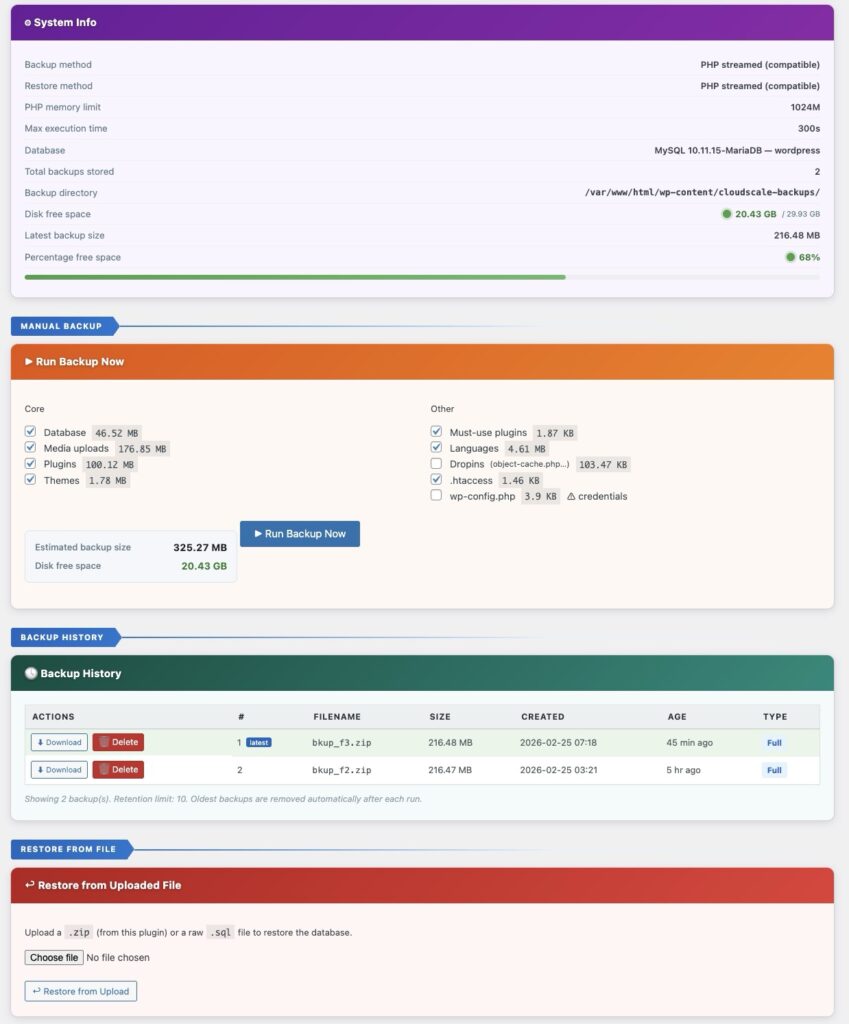
CloudScale WordPress Backup Admin Screens:
1. What It Backs Up
The plugin backs up any combination of the following:
Core
- The WordPress database — all posts, pages, settings, users, and comments
- Media uploads (
wp-content/uploads) - Plugins folder (
wp-content/plugins) - Themes folder (
wp-content/themes)
Other (shown only if present on your server)
- Must-use plugins (
wp-content/mu-plugins) - Languages and translation files (
wp-content/languages) - wp-content dropin files (
object-cache.php,db.php,advanced-cache.php) .htaccess— your Apache rewrite rules and custom security directiveswp-config.php— flagged with a credentials warning, unchecked by default
Each backup is a single zip file. Inside it you’ll find a database.sql dump, the selected folders each in their own subdirectory, and a backup-meta.json file that records the plugin version, WordPress version, site URL, table prefix, and exactly what was included. That metadata matters when restoring to a different server.
2. How the Backup Works Internally
Database dump
The plugin detects whether mysqldump is available on your server. If it is, it uses that — fast, handles large databases cleanly, produces a proper SQL dump including all CREATE TABLE and INSERT statements. If mysqldump isn’t available (common on shared hosting), it falls back to a pure PHP implementation that streams through every table and writes compatible SQL. Either way you get a database.sql that can be imported with any standard MySQL client.
File backup
Files are added to the zip using PHP’s ZipArchive extension, available on virtually every PHP installation. The plugin walks each selected directory recursively and adds every file. There’s no timeout risk because it does not use shell commands for file backup, it streams directly in PHP.
Backup naming and location
Backups are stored in wp-content/cloudscale-backups/. On first run the plugin creates this directory and drops an .htaccess file inside it containing Deny from all, which prevents direct web access. Backup filenames use a short format encoding the content type; for example bkup_f1.zip is a full backup (database, media, plugins, themes), bkup_d2.zip is database only, and bkup_dm3.zip is database plus media. The sequence number increments and never overwrites an existing file.
Scheduled backups
Scheduled backups use WordPress Cron. You pick which days of the week and what hour (server time), and the plugin registers a recurring event. WordPress Cron fires when someone visits your site, so on very low traffic sites the backup may run a few minutes after the scheduled hour rather than exactly on it. If you need exact timing, add a real server cron job that hits wp-cron.php directly.
3. The Retention System
The retention setting controls how many backups to keep. Every time a backup completes, the plugin counts current backups and deletes the oldest ones beyond your limit. The default is 10.
The plugin shows a live storage estimate: it takes the size of your most recent backup, multiplies by your retention count, and compares that against current free disk space. A traffic light indicator: green, amber, red tells you at a glance whether you’re comfortable, getting tight, or at risk of filling the disk. This updates live as you change the retention number.
4. S3 Remote Backup
Local backups are only half the story. If your server dies entirely, local backups die with it. The plugin addresses this with built in S3 remote backup. After every backup, scheduled or manual, it automatically uploads the zip to an S3 bucket of your choosing using the AWS CLI. The local copy is always kept.
How it works
The plugin runs aws s3 cp after each backup completes. There are no PHP SDKs, no Composer dependencies, no AWS API keys stored in the WordPress database. It relies entirely on the AWS CLI binary installed on the server and whatever credential chain that CLI is configured to use. If the sync fails for any reason, the local backup is unaffected and the error is logged and displayed.
Requirements
The AWS CLI must be installed on the server. The plugin detects it automatically across the common install locations including /usr/local/bin/aws, /usr/bin/aws, and the AWS v2 installer default at /usr/local/aws-cli/v2/current/bin/aws. The S3 card shows a green tick with the detected version if found.
Install on Ubuntu/Debian (x86_64):
curl "https://awscli.amazonaws.com/awscli-exe-linux-x86_64.zip" -o awscliv2.zip
unzip awscliv2.zip && sudo ./aws/install
Install on Ubuntu/Debian (ARM64 — Graviton, Raspberry Pi, Apple Silicon VMs):
curl "https://awscli.amazonaws.com/awscli-exe-linux-aarch64.zip" -o awscliv2.zip
unzip awscliv2.zip && sudo ./aws/install
Install on Amazon Linux / EC2 (x86_64 and ARM):
sudo yum install -y aws-cliCredentials
The plugin inherits whatever credentials the AWS CLI is configured with under the web server user. Three options in order of preference:
IAM instance role: attach an IAM role to your EC2 or Lightsail instance with the policy below. Zero configuration, no keys stored anywhere, automatically rotated. This is the right approach if you’re on AWS infrastructure.
Credentials file: run aws configure as the web server user (www-data on Ubuntu, apache on Amazon Linux). This writes ~/.aws/credentials which the CLI picks up automatically.
Environment variables: set AWS_ACCESS_KEY_ID, AWS_SECRET_ACCESS_KEY, and AWS_DEFAULT_REGION in the server environment.
Minimum IAM policy
Replace YOUR-BUCKET-NAME with your actual bucket:
{
  "Version": "2012-10-17",
  "Statement": [{
    "Effect": "Allow",
    "Action": ["s3:PutObject", "s3:GetObject", "s3:ListBucket"],
    "Resource": [
      "arn:aws:s3:::YOUR-BUCKET-NAME",
      "arn:aws:s3:::YOUR-BUCKET-NAME/*"
    ]
  }]
}
PutObject is what actually uploads the backups. GetObject and ListBucket are useful if you ever retrieve a backup directly from S3.
Configuration and testing
In the S3 Remote Backup card, set your bucket name and key prefix (defaults to backups/), then hit Save S3 Settings. Use the Test Connection button to verify everything before your next scheduled backup runs — it writes a small test file to the bucket and reports either a success confirmation or the exact AWS CLI error, which tells you specifically whether the problem is a missing CLI, a credentials gap, a wrong bucket name, or an IAM permissions issue.
Once configured, every backup syncs automatically. The result appears in the backup progress panel: green on success with the destination path, red with the raw error message if something goes wrong.
Create your S3 bucket in the same AWS region as your server where possible. Cross-region uploads work fine but add latency and inter-region transfer costs.
5. Installing the Plugin
Step 1. Download the plugin zip from:
https://andrewninjawordpress.s3.af-south-1.amazonaws.com/cloudscale-backup.zip
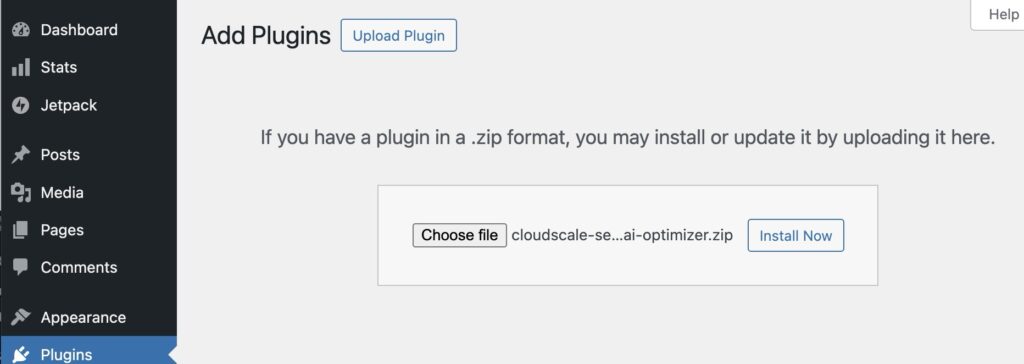
Step 2. In WordPress admin, go to Plugins → Add New → Upload Plugin. Choose the downloaded zip and click Install Now.
Step 3. Activate the plugin.
Step 4. Go to Tools → CloudScale Backup and Restore.
No API keys, no account creation, no configuration wizard.
6. First Things to Configure
Set your schedule. Under the Backup Schedule card, enable automatic backups and tick the days you want it to run. The default is Monday, Wednesday, and Friday at 03:00 server time. Hit Save Schedule.
Set your retention. Under Retention and Storage, decide how many backups to keep. Watch the live storage estimate, if you’re on a small instance size with limited disk, keep this number modest. Ten backups gives you nearly two weeks of daily coverage or about a month of three days a week coverage.
Configure S3 if you want remote copies. See section 4 above. The Test Connection button makes verification fast.
Run your first manual backup. Under Manual Backup, tick the components you want and click Run Backup Now. On most sites the first full backup takes between 30 seconds and a few minutes depending on media library size.
7. Restoring a Backup
The Backup History card lists all your backups with filename, size, creation date, age, and type. For each backup you have three actions along the left: Download, Restore DB, and Delete.
Download streams the zip directly to your browser; useful for keeping an offsite copy or moving to a new server.
Restore DB unpacks and restores just the database from the included SQL dump, using native mysql CLI if available, otherwise PHP. The plugin reads backup-meta.json to verify compatibility before proceeding.
The restore process puts the site into maintenance mode for the duration and brings it back up automatically when done.
8. A Note on wp-config.php Backups
The plugin can optionally back up wp-config.php, but it is unchecked by default and flagged with a warning. This file contains your database hostname, username, password, and secret keys. Include it in a backup and that backup ends up somewhere it shouldn’t, and you’ve handed someone the keys to your database.
The case for including it: a wp-config.php backup is extremely valuable for full disaster recovery onto a blank server, because you don’t have to reconstruct your configuration from memory. The case against: routine backups don’t need it since the file rarely changes.
My recommendation: include it in occasional deliberate full disaster recovery backups that you store securely, and leave it unchecked in your daily automated backups.
9. What It Deliberately Doesn’t Do
No multisite support. The plugin is designed for standard single-site WordPress installations.
No incremental backups. Every backup is a full backup of the selected components. This keeps the code simple and the restore process reliable, at the cost of larger backup files.
No external service dependency. There is no cloud account, no licence check, no telemetry. The plugin does not phone home. S3 sync is entirely optional and uses your own bucket under your own AWS account.
10. Open Source
The plugin is open source. The code is all standard WordPress plugin PHP, a single main file plus a CSS and JS asset. No build steps, no Node dependencies, no compilation required. The entire plugin is designed to be auditable by anyone who can read PHP.
Go build something.
Download: cloudscale-backup.zip