Scaling Aurora Serverless v2 PostgreSQL: A Production Deep Dive
Aurora Serverless v2 promises the dream of a database that automatically scales to meet demand, freeing engineering teams from capacity planning. The reality is considerably more nuanced. After running Serverless v2 PostgreSQL clusters under production workloads, I have encountered enough sharp edges to fill a blog post. This is that post.
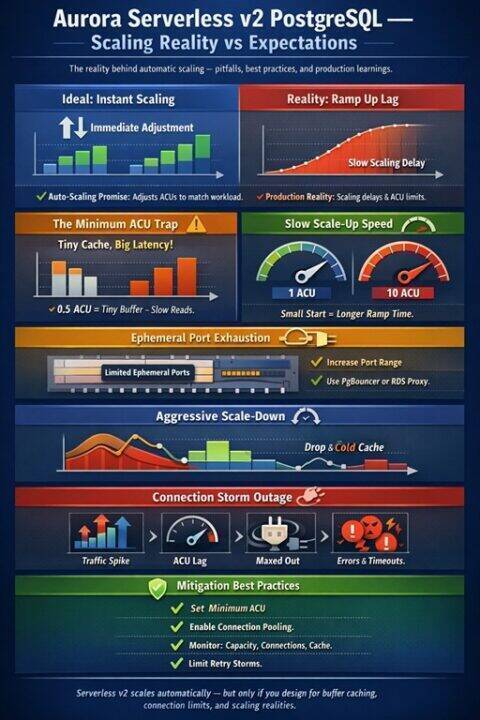
The topics covered here span the entire lifecycle of running Serverless v2 at scale: from choosing the right minimum ACU to avoid crippling your buffer cache, to managing connection pool saturation across hundreds of application pods, to understanding why Aurora’s aggressive scale down behaviour can cause more production incidents than it prevents. I also cover the connection storm failure pattern that is responsible for the majority of Aurora Serverless v2 production outages, the AWS Advanced JDBC Wrapper, prepared statement planning pitfalls with partitioned tables, reader versus writer traffic routing, vacuuming at scale, and how to build alerting that actually catches scaling issues before your customers do.
1 The Minimum ACU Trap: Buffer Cache, Memory, and Cold Start Pain
The most consequential decision you will make with Aurora Serverless v2 is choosing your minimum ACU. It is also the decision most teams get wrong.
Each ACU provides approximately 2 GiB of memory with corresponding CPU and networking. When you set a minimum of 0.5 ACUs, you are telling Aurora that 1 GiB of memory is an acceptable baseline for your database. For anything beyond a development environment, this is almost certainly too low.
1.1 Why Low Minimum ACUs Destroy Performance
PostgreSQL relies heavily on its buffer cache (shared_buffers) to keep frequently accessed data in memory. When Aurora scales down to a low ACU count, the buffer cache shrinks proportionally. Data that was previously served from memory is evicted. When load returns, every query that needs that data must now go to Aurora’s storage layer. The BufferCacheHitRatio metric drops and query latencies spike, sometimes by orders of magnitude.
This is not just a performance concern. It is a cascading failure waiting to happen. Here is the sequence that plays out in production:
Traffic drops overnight or during a quiet period. Aurora scales down to its minimum ACU. The buffer cache is flushed. Morning traffic arrives. Every query hits storage. Latencies increase. Application connection pools begin to saturate because queries that used to complete in 2 milliseconds now take 50 milliseconds. The database begins scaling up, but it takes time for the buffer cache to warm. During this warming period, you are effectively running a cold database under production load.
1.2 The Scaling Rate Problem
The rate at which Aurora Serverless v2 can scale up depends on its current capacity. An instance at 2 ACUs scales up more slowly than one at 16 ACUs. AWS documentation states this explicitly: the higher the current capacity, the faster it can scale up. If your minimum is set too low and you experience a sudden burst, the database cannot scale fast enough to meet demand. It scales in 0.5 ACU increments and the increment size grows with current capacity, meaning scaling from 0.5 to 16 ACUs takes meaningfully longer than scaling from 8 to 16 ACUs.
1.3 Practical Minimum ACU Guidance
For production workloads, your minimum ACU should be set high enough that your working dataset fits comfortably in the buffer cache at minimum capacity. Monitor the BufferCacheHitRatio metric over a representative period. If it drops below 99% at any point during normal operations, your minimum is too low.
A practical approach is to look at your provisioned instance metrics before migrating to serverless. If your provisioned r6g.xlarge (32 GiB RAM) cluster consistently uses 20 GiB of buffer cache, your minimum ACU should be at least 10 ACUs (20 GiB / 2 GiB per ACU) to maintain comparable buffer cache performance.
AWS recommends specific minimums for certain features:
- 2 ACUs minimum if using Database Insights (Performance Insights)
- 8 ACUs minimum for Global Databases
- 1 ACU minimum for high connection workloads (max_connections is capped at 2,000 when minimum is set to 0 or 0.5 ACUs)
My recommendation: start with a minimum ACU that represents your steady state workload minus 20%, not the absolute lowest possible. The cost savings from running at 0.5 ACUs during quiet periods are almost never worth the performance degradation and cold start penalty when traffic returns.
2 Port Saturation and Connection Pool Sizing
Connection management is the second most common production issue with Aurora Serverless v2, particularly in microservices architectures where dozens or hundreds of pods each maintain their own connection pools.
2.1 Understanding Port Saturation
Every TCP connection to your Aurora instance consumes an ephemeral port. On the client side, the Linux kernel assigns a source port from the ephemeral range (typically 32768 to 60999, giving you approximately 28,000 ports per source IP). On a single application host or Kubernetes node, if you run many pods that each maintain large connection pools to the same Aurora endpoint, you can exhaust the ephemeral port range on that host.
The symptoms of port saturation are subtle and often misdiagnosed. Connection attempts start timing out intermittently. The database itself shows no signs of stress. CloudWatch metrics for the Aurora instance look fine. The problem is entirely on the client side: the operating system cannot allocate new source ports.
In Kubernetes environments this is particularly treacherous because many pods share the same node’s network namespace (unless using host networking). A single node running 20 pods, each with a connection pool of 20, means 400 connections from a single IP address. Add connection churn from pool recycling and you can approach the ephemeral port limit.
2.2 Detecting Port Saturation
On your application hosts or Kubernetes nodes, monitor the following:
# Count connections to your Aurora endpoint
ss -tn | grep ':5432' | wc -l

# Check ephemeral port usage
cat /proc/sys/net/ipv4/ip_local_port_range
ss -tn state established | wc -l

# On Kubernetes nodes, check connections per pod IP
ss -tn | grep ':5432' | awk '{print $4}' | cut -d: -f1 | sort | uniq -c | sort -rn
2.3 Avoiding Port Saturation
There are several approaches to preventing port saturation, and you should typically combine more than one.
First, widen the ephemeral port range. On Linux, the default range of 32768 to 60999 can be expanded. Set net.ipv4.ip_local_port_range = 1024 65535 in sysctl.conf to nearly double the available ports. Be aware that this overlaps with some well known ports, so ensure your applications do not listen on ports in the lower range.
Second, enable TCP port reuse. Set net.ipv4.tcp_tw_reuse = 1 to allow reuse of TIME_WAIT sockets for new connections to the same destination. This is safe for client side connections and dramatically reduces port pressure during connection churn.
Third, reduce connection pool sizes. This is where proper sizing becomes critical.
2.4 Calculating Connection Pool Size
The PostgreSQL wiki provides a formula that has held up well across many benchmarks:
optimal_connections = (core_count * 2) + effective_spindle_countFor Aurora Serverless v2, where storage is network attached and there are no physical spindles, effective_spindle_count is effectively zero if your working set is cached (which it should be if you have set your minimum ACUs correctly). So the formula simplifies to:
optimal_connections = core_count * 2Each ACU provides roughly 0.25 vCPUs of compute capacity. At 16 ACUs maximum, you have approximately 4 vCPUs. This means the optimal number of active connections for a 16 ACU instance is around 8 to 10 connections doing active work simultaneously.
This number surprises people. It should not. PostgreSQL is not designed for massive connection parallelism. Every connection spawns a process, each consuming around 10 MiB of memory. Context switching between hundreds of active connections creates overhead that actively degrades throughput.
The formula for your total connection budget across all application instances is:
total_pool_connections = max_connections - superuser_reserved - monitoring_connections
per_pod_pool_size = total_pool_connections / number_of_pods
For Aurora Serverless v2, max_connections is derived from the maximum ACU setting. A rough approximation is:
max_connections ≈ GREATEST(max_ACU * 50, 100)If your maximum ACU is 16, you get approximately 800 connections. Reserve 3 for superusers, another 10 for monitoring and administrative connections, leaving 787 for your applications. If you run 50 pods, each pod gets approximately 15 connections in its pool. If you run 200 pods, each gets approximately 4.
When the per pod number drops below 5, you need either an external connection pooler (PgBouncer or RDS Proxy) or fewer pods with larger pool sizes. RDS Proxy is the path of least resistance in the AWS ecosystem, though be aware it prevents Aurora Serverless v2 from scaling to zero ACUs since the proxy maintains persistent connections.
2.5 The Microservices Connection Multiplication Problem
In a microservices architecture, the connection math gets worse quickly. If you have 10 microservices, each running 20 pods, each with a connection pool of 10, you need 2,000 connections. This exceeds the max_connections for many ACU configurations.
The solution is PgBouncer in transaction mode, either as a sidecar on each pod or as a shared pool. In transaction mode, a server side connection is only held for the duration of a transaction, not the lifetime of a client connection. This lets you support thousands of client connections with a much smaller number of actual PostgreSQL connections.
3 Aurora’s Aggressive Scale Down and the Lack of Custom Scaling Parameters
This is the section where I become most critical of Aurora Serverless v2, because this behaviour has caused real production incidents.
3.1 The Problem: Aurora Scales Down Too Aggressively
Aurora Serverless v2 uses an internal algorithm to determine when to scale down. You cannot configure this algorithm. You cannot set a cooldown period. You cannot define custom scaling metrics. AWS documentation confirms that Aurora Auto Scaling (the kind that adds readers) is explicitly not supported for Serverless v2 because “scaling based on CPU usage isn’t meaningful for Aurora Serverless v2.”
The scaling down behaviour works as follows: when CPU load decreases, CPU capacity is released relatively quickly. Memory is released more gradually, but it is still released. AWS describes this as a “deliberate architectural choice” where memory is “more gradually released” as demand lessens. In practice, this means that after a burst of traffic, Aurora will begin reducing ACUs within minutes. If another burst arrives before the buffer cache has been properly rebuilt, you hit the cold cache problem described in Section 1.
You cannot tell Aurora to “keep at least 16 ACUs for the next 30 minutes after a burst.” You cannot scale based on a custom CloudWatch metric like queue depth or request rate. You cannot set a scale down cooldown. The only control you have is the minimum and maximum ACU range.
3.2 The Burst Traffic Pattern Problem
Consider a banking application that processes batch payments every 15 minutes. Each batch takes 3 minutes and requires significant database resources. Between batches, the database is relatively idle. Aurora Serverless v2 will scale up for each batch, then aggressively scale back down during the 12 minute quiet period. Each time it scales down, it loses buffer cache. Each time the next batch arrives, it hits cold storage.
With a provisioned instance, you simply size for your peak workload and accept the cost during quiet periods. With Serverless v2, you are forced to choose between setting a high minimum ACU (defeating the purpose of serverless) or accepting degraded burst performance.
3.3 The Workaround
The only reliable workaround is to set your minimum ACU high enough to absorb the scale down behaviour. This means your minimum ACU should be set to the capacity needed to keep your buffer cache warm, not to the lowest possible cost saving value.
For burst workloads specifically, consider running a lightweight background query that keeps the database warm. This is an ugly hack, but it works:
-- Run every 5 minutes from a lightweight scheduler
SELECT count(*) FROM (
    SELECT 1 FROM your_hot_table
    ORDER BY your_commonly_queried_column
    LIMIT 10000
) t;
This keeps frequently accessed pages in the buffer cache and prevents Aurora from releasing memory it will need again shortly.
4 Long Running Queries, Timeouts, and Lock Management
Long running queries interact badly with Aurora Serverless v2’s scaling model in ways that catch teams off guard. A query that would be merely slow on a provisioned instance can become a cascade failure trigger on a serverless cluster.
4.1 What Happens to Queries During a Scaling Event
Aurora Serverless v2 scales compute resources with minimal disruption to running queries, but minimal is not zero. During a scale up event, CPU and memory are added relatively transparently. During a scale down event, if the instance needs to reclaim memory that is currently being used by an active query’s sort or hash buffers, there is contention. Queries that were running fine at 16 ACUs and relying on 4 GiB of work_mem allocations will behave differently at 4 ACUs where the same global work_mem setting is competing with a much smaller memory budget.
The practical consequence is that work_mem should not be set globally to a value that assumes your maximum ACU is always in effect. Set it conservatively at the server level and use SET LOCAL work_mem within specific transactions that need more:
BEGIN;
SET LOCAL work_mem = '256MB';
-- your sort heavy or hash join query here
COMMIT;
This scopes the elevated work_mem to a single transaction without affecting the global setting, which matters when the instance is at lower ACU counts.
4.2 Statement Timeout: Your First Line of Defence
Aurora Serverless v2 has no built in query kill mechanism based on resource pressure. If a long running query is consuming CPU and preventing scale down, it will continue to do so until it completes, is cancelled by the client, or you intervene manually.
Set statement_timeout at the database or role level, not just in application code. Application side timeouts are unreliable: connection drops, application restarts, and network issues can all leave a query running on the server even after the client has given up:
-- For your application role, set a sensible default
ALTER ROLE app_user SET statement_timeout = '30s';

-- For reporting or analytics roles that legitimately need longer
ALTER ROLE analytics_user SET statement_timeout = '300s';

-- Verify what is set
SELECT rolname, rolconfig FROM pg_roles WHERE rolname IN ('app_user', 'analytics_user');
For Aurora Serverless v2 specifically, long running analytical queries should either be directed to a dedicated reader instance (section 6) or run via Aurora’s parallel query feature if eligible, not on the writer at peak hours.
4.3 Idle in Transaction: The Silent ACU Killer
A connection that is idle inside a transaction holds locks, consumes memory, and prevents autovacuum from cleaning up dead rows. At low ACU counts where memory is limited, a handful of idle in transaction connections can cause measurable performance degradation.
Set idle_in_transaction_session_timeout to terminate connections that have opened a transaction and then gone silent:
-- Terminate connections idle in a transaction for more than 60 seconds
ALTER SYSTEM SET idle_in_transaction_session_timeout = '60s';
SELECT pg_reload_conf();
This is a server level parameter. Setting it to 60 seconds will terminate sessions that have started a transaction and not done anything for a minute. This is almost always a bug in application code: a connection pool returning a connection mid transaction, or an application that opened a transaction and crashed. Finding these with a permissive timeout is better than letting them accumulate.
Also set lock_timeout to prevent lock queues from building silently:
ALTER ROLE app_user SET lock_timeout = '10s';Without a lock timeout, a query waiting on a lock will wait indefinitely. On a serverless cluster, this means connections accumulate in the lock wait state, connection pool queues build up, and by the time you notice, your DatabaseConnections metric has saturated.
4.4 Detecting and Killing Problem Queries
Add these diagnostic queries to your runbook. Run them when monitoring shows ACUUtilization is high but application traffic does not explain it:
-- Queries running longer than 60 seconds
SELECT
    pid,
    now() - pg_stat_activity.query_start AS duration,
    query,
    state,
    wait_event_type,
    wait_event
FROM pg_stat_activity
WHERE (now() - pg_stat_activity.query_start) > INTERVAL '60 seconds'
  AND state != 'idle'
ORDER BY duration DESC;

-- Connections idle in transaction (holding locks, consuming memory)
SELECT
    pid,
    now() - state_change AS idle_duration,
    usename,
    application_name,
    client_addr,
    LEFT(query, 100) AS last_query
FROM pg_stat_activity
WHERE state = 'idle in transaction'
ORDER BY idle_duration DESC;

-- Lock waits that are blocking other queries
SELECT
    blocked.pid AS blocked_pid,
    blocked.query AS blocked_query,
    blocking.pid AS blocking_pid,
    blocking.query AS blocking_query,
    now() - blocked.query_start AS blocked_duration
FROM pg_stat_activity AS blocked
JOIN pg_stat_activity AS blocking
    ON blocking.pid = ANY(pg_blocking_pids(blocked.pid))
ORDER BY blocked_duration DESC;
To terminate a specific query without killing the connection:
SELECT pg_cancel_backend(pid);To terminate the connection entirely:
SELECT pg_terminate_backend(pid);4.5 When Not to Use Aurora Serverless v2
Long running query patterns are a signal that Serverless v2 may not be the right choice for a workload. If your cluster regularly runs queries longer than five minutes, hosts analytics or reporting workloads alongside OLTP, or has a predictable and stable baseline load that never drops meaningfully, a provisioned instance with Graviton will almost always outperform Serverless v2 on both cost and latency.
Serverless v2 earns its keep for workloads with genuine variability: overnight quiet periods followed by daytime peaks, bursty batch jobs with unpredictable timing, or development and staging environments that are idle most of the day. For consistent high throughput workloads, the overhead of the scaling mechanism and the buffer cache volatility described in section 1 are costs with no corresponding benefit.
5 The AWS Advanced JDBC Wrapper
If you are running Java applications against Aurora, the AWS Advanced JDBC Wrapper is not optional. It is a significant upgrade over using a standard PostgreSQL or MySQL JDBC driver directly, and it solves several problems that are specific to Aurora’s architecture.
5.1 What It Does
The AWS Advanced JDBC Wrapper sits on top of your existing JDBC driver (PostgreSQL JDBC, MySQL Connector/J, or MariaDB Connector/J) and adds Aurora specific capabilities without requiring you to rewrite your data access code. The key features for production workloads are:
Fast Failover Beyond DNS. When Aurora performs a failover, the cluster endpoint DNS record needs to update to point to the new primary. DNS propagation can take up to 30 seconds. The JDBC Wrapper maintains a real time cache of the Aurora cluster topology by querying Aurora directly. When a failover occurs, it immediately knows which instance is the new primary and reconnects without waiting for DNS. In testing, this reduces failover reconnection time from 30 seconds to approximately 6 seconds with the v1 failover plugin, and even less with Failover v2.
Failover v2 Plugin. The original failover plugin handled each connection’s failover independently. If you had 100 active connections during a failover, each one independently probed the cluster topology to find the new writer. The Failover v2 plugin centralises topology monitoring into a single thread (MonitorRdsHostListProvider), so hundreds of connections can fail over simultaneously without overwhelming the cluster with topology queries.
Enhanced Failure Monitoring. Traditional JDBC drivers detect failures through TCP timeouts, which can take 30 seconds or more. The JDBC Wrapper’s Enhanced Failure Monitoring (EFM) proactively monitors database node health using lightweight probe connections. It detects failures before your application’s connection times out, enabling faster response.
Seamless IAM Authentication. Aurora supports IAM database authentication, but implementing token generation, expiration handling, and renewal in your application is tedious. The wrapper handles the entire IAM authentication lifecycle transparently.
Secrets Manager Integration. Database credentials are retrieved automatically from AWS Secrets Manager. Your application configuration never contains the actual password.
5.2 Read Write Splitting
The read/write splitting plugin is particularly valuable for Aurora Serverless v2 because it allows you to route read traffic to reader instances (which scale independently from the writer in promotion tiers 2 through 15) while keeping write traffic on the writer.
The plugin works by intercepting connection.setReadOnly(true) calls and switching the underlying connection to a reader instance. When setReadOnly(false) is called, it switches back to the writer. In Spring Boot with JPA, this maps directly to @Transactional(readOnly = true) annotations.
# HikariCP configuration with AWS JDBC Wrapper
spring:
  datasource:
    url: jdbc:aws-wrapper:postgresql://your-cluster.cluster-xxx.region.rds.amazonaws.com:5432/mydb
    driver-class-name: software.amazon.jdbc.Driver
    hikari:
      connection-timeout: 30000
      maximum-pool-size: 15
  jpa:
    properties:
      hibernate:
        connection:
          provider_class: software.amazon.jdbc.ds.HikariPooledConnectionProvider
The reader selection strategy is configurable. Options include random (default), round robin, and fastest response time. For Aurora Serverless v2 where reader instances may be at different ACU levels, round robin provides the most even distribution.
One important caveat from the AWS documentation: if you are using Spring’s @Transactional(readOnly = true) annotation, Spring calls setReadOnly(true), runs the method, then calls setReadOnly(false). This constant switching incurs overhead from connection switching. For high throughput read workloads, the AWS documentation actually recommends using separate data sources pointing to the writer and reader cluster URLs rather than using the read/write splitting plugin with Spring annotations. Use the plugin for workloads where the same code path mixes reads and writes and you want automatic routing, and use separate data sources for dedicated read heavy services.
6 Prepared Statement Plans and Partitioned Tables
This is a subtle but consequential issue that can cause significant memory consumption and degraded query performance, particularly on partitioned tables.
6.1 How PostgreSQL Plan Caching Works
When you execute a prepared statement, PostgreSQL goes through parsing, planning, and execution. For the first five executions, it creates a custom plan specific to the parameter values provided. Starting with the sixth execution, it evaluates whether a generic plan (one that works for any parameter values) would be efficient enough. If the generic plan’s estimated cost is close to the average custom plan cost, PostgreSQL switches to reusing the generic plan permanently for that prepared statement.
This is normally a good thing. Planning is expensive, and reusing a generic plan saves planning overhead. The problem arises with partitioned tables.
6.2 The Partition Pruning Problem
When PostgreSQL plans a query against a partitioned table, it determines which partitions are relevant based on the query’s WHERE clause. This is called partition pruning. With a custom plan where the parameter values are known, the planner can prune partitions at planning time (initial pruning). Only the relevant partitions are included in the plan.
With a generic plan, the parameter values are not known at planning time. The planner must generate a plan that covers all partitions, because it does not know which ones will be relevant until execution time. PostgreSQL can still perform runtime pruning during execution, but the plan itself references all partitions.
Here is where the memory problem emerges. When PostgreSQL creates a plan that references a partition, it loads that partition’s metadata into the relation cache (relcache). For a table with hundreds of partitions, this means the relcache for a single prepared statement contains metadata for every partition. Each cached plan also holds locks on all referenced partitions. Multiply this by hundreds of prepared statements across many connections, and memory consumption becomes substantial.
6.3 The Memory Explosion
Consider a table partitioned by date with 365 daily partitions. A typical query filters by a single day. With a custom plan, only 1 partition is referenced. With a generic plan, all 365 partitions are referenced. Each partition’s relcache entry consumes memory (typically several kilobytes per partition including index metadata). Across 200 connections, each with 50 cached generic plans touching 365 partitions, you can consume gigabytes of memory just in relcache entries.
This problem is well documented. PostgreSQL committed a fix in version 17 (commit 525392d5) that prevents partitions pruned during initial pruning from being locked and loaded into the relcache. However, this fix was subsequently reverted (commit 1722d5eb) because it caused issues. PostgreSQL 18 includes partial improvements, but the core problem of generic plans loading all partitions into the relcache is not fully resolved.
6.4 Mitigations for Aurora
For Aurora Serverless v2, where memory directly translates to ACU consumption and cost, this issue is particularly impactful. Several mitigations are available:
Force custom plans where appropriate. For queries that always target a single partition, disable generic plans at the session level:
SET plan_cache_mode = 'force_custom_plan';This forces PostgreSQL to generate a custom plan for every execution. You pay the planning overhead, but the plan only references the relevant partitions. For queries against large partitioned tables where pruning eliminates most partitions, the planning cost is almost always worth the memory savings.
Reduce partition count. If you have 365 daily partitions, consider monthly partitions (12) or weekly partitions (52). Fewer partitions means smaller relcache footprint per generic plan.
Use PREPARE explicitly. If using PgBouncer in transaction mode, prepared statements from one client can leak to another. Consider whether your connection pooler properly handles prepared statement lifecycle.
Monitor plan memory. Query pg_prepared_statements to see what plans are cached:
SELECT name, statement, generic_plans, custom_plans
FROM pg_prepared_statements;
If generic_plans is high for queries against partitioned tables, those are your candidates for force_custom_plan.
7 Directing Traffic to Readers vs Writers
Aurora provides separate cluster endpoints for writers and readers, but getting your application to use them correctly requires deliberate architecture.
7.1 Aurora Endpoint Types
Aurora provides four endpoint types:
The cluster endpoint (also called the writer endpoint) always points to the current primary instance. Use this for all write operations.
The reader endpoint load balances across all reader instances using round robin DNS. Use this for read only queries.
Instance endpoints connect to a specific instance. Avoid using these in application code as they break failover.
Custom endpoints allow you to define groups of instances for specific workloads. These can be useful for directing analytics queries to larger reader instances while keeping transactional reads on smaller ones.
7.2 Application Level Routing
The simplest approach is two data sources in your application: one pointing to the writer endpoint and one to the reader endpoint. In Spring Boot:
# Writer datasource
app:
  datasource:
    writer:
      url: jdbc:postgresql://cluster.cluster-xxx.region.rds.amazonaws.com:5432/mydb
    reader:
      url: jdbc:postgresql://cluster.cluster-ro-xxx.region.rds.amazonaws.com:5432/mydb
Route services or repository methods to the appropriate data source based on whether they perform reads or writes. This avoids the connection switching overhead of the JDBC Wrapper’s read/write splitting plugin while still distributing load.
7.3 Reader Scaling and Promotion Tiers
Readers in promotion tiers 0 and 1 scale with the writer. They are always sized to handle a failover and take over the writer role. Readers in promotion tiers 2 through 15 scale independently based on their own workload.
For cost optimisation, place your read replicas in tier 2 or higher. They will scale down independently when read traffic is low, rather than tracking the writer’s ACU level. This can save significant cost if your read traffic pattern differs from your write traffic pattern.
For availability, keep at least one reader in tier 0 or 1. This reader will always be sized appropriately to become the writer during a failover, eliminating the risk of a failover promoting an undersized reader.
7.4 DNS TTL and Stale Routing
The reader endpoint uses DNS round robin, which means the DNS TTL affects how quickly your application discovers new readers or stops sending traffic to removed ones. Set your JVM’s DNS cache TTL to a low value:
java.security.Security.setProperty("networkaddress.cache.ttl", "5");
java.security.Security.setProperty("networkaddress.cache.negative.ttl", "3");
The AWS JDBC Wrapper handles this internally through its topology cache, which is another reason to use it.
8 The Outage You Will Most Likely Have: Connection Storm During Scale Lag
All the scaling realities discussed above converge into one specific failure pattern that accounts for the majority of Aurora Serverless v2 production incidents. It does not announce itself as a capacity problem. It announces itself as a wall of connection timeouts and a silent database.
Understanding this pattern, and distinguishing it from CPU saturation, is the difference between an engineer who panics and an engineer who fixes it in under five minutes.
8.1 The Failure Sequence
The pattern plays out in four predictable stages.
Stage 1: Traffic spike arrives. Application concurrency climbs rapidly, whether from a batch job, a marketing event, or a morning surge. Each new application thread or request opens or borrows a database session.
Stage 2: Scale lag creates a window of vulnerability. Aurora Serverless v2 scales fast, but not instantaneously. From a low minimum ACU baseline; say 2 ACUs; reaching 16 ACUs can take 30 to 90 seconds. During this window, max_connections is still calibrated to the current ACU count, not the target. At 2 ACUs on PostgreSQL, you have roughly 135 connections. Your application, unaware of this ceiling, is already trying to open 300.
Stage 3: Connection attempts fail and retry amplification begins. Application connection pools hit the limit and throw errors. Clients retry. Each retry is another connection attempt against a database that is already saturated. The retry storm is now generating more load than the original traffic spike. New ACUs are still spinning up. The database cannot yet serve enough connections to drain the retry queue.
Stage 4: Full saturation. The writer node reaches 100% of its current connection ceiling. All new connections are rejected. RDS Proxy queues fill if you have it deployed, or requests fail immediately if you do not. Application pods begin cascading with database unavailability errors. On CloudWatch, you see DatabaseConnections flatlined at maximum, ServerlessDatabaseCapacity still climbing, the capacity was coming, but the application fell over before it arrived.
8.2 CPU Saturation vs Session Saturation: Two Different Problems
These two failure modes look similar on a dashboard and require completely different responses.
CPU bound scaling failure presents as high CPUUtilization, slow query times, and gradual degradation. Connections succeed but queries run slowly. Aurora is scaling but the workload is compute intensive. The fix is a higher minimum ACU and query optimisation.
Session bound saturation presents as DatabaseConnections at ceiling, CPUUtilization potentially low or moderate, and immediate hard connection errors rather than slow responses. The database may have ample CPU headroom but cannot admit new sessions because the connection limit is a function of current memory, not future memory. The fix is RDS Proxy, higher minimum ACU, and application level connection limiting.
Misdiagnosing session saturation as a CPU problem and throwing more application pods at it makes the situation worse. More pods mean more connection attempts against the same ceiling.
8.3 Why Minimum ACU Is Your Primary Defence
The scaling rate in Aurora Serverless v2 is proportional to current capacity. A database sitting at 0.5 ACUs doubles slowly. A database sitting at 8 ACUs reaches 16 ACUs in seconds. Setting your minimum ACU to match your p95 baseline load is not about cost. it is about ensuring the database can reach adequate capacity before your application runs out of connection budget.
The formula that matters here is simple: at any given ACU level, PostgreSQL on Aurora Serverless v2 allocates roughly GREATEST(75, LEAST(5000, 25 * ACU)) connections as a default max_connections ceiling (the actual formula varies slightly by engine version). At 2 ACUs that gives you around 150 connections. At 8 ACUs you have around 400. Setting minimum ACU too low is effectively setting a connection ceiling at the point your database is most vulnerable, immediately after a surge begins.
8.4 Diagnostic Checklist for This Failure Mode
When you suspect you have hit a connection storm during scale lag, work through these checks in order.
Confirm it is session saturation and not CPU saturation. Check DatabaseConnections against the expected maximum for the current ServerlessDatabaseCapacity. If connections are at ceiling but CPU is below 80%, you have a session problem not a compute problem.
Check the timeline of ACU scaling vs connection spike. In CloudWatch, plot ServerlessDatabaseCapacity and DatabaseConnections on the same axis with a one minute period. If connections hit ceiling before ACUs reached adequate capacity, scale lag is confirmed as the root cause.
Check whether RDS Proxy was in the path. If RDS Proxy was not deployed, every application thread was holding a direct connection. If it was deployed, check ProxyClientConnections and ProxyDatabaseConnections to see whether the proxy queue was the bottleneck rather than the database connection limit directly.
Check your application connection pool configuration. If your pool has no maximum connection limit per pod, each pod will attempt to open as many connections as it has threads. With ten pods each attempting 50 connections you have 500 attempts against a database that allows 150. No amount of Aurora scaling fixes this without application side throttling.
Check your minimum ACU setting. If minimum is below 4 ACUs, you are starting each scaling event from a low connection budget. Increase minimum ACU to match your realistic idle baseline, not the theoretical minimum.
Check whether retries are exponential with jitter. Synchronised retries amplify the storm. If your application retries every 100ms on all pods simultaneously, you are generating burst connection load far exceeding the original spike.
8.5 The Core Issue: Application Concurrency Outpacing Database Scaling Velocity
This is the framing that matters. Aurora Serverless v2 does not have a connection problem. It has a timing problem. The database will scale to handle your load. The question is whether your application can survive the seconds it takes to get there.
This is not unique to Aurora Serverless v2. Any autoscaling database faces the same gap. What makes Aurora Serverless v2 distinctive is that teams deploy it expecting magic, instant, invisible scaling and do not build the application side defensive patterns that provisioned databases trained them to build. They remove connection pooling because “serverless handles it.” They remove retry backoff because “it scales instantly.” And then they hit the 45 second window during a Monday morning surge and the database goes dark.
The correct mental model is: Aurora Serverless v2 scales fast enough that you rarely need to manually intervene on capacity, but not fast enough to absorb an uncontrolled connection storm from a stateless application with no connection budget discipline.
The three interventions that prevent this outage are as follows. RDS Proxy absorbs connection spikes by multiplexing thousands of application connections onto a stable, smaller set of database sessions. It does not eliminate the scale lag window but it means the database is not fighting both a capacity ramp and a connection ceiling simultaneously. A minimum ACU above your realistic idle load ensures the database enters the scaling ramp from a higher starting point and reaches adequate capacity in seconds rather than minutes. Application side connection limiting, whether via connection pool max size, circuit breakers, or concurrency limiters at the service layer, ensures that even under surge conditions your pods do not collectively attempt more connections than the database can admit at its current ACU level.
With all three in place, connection storms during scale lag become a metric to monitor rather than an outage to survive.
9 Monitoring and Alerting on Scaling Issues
The challenge with alerting on Aurora Serverless v2 is that traditional database metrics do not tell the full story. A CPU utilisation of 80% on a provisioned instance means something very different from 80% on a Serverless v2 instance that may be in the process of scaling.
9.1 Essential CloudWatch Metrics
ACUUtilization is the single most important metric. It represents the percentage of the currently allocated capacity that is in use. When this approaches 100%, the instance is at its current capacity ceiling and will attempt to scale up. If it stays at 100%, the instance has hit its maximum ACU and cannot scale further.
ServerlessDatabaseCapacity shows the current ACU value. Plot this alongside your application’s request rate to understand the correlation between traffic and scaling behaviour. This metric is also essential for identifying the aggressive scale down pattern described in Section 3.
FreeableMemory shows available memory at maximum capacity. When this approaches zero, the instance has scaled as high as it can and is running out of memory.
BufferCacheHitRatio should stay above 99% at all times. Any drop below this threshold indicates that the buffer cache is too small for your working set, usually because the instance has scaled down too aggressively.
DatabaseConnections tracks active connections. Alert when this approaches max_connections for your ACU configuration. As described in Section 7, this metric plotted alongside ServerlessDatabaseCapacity is your primary diagnostic for connection storm detection.
9.2 CloudWatch Alarms
Set up the following alarms as a baseline:
# ACU Utilization approaching maximum
aws cloudwatch put-metric-alarm \
  --alarm-name "aurora-acu-utilization-high" \
  --metric-name ACUUtilization \
  --namespace AWS/RDS \
  --statistic Average \
  --period 300 \
  --threshold 90 \
  --comparison-operator GreaterThanThreshold \
  --evaluation-periods 3 \
  --alarm-actions arn:aws:sns:region:account:alerts

# Buffer cache hit ratio dropping
aws cloudwatch put-metric-alarm \
  --alarm-name "aurora-buffer-cache-low" \
  --metric-name BufferCacheHitRatio \
  --namespace AWS/RDS \
  --statistic Average \
  --period 300 \
  --threshold 99 \
  --comparison-operator LessThanThreshold \
  --evaluation-periods 2 \
  --alarm-actions arn:aws:sns:region:account:alerts

# Connection count approaching limit
# For a max ACU of 16, max_connections is approximately 800
aws cloudwatch put-metric-alarm \
  --alarm-name "aurora-connections-high" \
  --metric-name DatabaseConnections \
  --namespace AWS/RDS \
  --statistic Maximum \
  --period 60 \
  --threshold 640 \
  --comparison-operator GreaterThanThreshold \
  --evaluation-periods 2 \
  --alarm-actions arn:aws:sns:region:account:alerts

# Freeable memory critically low
aws cloudwatch put-metric-alarm \
  --alarm-name "aurora-memory-low" \
  --metric-name FreeableMemory \
  --namespace AWS/RDS \
  --statistic Average \
  --period 300 \
  --threshold 524288000 \
  --comparison-operator LessThanThreshold \
  --evaluation-periods 3 \
  --alarm-actions arn:aws:sns:region:account:alerts
9.3 Custom Metrics Worth Tracking
Beyond CloudWatch’s built in metrics, track these at the application level:
Connection pool wait time: how long your application waits for a connection from the pool. Spikes indicate pool saturation.
Transaction duration percentiles: p95 and p99 transaction durations. Sudden increases often correlate with buffer cache misses during scale down.
Connection churn rate: how frequently connections are opened and closed. High churn can indicate pool misconfiguration.
Query plan cache memory: monitor pg_prepared_statements to catch the partition related memory bloat described in Section 5.
9.4 A Dashboard That Tells the Story
Build a dashboard that correlates application request rate (from your APM tool), ServerlessDatabaseCapacity (current ACU), ACUUtilization (percentage of current capacity in use), BufferCacheHitRatio (cache health), DatabaseConnections (connection pressure), and query latency p95 (application perceived performance).
When you can see all six of these on one graph, the cause of any performance incident becomes immediately obvious. The request rate goes up, ACUs lag behind, buffer cache ratio drops, latency spikes. Or connections climb while ACUs are stable, indicating a connection pool problem rather than a compute problem, the session saturation signature described in Section 7.
10 Vacuuming Aurora Serverless v2
Vacuum management on Aurora Serverless v2 deserves special attention because the autovacuum process directly affects ACU consumption and the scaling behaviour of your cluster.
I have written a comprehensive guide on Aurora PostgreSQL vacuum optimization for large tables, including TOAST table tuning and the pg_repack extension, so I will not repeat all of that here. Instead, I will focus on the serverless specific considerations.
10.1 Autovacuum and ACU Scaling
The autovacuum daemon runs as a background process. Its activity counts toward the instance’s CPU and memory utilisation, which means it can trigger scaling. This is by design, but it has consequences.
If your minimum ACU is set low and a vacuum operation starts, the instance will scale up to accommodate the vacuum. When the vacuum completes, the instance scales back down. If you have many tables with aggressive autovacuum settings, you can see constant ACU fluctuations driven entirely by vacuum activity rather than application workload.
For Serverless v2, tune your autovacuum parameters to be aggressive during off peak hours and gentler during peak hours. This is not natively supported by PostgreSQL’s autovacuum, but you can achieve it with scheduled parameter changes:
-- During peak hours: slower, gentler vacuums
ALTER SYSTEM SET autovacuum_vacuum_cost_delay = 20;
ALTER SYSTEM SET autovacuum_vacuum_cost_limit = 200;
SELECT pg_reload_conf();

-- During off peak hours: aggressive vacuums
ALTER SYSTEM SET autovacuum_vacuum_cost_delay = 0;
ALTER SYSTEM SET autovacuum_vacuum_cost_limit = 4000;
SELECT pg_reload_conf();
Schedule these changes using pg_cron or an external scheduler like EventBridge with Lambda.
10.2 Table Level Vacuum Tuning
For high churn tables on Serverless v2, set table level autovacuum parameters to prevent bloat while managing the impact on ACU consumption:
ALTER TABLE high_churn_table SET (
    autovacuum_vacuum_threshold = 5000,
    autovacuum_vacuum_scale_factor = 0.05,
    autovacuum_vacuum_cost_delay = 10,
    autovacuum_analyze_threshold = 2500,
    autovacuum_analyze_scale_factor = 0.05
);
These settings take effect immediately without a restart. They are table level storage parameters, not server level GUCs.
For tables with large text, JSON, or bytea columns, also tune the TOAST table parameters separately:
ALTER TABLE large_data_table SET (
    toast.autovacuum_vacuum_cost_delay = 0,
    toast.autovacuum_vacuum_threshold = 2000,
    toast.autovacuum_vacuum_scale_factor = 0.05,
    toast.autovacuum_vacuum_cost_limit = 3000
);
10.3 Vacuum Monitoring Queries
Regularly check which tables need vacuuming and how the autovacuum is performing:
-- Tables most in need of vacuum
SELECT
    schemaname || '.' || relname AS table_name,
    n_dead_tup,
    n_live_tup,
    ROUND(n_dead_tup::numeric / NULLIF(n_live_tup, 0) * 100, 2) AS dead_pct,
    last_autovacuum,
    last_autoanalyze
FROM pg_stat_user_tables
WHERE n_dead_tup > 1000
ORDER BY n_dead_tup DESC
LIMIT 20;

-- Long running vacuums that may be inflating ACUs
SELECT
    pid,
    now() - xact_start AS duration,
    query
FROM pg_stat_activity
WHERE query LIKE 'autovacuum%'
ORDER BY duration DESC;
11 Putting It All Together
Running Aurora Serverless v2 PostgreSQL well in production requires understanding that “serverless” does not mean “hands off.” The database still needs careful tuning; the nature of that tuning is just different from provisioned instances.
Set your minimum ACU based on buffer cache requirements, not cost optimisation. Size your connection pools using the core count formula and account for the total connection budget across all pods. Accept that Aurora’s aggressive scale down behaviour is a limitation you must design around, not a feature you can configure. Understand that the most common production outage pattern is not a capacity problem., it is a connection storm that arrives during the scale lag window before capacity catches up with demand. Use the AWS Advanced JDBC Wrapper for failover handling and reader routing. Be deliberate about prepared statement caching on partitioned tables. Tune your vacuum settings at the table level, not just globally. And build dashboards that correlate application metrics with Aurora scaling behaviour so you can see problems before they become incidents.
Aurora Serverless v2 is a powerful platform, but it rewards engineers who understand its mechanics and punishes those who treat it as a magic auto scaling box. The scaling is automatic, but the architecture decisions that make it work well, particularly around minimum ACU sizing, RDS Proxy placement, and application side connection discipline, are very much manual.