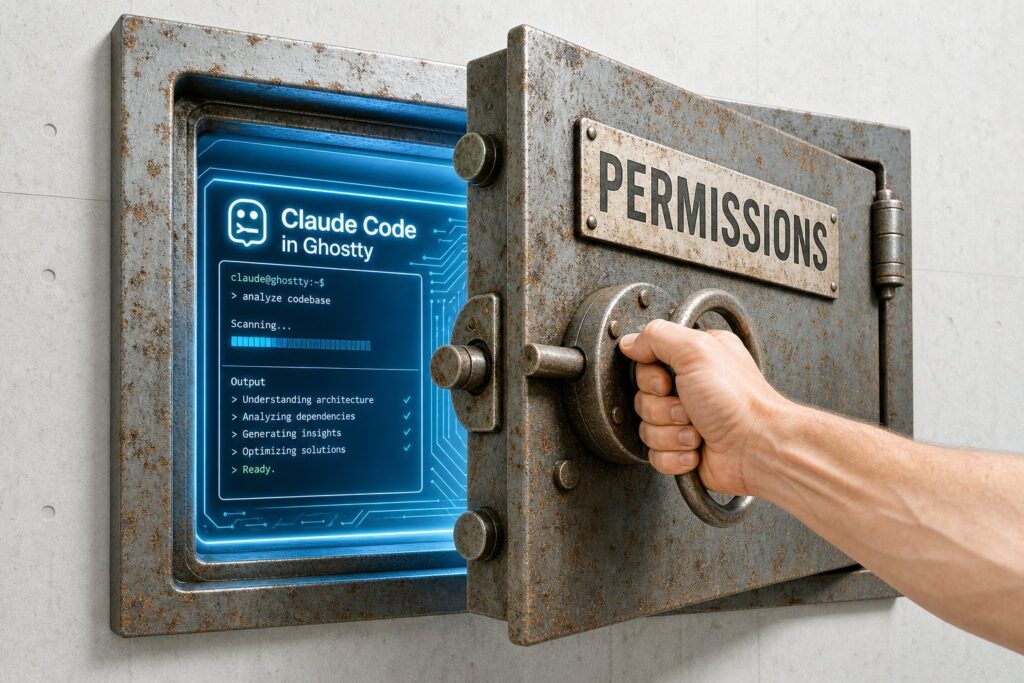
Right-Click Any Folder to Launch Claude Code in Ghostty (With Bypass Permissions On)
Create an Automator Quick Action that receives folders from Finder, add a Run Shell Script action set to zsh with input passed as arguments, and use open na Ghostty with the working directory flag to launch Claude Code with the bypass permissions flag enabled. Saving the workflow to Services makes it appear in the Finder right click menu under Services, opening a fresh Ghostty window in that folder with the agent already running.
Right-Click Any Folder to Launch Claude Code in Ghostty (With Bypass Permissions On)Andrew Baker's Technology Blog Posts, 08/Sep/2026
https://andrewbaker.ninja/2026/09/08/right-click-any-folder-to-launch-claude-code-in-ghostty-with-bypass-permissions-on/
The friction in using Claude Code has never really been the tool itself, it is the ceremony that surrounds starting it, because you have to open a terminal, remember where the project actually lives, change into that directory, type the command, and then clear the same permission prompt for the twentieth time that morning before you can say anything useful. None of those steps is difficult on its own, but they accumulate across a working day in a way that quietly discourages you from firing up an agent for a job that would only take five minutes, which is precisely the sort of job an agent is best suited to. What I wanted instead was to be standing in Finder, looking at the folder I already care about, and to right-click it and have a Ghostty window open in that directory with Claude Code running in bypass permissions mode, and it turns out that macOS gives you everything you need to build exactly that, without ever opening Automator, if you are willing to write the Quick Action bundle yourself from a script.
1. What you end up with
The finished result is a new entry called Launch Claude Code in Ghostty sitting in the right-click menu under Services, keeping company with the “New Ghostty Tab Here” and “New Ghostty Window Here” items that Ghostty installs on your behalf when you first run it. You select a folder, you choose the service, and a Ghostty window opens with the working directory already set and Claude Code already running with its permission prompts switched off, which means the first thing you type is the actual request rather than a sequence of navigational throat-clearing that the computer could perfectly well have done for you.
2. The installer
Everything below is a single block that you paste into a terminal in one go, and because it opens with a cat heredoc and closes with a chmod, pasting it writes the installer to disk and makes it executable without you having to save anything by hand or think about where the file went. The installer itself checks that Ghostty is genuinely present before it does anything destructive, warns you if the claude binary is invisible to your login shell, writes a small launcher script into ~/.local/bin, assembles the Quick Action bundle in ~/Library/Services, and then flushes the Services cache so that the new entry turns up without a logout.
cat > ~/install-claude-ghostty.sh <<'INSTALLER_EOF'
#!/bin/zsh
set -euo pipefail

SERVICE_NAME="Launch Claude Code in Ghostty"
BUNDLE="$HOME/Library/Services/${SERVICE_NAME}.workflow"
LAUNCHER="$HOME/.local/bin/claude-ghostty"

# ---------------------------------------------------------------- preflight --
GHOSTTY_APP=""
for candidate in "/Applications/Ghostty.app" "$HOME/Applications/Ghostty.app"; do
  if [[ -d "$candidate" ]]; then
    GHOSTTY_APP="$candidate"
    break
  fi
done

if [[ -z "$GHOSTTY_APP" ]]; then
  GHOSTTY_APP="$(mdfind "kMDItemCFBundleIdentifier == 'com.mitchellh.ghostty'" 2>/dev/null | head -n 1 || true)"
fi

if [[ -z "$GHOSTTY_APP" ]]; then
  echo "Ghostty was not found on this Mac."
  echo "Install it with 'brew install --cask ghostty' or from https://ghostty.org, then run this again."
  exit 1
fi
echo "Found Ghostty at: $GHOSTTY_APP"

if ! /bin/zsh -lc 'command -v claude' >/dev/null 2>&1; then
  echo "Warning: 'claude' is not on your login shell PATH."
  echo "The service will install, but it will fail to start a session until that is fixed."
fi

# ----------------------------------------------------------------- launcher --
mkdir -p "$(dirname "$LAUNCHER")"
cat > "$LAUNCHER" <<'LAUNCHER_EOF'
#!/bin/zsh
# Opens a new Ghostty window per selected folder, running Claude Code in it.
for target in "$@"; do
  [[ -d "$target" ]] || target="$(dirname "$target")"
  open -na Ghostty --args \
    --working-directory="$target" \
    -e /bin/zsh -lc 'claude --dangerously-skip-permissions; exec /bin/zsh -l'
done
LAUNCHER_EOF
chmod +x "$LAUNCHER"
echo "Wrote launcher: $LAUNCHER"

# ------------------------------------------------------------ quick action --
rm -rf "$BUNDLE"
mkdir -p "$BUNDLE/Contents"

cat > "$BUNDLE/Contents/Info.plist" <<'INFO_EOF'
<?xml version="1.0" encoding="UTF-8"?>
<!DOCTYPE plist PUBLIC "-//Apple//DTD PLIST 1.0//EN" "http://www.apple.com/DTDs/PropertyList-1.0.dtd">
<plist version="1.0">
<dict>
  <key>NSServices</key>
  <array>
    <dict>
      <key>NSMenuItem</key>
      <dict>
        <key>default</key>
        <string>Launch Claude Code in Ghostty</string>
      </dict>
      <key>NSMessage</key>
      <string>runWorkflowAsService</string>
      <key>NSRequiredContext</key>
      <dict>
        <key>NSApplicationIdentifier</key>
        <string>com.apple.finder</string>
      </dict>
      <key>NSSendFileTypes</key>
      <array>
        <string>public.folder</string>
      </array>
    </dict>
  </array>
</dict>
</plist>
INFO_EOF

cat > "$BUNDLE/Contents/document.wflow" <<'WFLOW_EOF'
<?xml version="1.0" encoding="UTF-8"?>
<!DOCTYPE plist PUBLIC "-//Apple//DTD PLIST 1.0//EN" "http://www.apple.com/DTDs/PropertyList-1.0.dtd">
<plist version="1.0">
<dict>
  <key>AMApplicationBuild</key>
  <string>523</string>
  <key>AMApplicationVersion</key>
  <string>2.10</string>
  <key>AMDocumentVersion</key>
  <string>2</string>
  <key>actions</key>
  <array>
    <dict>
      <key>action</key>
      <dict>
        <key>AMAccepts</key>
        <dict>
          <key>Container</key>
          <string>List</string>
          <key>Optional</key>
          <true/>
          <key>Types</key>
          <array>
            <string>com.apple.cocoa.string</string>
          </array>
        </dict>
        <key>AMActionVersion</key>
        <string>2.0.3</string>
        <key>AMApplication</key>
        <array>
          <string>Automator</string>
        </array>
        <key>AMParameterProperties</key>
        <dict>
          <key>COMMAND_STRING</key>
          <dict/>
          <key>CheckedForUserDefaultShell</key>
          <dict/>
          <key>inputMethod</key>
          <dict/>
          <key>shell</key>
          <dict/>
          <key>source</key>
          <dict/>
        </dict>
        <key>AMProvides</key>
        <dict>
          <key>Container</key>
          <string>List</string>
          <key>Types</key>
          <array>
            <string>com.apple.cocoa.string</string>
          </array>
        </dict>
        <key>ActionBundlePath</key>
        <string>/System/Library/Automator/Run Shell Script.action</string>
        <key>ActionName</key>
        <string>Run Shell Script</string>
        <key>ActionParameters</key>
        <dict>
          <key>COMMAND_STRING</key>
          <string>"$HOME/.local/bin/claude-ghostty" "$@"</string>
          <key>CheckedForUserDefaultShell</key>
          <true/>
          <key>inputMethod</key>
          <integer>1</integer>
          <key>shell</key>
          <string>/bin/zsh</string>
          <key>source</key>
          <string></string>
        </dict>
        <key>BundleIdentifier</key>
        <string>com.apple.RunShellScript</string>
        <key>CFBundleVersion</key>
        <string>2.0.3</string>
        <key>CanShowSelectedItemsWhenRun</key>
        <false/>
        <key>CanShowWhenRun</key>
        <true/>
        <key>Category</key>
        <array>
          <string>AMCategoryUtilities</string>
        </array>
        <key>Class Name</key>
        <string>RunShellScriptAction</string>
        <key>InputUUID</key>
        <string>0B1C2D3E-4F50-4A61-B72C-8D9E0F1A2B3C</string>
        <key>Keywords</key>
        <array>
          <string>Shell</string>
          <string>Script</string>
          <string>Command</string>
          <string>Run</string>
          <string>Unix</string>
        </array>
        <key>OutputUUID</key>
        <string>1C2D3E4F-5061-4B72-C83D-9E0F1A2B3C4D</string>
        <key>UUID</key>
        <string>2D3E4F50-6172-4C83-D94E-0F1A2B3C4D5E</string>
        <key>UnlocalizedApplications</key>
        <array>
          <string>Automator</string>
        </array>
        <key>arguments</key>
        <dict/>
        <key>isViewVisible</key>
        <integer>1</integer>
        <key>location</key>
        <string>309.000000:253.000000</string>
        <key>nibPath</key>
        <string>/System/Library/Automator/Run Shell Script.action/Contents/Resources/Base.lproj/main.nib</string>
      </dict>
      <key>isViewVisible</key>
      <integer>1</integer>
    </dict>
  </array>
  <key>connectors</key>
  <dict/>
  <key>workflowMetaData</key>
  <dict>
    <key>serviceInputTypeIdentifier</key>
    <string>com.apple.Automator.fileSystemObject.folder</string>
    <key>serviceOutputTypeIdentifier</key>
    <string>com.apple.Automator.nothing</string>
    <key>serviceProcessesInput</key>
    <integer>0</integer>
    <key>workflowTypeIdentifier</key>
    <string>com.apple.Automator.servicesMenu</string>
  </dict>
</dict>
</plist>
WFLOW_EOF

plutil -lint "$BUNDLE/Contents/Info.plist" >/dev/null
plutil -lint "$BUNDLE/Contents/document.wflow" >/dev/null
echo "Wrote Quick Action: $BUNDLE"

/System/Library/CoreServices/pbs -flush >/dev/null 2>&1 || true
echo
echo "Done. Right-click a folder in Finder and look under Services."
echo "If it does not appear, run 'killall Finder' or check"
echo "System Settings > Keyboard > Keyboard Shortcuts > Services."
INSTALLER_EOF
chmod +x ~/install-claude-ghostty.sh
With that on disk and executable, running ~/install-claude-ghostty.sh performs the installation, and it is written to be safely repeatable, so if you later want to change the command that gets launched you can edit the file, run it again, and it will simply replace what it put there the first time.
3. What the script is actually doing
The interesting part of the whole arrangement is the single open command sitting inside the launcher, and it packs three separate ideas into one line, each of which earns its keep. The open -na Ghostty portion opens a genuinely new instance of the application rather than merely bringing an existing window to the front, so that you get a fresh window every time you invoke the service instead of Ghostty shrugging at you on the grounds that it is already running. The --working-directory flag is what makes the new window land inside the folder you right-clicked rather than dropping you in your home directory and leaving you to navigate from there, which would rather defeat the purpose of the exercise. The -e flag then tells Ghostty to run a command in place of a plain login shell, and wrapping that command as zsh -lc '...; exec zsh -l' means the window survives after Claude Code exits and hands you back a normal shell in the same directory, rather than slamming shut the instant your session ends, which is a courtesy you will appreciate the first time you quit an agent by accident and want to look at what it left behind.
The reason the launcher lives in ~/.local/bin as a separate file rather than being embedded in the workflow is that a Quick Action bundle is an awkward thing to edit once it exists, whereas a plain script is something you can open, adjust and re-run in seconds without touching the plist at all. It is also why the COMMAND_STRING in the workflow does nothing more than call that script with "$@", since the workflow is configured to pass its input as arguments rather than on standard input, which is the setting that trips people up most often when they build one of these by hand in the graphical editor.
4. Why the Ghostty check matters
The preflight block looks like defensive padding but it is there for a practical reason, which is that open -na Ghostty fails silently enough to be genuinely confusing when the application is missing or has been installed somewhere unusual. The script therefore looks in the two conventional locations first and falls back to asking Spotlight for anything registered under the com.mitchellh.ghostty bundle identifier, which catches installations sitting in a user-level Applications folder or somewhere else entirely. The claude check is deliberately softer and only prints a warning, because the service runs its command through a login shell and therefore picks up whatever path your shell profile establishes, so a claude that is invisible to a non-login environment will still work perfectly well once the service actually runs, and failing the install over it would be an overreaction.
5. A word about bypass permissions
The --dangerously-skip-permissions flag is what produces the ▶▶ bypass permissions on line in the Claude Code status bar, and it does precisely what its rather pointed name suggests, in that the agent stops asking you before it edits files, runs commands, or installs things. That behaviour is genuinely liberating inside a repository you own and control, where the worst realistic outcome is a bad commit that you throw away in a few seconds, and it is genuinely dangerous inside a directory full of things you have no way of reconstructing. My own rule is that bypass mode belongs in git repositories with a clean working tree and nowhere else, because git is the undo button that makes the entire arrangement defensible, and without that undo button you are simply trusting an agent with your only copy of something. If you would rather keep the prompts switched on then remove the flag from the launcher script, since shift+tab cycles through the permission modes once you are inside a session anyway.
Should you want bypass mode as a standing default for one specific project rather than as a flag baked into a launcher, the more honest place to express that is in the project’s own .claude/settings.json:
{
  "permissions": {
    "defaultMode": "bypassPermissions"
  }
}
The advantage of doing it this way is that the decision becomes visible inside the repository it applies to, sitting next to the code it governs, instead of being buried in a workflow bundle that you will have entirely forgotten about in three months when you wonder why one project behaves differently from all the others.
6. Adding a keyboard shortcut
Because the Quick Action is registered as a Service, macOS will happily bind it to a key combination without any further work on your part, so head to System Settings → Keyboard → Keyboard Shortcuts → Services, find the new entry in the list, and assign it something that is not already spoken for by an application you use regularly. I tend to reach for combinations involving control and option precisely because so little else wants them, and from that point onwards selecting a folder in Finder and pressing the shortcut is enough to have an agent running inside it, which is about as close to zero friction as this particular workflow is ever going to get.
7. Uninstalling, and variations worth knowing about
Removing the whole thing is two lines, since rm -rf ~/Library/Services/"Launch Claude Code in Ghostty".workflow takes away the menu entry and rm ~/.local/bin/claude-ghostty takes away the launcher, after which another pbs -flush tidies up the Services cache. If you prefer tabs to windows then dropping the -n from the open call will let Ghostty reuse its running instance, although the exact behaviour there depends on how you have configured Ghostty’s handling of new windows, so it is worth a quick experiment rather than an assumption. The same pattern also duplicates cleanly across other tools, so if you work in more than one editor or agent you can copy the installer, change the service name and the command inside the -e, and end up with a second Services entry for whatever else you habitually run in a terminal, which is how the “Launch OpenCode in Ghostty” item in my own menu came into existence. And if you are wondering about the model, context and spend readout that appears at the bottom of my sessions, that comes from a custom Claude Code status line rather than from anything in this setup, and running /statusline inside a session will walk you through configuring one of your own.
The broader point underneath all of this is that the practical value of an agent is shaped far more by how quickly you can point one at a problem than by any individual capability it advertises. Shaving four steps off a launch sequence sounds trivial when you write it down, and it is trivial in isolation, but it changes which tasks feel worth delegating in the first place, and that shift in what you are willing to hand over is where the real time savings quietly accumulate.